Sage Business Cloud X3 Source Connector
The Sage Business Cloud X3 source connector lets DataSync retrieve data from your X3 Cloud ERP through its REST API layer. It provides authenticated access to the API endpoints exposed by your X3 environment, allowing DataSync to read business objects and representations. This connector is available exclusively for Sage Business Cloud X3 and does not support on‑premises X3 installations.
Once your source connection is ready, configure your destination connection to finish the setup.
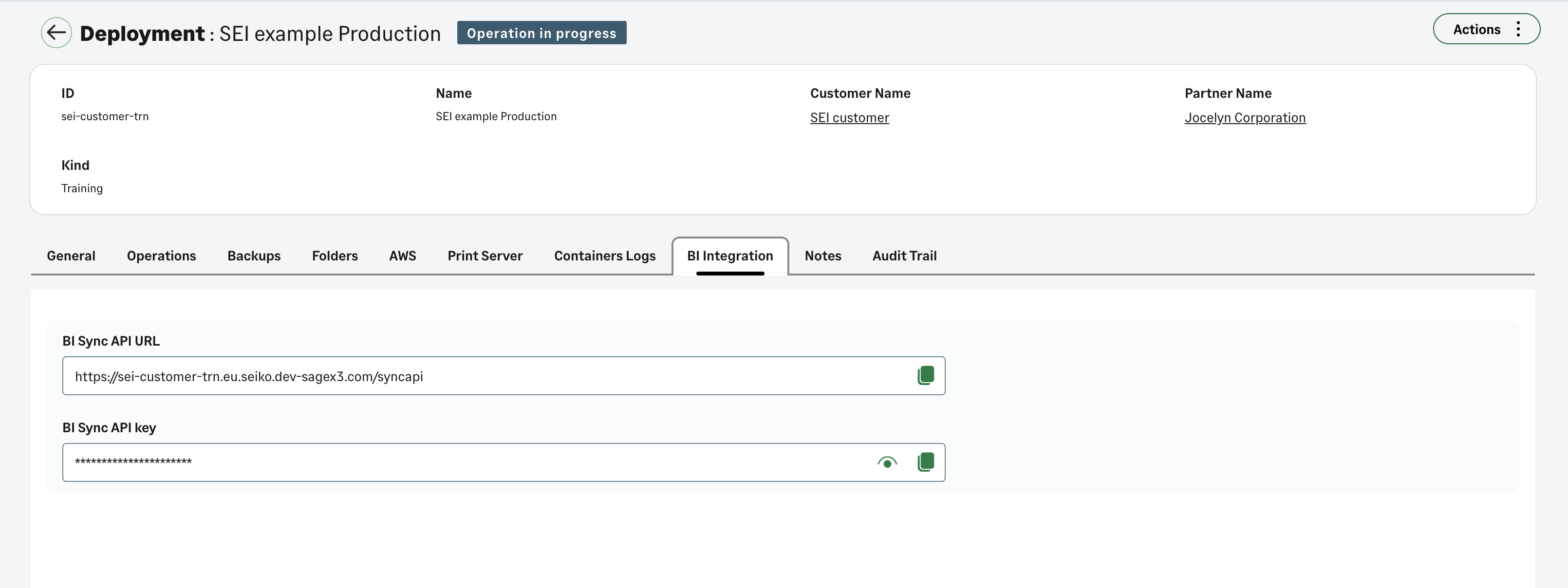
Step 1: Locate your BI Sync API details
- Log in to your Partner Portal.
- In the deployment list, select your deployment.
- Select the BI integrations tab.
- Copy the BI Sync API URL and BI Sync API key and store them securely. You will need both when creating your source connection.
Step 2: Create the source connection in DataSync
- Log in to DataSync.
- From the welcome screen, select Connections.
- Next to Source Connections, click New.
- Select Sage X3 (Cloud).
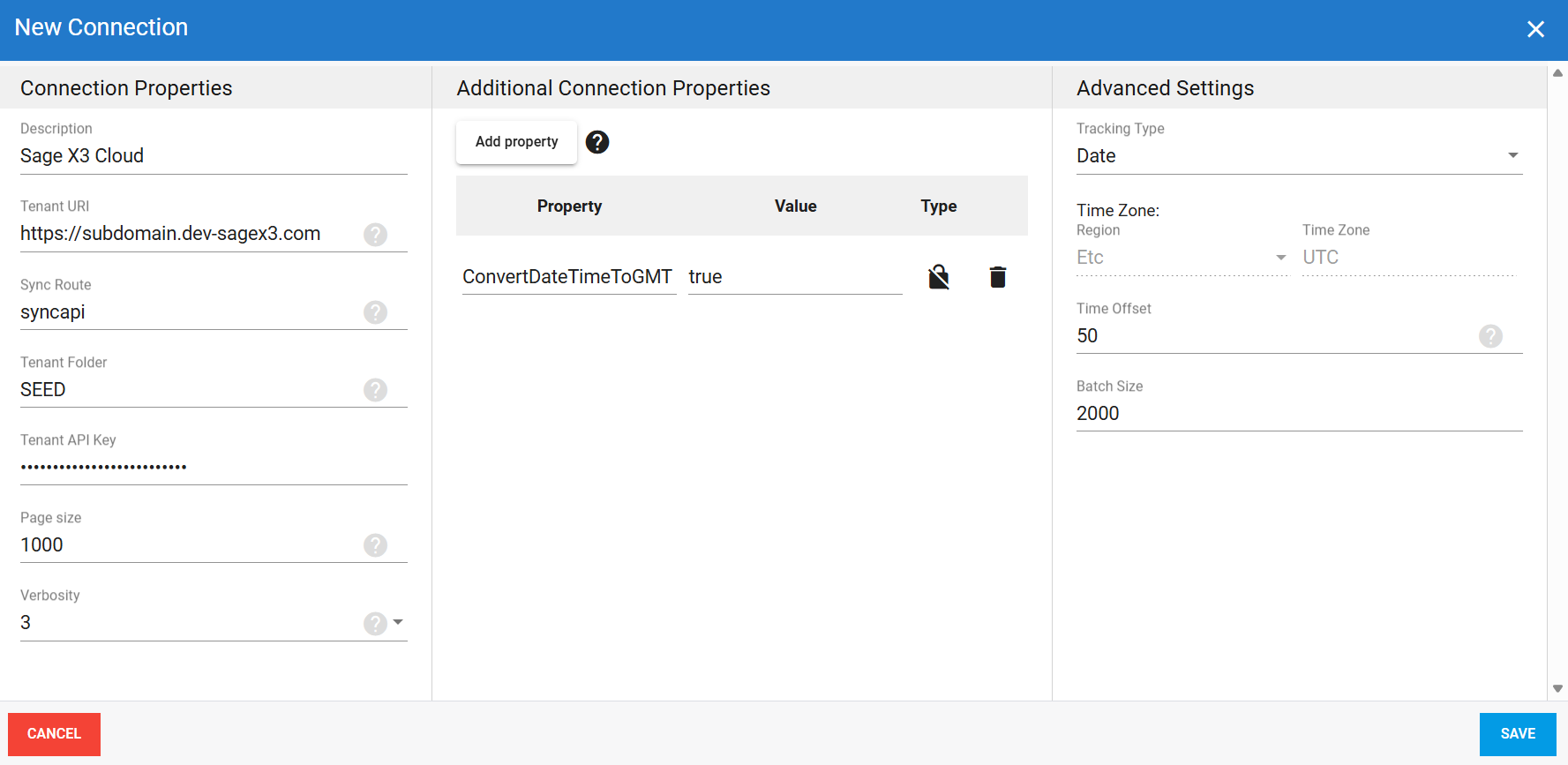
- Enter all required connection properties.
- (Optional) In the Additional Connection Properties panel, click Add property and enter any extra parameters you need.
- Configure the advanced settings to match your environment, including Tracking Type.
- Click Save.
Connection properties
| Property | What to enter |
|---|---|
| Description | Unique name for the connection. Example: Sage X3 Cloud. |
| Tenant URI | Base URL of the X3 deployment. Matches the BI Sync API URL. Example: https://subdomain.dev-sagex3.com. |
| Sync Route | API route exposed by your X3 environment. Example: syncapi. |
| Tenant Folder | API folder to expose. Derived from the last segment of the BI Sync API URL, with the specific folder appended. Example: SEED. |
| Tenant API Key | BI Sync API key associated with your X3 instance. Each instance uses a single key shared across all folders. |
| Page Size | Number of records returned per API call during paging. Higher values return more data per page but may increase timeout risk. Default: 1000. |
| Verbosity | Controls how much detail the connector writes to the log. Each level includes everything from the level below it, plus additional detail.
|
Additional connection properties
Use this panel to enter connection string properties not available in the Connection Properties panel. For sensitive values such as passwords, set the type to Encrypted. The value is hidden in the interface and stored encrypted in the back end.
The ConverDateTimeToGMT property is added automatically when you create
a new Sage Business Cloud X3 source connection.
| Property | What to enter |
|---|---|
ConverDateTimeToGMT | Automatically set to True. Converts all DateTime values to GMT. |
Advanced settings
These settings control how the connector tracks data changes, handles time and regional configuration, and processes records during extraction.
| Setting | What to select |
|---|---|
| Tracking Type | Method for tracking data changes: None or Date. |
| Region | Fixed to Etc for this connector. |
| Time Zone | Fixed to UTC for this connector. |
| Time Offset | Refresh offset in seconds to compensate for timing issues in record selection. Minimum 0, maximum 3600. |
| Batch Size | Number of records processed per batch during extraction. Larger batches can improve performance but use more memory. Default is 2000, maximum is 10000. Adjust based on your network speed and disk performance. The default works well in most cases. |
Example setup