Sage Intacct Source Connector
The Sage Intacct source connector lets DataSync retrieve data from Sage Intacct and load it into your data warehouse.
Creating two source connections is the recommended setup: a refresh connection that uses date tracking for incremental loads based on the LastModifiedDate field, and a no refresh connection for tables without a tracking field, typically smaller reference tables. If you are setting up Sage Intacct for the first time, the Sage Intacct installation guide walks you through creating both connections as part of the full setup.
Once your source connection is ready, configure your destination connection to finish the setup.
Sage Intacct has scheduled maintenance every Saturday from 2:30 AM to 5:30 AM UTC. Avoid scheduling jobs during this window to prevent data discrepancies. If a job runs during maintenance, a Truncate and Load may be required. Check Sage Status for the current maintenance schedule.
Create the source connection in DataSync
- Log in to DataSync.
- From the welcome screen, select Connections.
- Next to Source Connections, click New.
- Select Sage Intacct.
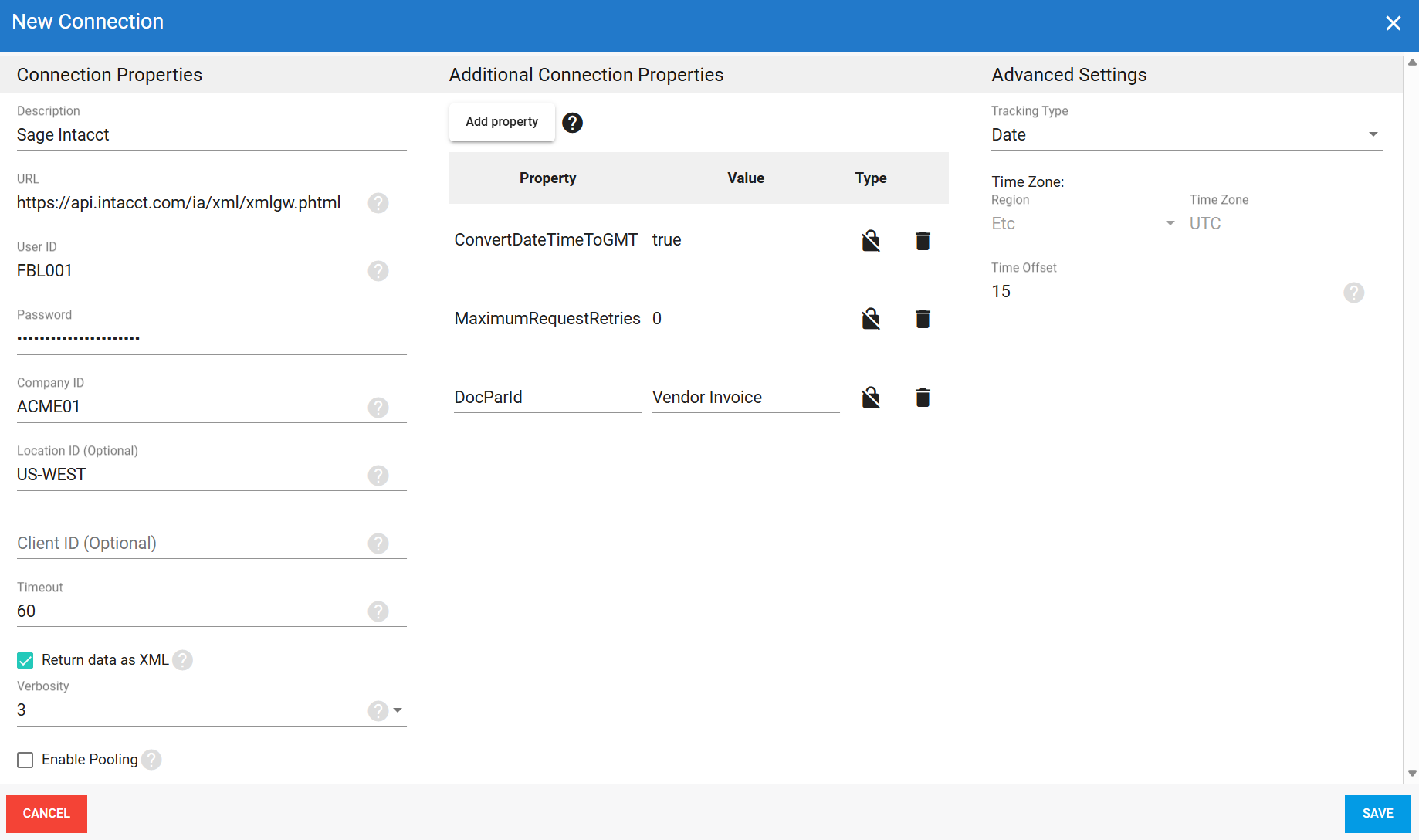
- Enter all required connection properties.
- (Optional) In the Additional Connection Properties panel, click Add property and enter any extra parameters you need.
- Configure the advanced settings to match your environment, including Tracking Type.
- Click Save.
Connection properties
| Parameter | Description |
|---|---|
| Description | Unique name for the connection. Example: Sage Intacct. |
| URL | API endpoint for Sage Intacct. Enter: https://api.intacct.com/ia/xml/xmlgw.phtml. |
| User ID | User identifier from your Sage Intacct credentials. Example: FBL001. |
| Password | Password for this account. |
| Company ID | Use this when your Sage Intacct company has multiple entities and you want to connect to a specific one. Example: ACME01. |
| Location ID | (Optional) Identifier for a specific location when connecting to a multi-entity shared company. Cannot be set at the same time as Client ID. Example: US-WEST. |
| Client ID | (Optional) Use this when connecting to a child company in a distributed Sage Intacct setup. Note that User ID and Password give access to the parent console, not the child company directly. Cannot be set at the same time as Location ID. Example: CLIENT-042. |
| Timeout | Time in seconds to wait before a connection attempt or query execution times out. |
| Return data as XML | Returns data in XML format instead of JSON. XML supports simultaneous requests to the same API object but is slower than JSON. |
| Verbosity | Controls how much detail the connector writes to the log. Each level includes everything from the level below it, plus additional detail.
|
Additional connection properties
Use this panel to enter connection string properties not available in the Connection Properties panel. For sensitive values such as passwords, set the type to Encrypted. The value is hidden in the interface and stored encrypted in the back end.
| Property | What to enter |
|---|---|
ConverDateTimeToGMT | Automatically set to True. Converts all DateTime values to GMT. |
MaximumRequestRetries | Number of times DataSync retries a failed API request before returning an error. Default: 0 (no retries). |
DocParId | Document type identifier for Sage Intacct custom fields. Only one document type can be specified per connection. If you need custom fields from a different document type, create a separate Sage Intacct connection. Example: Vendor Invoice |
Advanced settings
These settings control how the connector tracks data changes, handles time and regional configuration, and processes records during extraction.
| Setting | What to select |
|---|---|
| Tracking Type | Method for tracking data changes: None or Date. |
| Region | Fixed to Etc for this connector. |
| Time Zone | Fixed to UTC for this connector. |
| Time Offset | Refresh offset in seconds to compensate for timing issues in record selection. Minimum 0, maximum 3600. |
Example setup