Custom API Source Connector
The Custom API source connector lets DataSync connect to any REST API to extract and load data into your data warehouse. Before setting up the connection, you need to prepare an API profile file (.apip), table definition files (.rsd), or both, and then fill in the required connection properties.
DataSync supports three authentication types for Custom API connections: None for public APIs, HTTP Basic for username and password authentication, and OAuth 2.0. OAuth 2.0 itself supports two methods: authorization code for setups where a user signs in through a browser, and client credentials for system-to-system connections where no user sign-in is required.
You need to create your API profile files (.apip or .rsd) before configuring a Custom API source connection. See Understand API Profile Structure and Build a Custom API Profile to get started.
Once your source connection is ready, configure your destination connection to finish the setup.
Create the source connection in DataSync
- Log in to DataSync.
- From the welcome screen, select Connections.
- Next to Source Connections, click New.
- Select Custom API.
- Enter all required connection properties.
- (Optional) In the Additional Connection Properties panel, click Add property and enter any extra parameters you need.
- Configure the advanced settings to match your environment, including Tracking Type.
- Click Save.
Connection properties
| Property | What to enter |
|---|---|
| Description | Unique name for this API connection. For example: Custom API. |
| Authentication Type | Authentication method your API uses.
|
| Verbosity | Controls how much detail the connector writes to the log. Each level includes everything from the level below it, plus additional detail.
|
| API Profile | Upload location for your API profile or table definition files. For client credentials setups, see the OAuth2 client credentials example. |
HTTP Basic additional connection properties
| Property | What to enter |
|---|---|
ProfileSettings | Settings required by your data source, entered as comma-separated name-value pairs. Example: ProfileSettings='User=EmailId;Password=key';'Other=Domain=YourDomain'. |
Other | Additional provider options as name-value pairs. Common values:
|
HTTP Basic example setup
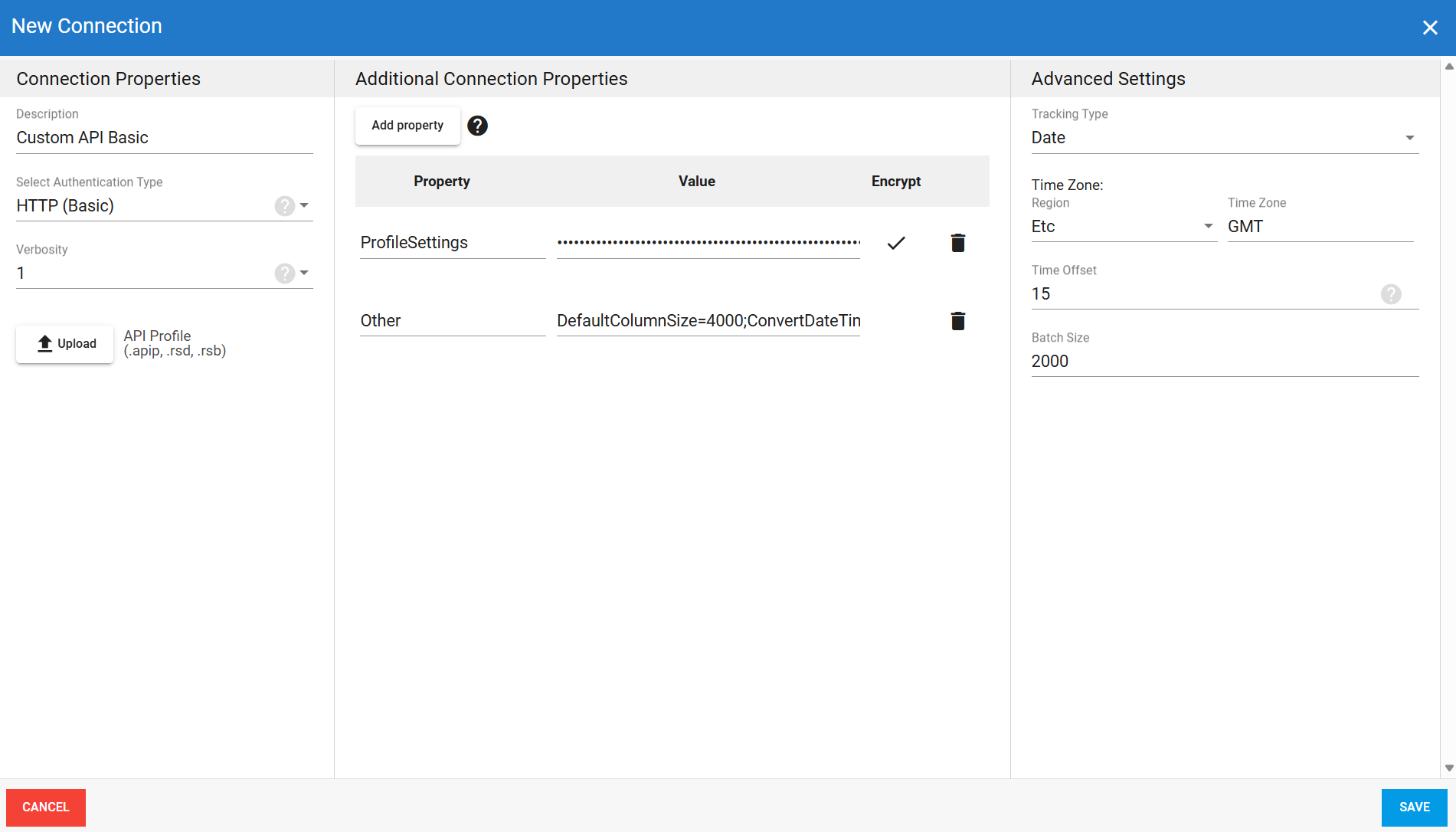
OAuth2 authorization code additional connection properties
Use this method when a user authenticates through a browser and the authorization server redirects back to a callback URL.
| Property | What to enter |
|---|---|
CallbackURL | Redirect URL for OAuth2. Must match the callback URL configured in your OAuth app settings. Example: https://datasync.mycompany.com/OAuthCallback/CallbackUrl. |
OAuthClientId | Client identifier assigned by your OAuth2 authorization server. Example: abc123clientid. |
OAuthClientSecret | Secret assigned by your OAuth2 authorization server. Set the type to Encrypted. Example: xK8mNpL7vRtYw2cDjHs9bEuFgAiZo3qB. |
Scope | Permission scope for your application. Example: Forms=Read. |
Other | Additional provider options as name-value pairs. Common values:
|
OAuth2 authorization code example setup
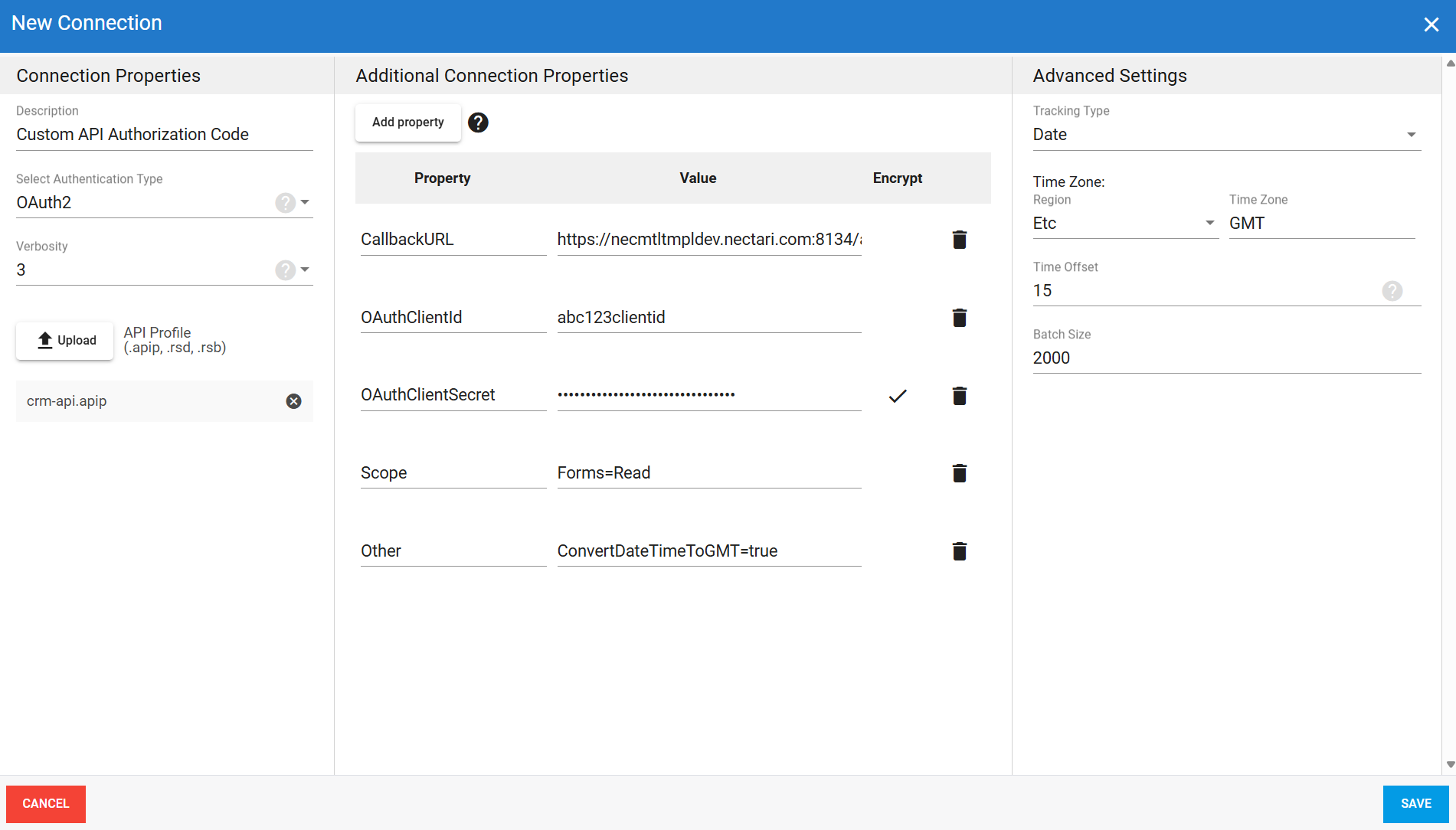
OAuth2 client credentials additional connection properties
Use this method for system-to-system connections where no user sign-in is required and no callback URL is needed.
| Property | What to enter |
|---|---|
AuthScheme | Enter OAuth. |
OAuthClientId | Client identifier assigned by your OAuth2 authorization server. |
OAuthClientSecret | Secret assigned by your OAuth2 authorization server. Set the type to Encrypted. |
Scope | Permission scope required by the provider. Example: employees.readonly. |
InitiateOAuth | Enter GETANDREFRESH. |
Other | Enter OAuthIncludedCallbackURL=False. |
OAuth2 client credentials example setup
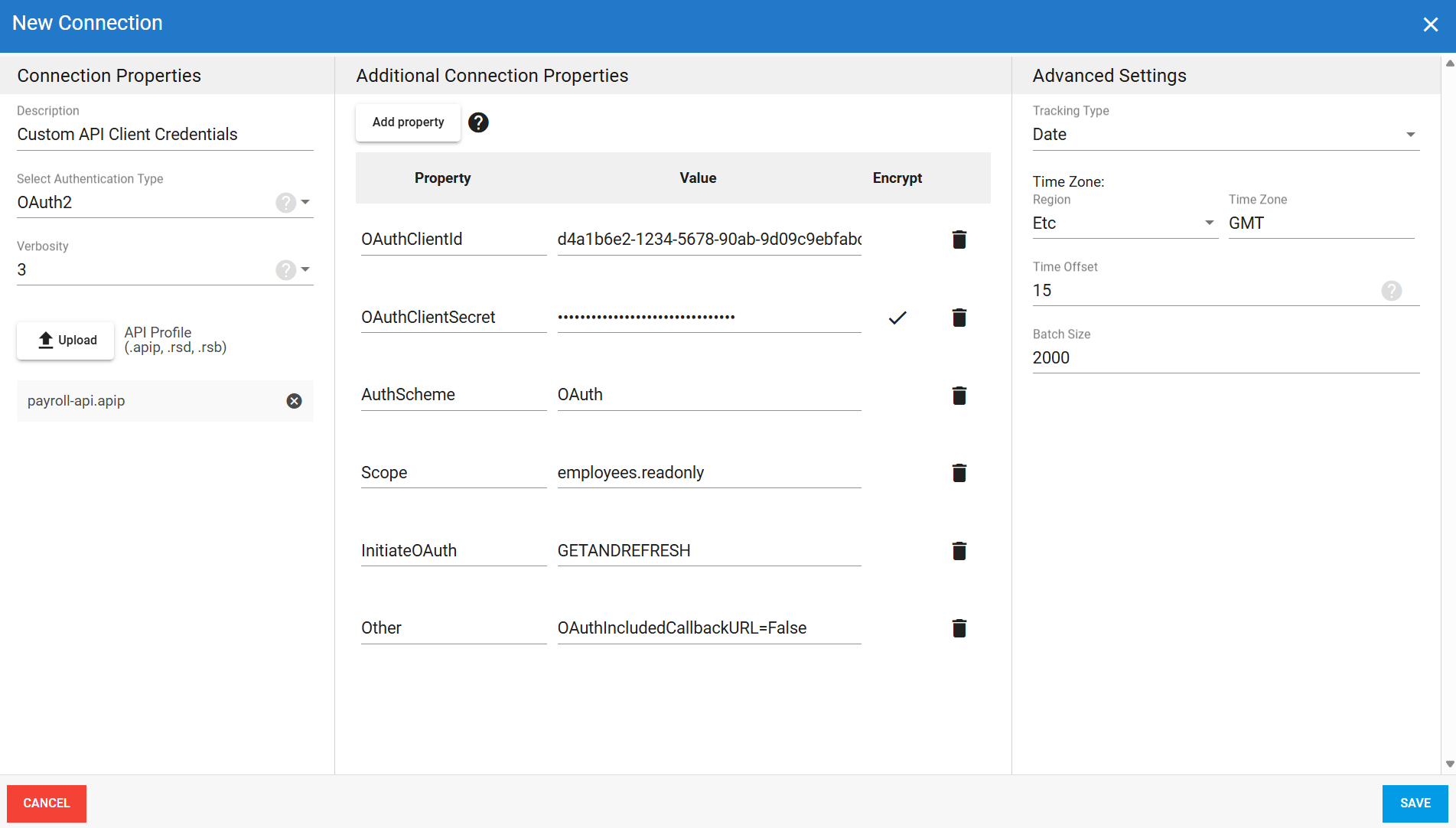
Advanced settings
These settings control how the connector tracks data changes, handles time and regional configuration, and processes records during extraction. Configure them to match your SAP HANA environment so that results stay accurate and consistent.
| Setting | What to select |
|---|---|
| Tracking Type | Method for tracking data changes: None or Date. |
| Region | Region setting for the connector, if required by your setup. |
| Time Zone | Time zone matching your SAP HANA environment. |
| Time Offset | Refresh offset in seconds to compensate for timing issues in record selection. Minimum 0, maximum 3600. |
| Batch Size | Number of records processed per batch during extraction. Larger batches can improve performance but use more memory. Default is 2000, maximum is 10000. Adjust based on your network speed and disk performance. The default works well in most cases. |