HubSpot Source Connector
The HubSpot source connector lets DataSync retrieve data from HubSpot using HubSpot and load it into your data warehouse. Authentication is handled through a HubSpot Private App Access Token, which gives DataSync secure access to the data your app is authorized to retrieve.
Once your source connection is ready, configure your destination connection to finish the setup.
Step 1: Create a private app in HubSpot
To connect DataSync to HubSpot, you need a Private App Access Token. Set the AuthScheme property to PrivateAppToken and OAuthAccessToken to your token value in the Additional Connection Properties in DataSync. For full details on private apps, see the HubSpot Private Apps documentation.
- Log in to HubSpot.
- Click the gear icon on the upper‑right corner to open Settings.
- In the left sidebar, select Integrations, then Legacy apps.
- Click Create, then choose Private.
- On the Basic Info tab, enter your app name and an optional description.
- Select the Scopes tab and select Add new scope.
- Select Read or Write for each scope your app needs. These scopes determine which HubSpot data DataSync can retrieve. Refer to the
OAuthRequiredScopesandOAuthOptionalScopesproperties for recommended selections. - Select Update, then Create app.
- Review the access token information and select Continue creating.
- Select Show token to reveal your access token.
- Select Copy to copy the token.
You will use this token as the value for two aditionnal properties in DataSync: OAuthAccessToken and AuthScheme.
View your access token later
If you need to retrieve your token again:
- Select the gear icon in the upper-right corner to open Settings.
- In the left sidebar, select Integrations, then Legacy apps.
- Select your private app and open the Auth tab.
- Select Show token, then Copy.
Step 2: Create the source connection in DataSync
- Log in to DataSync.
- From the welcome screen, select Connections.
- Next to Source Connections, click New.
- Select HubSpot.
- Enter all required connection properties.
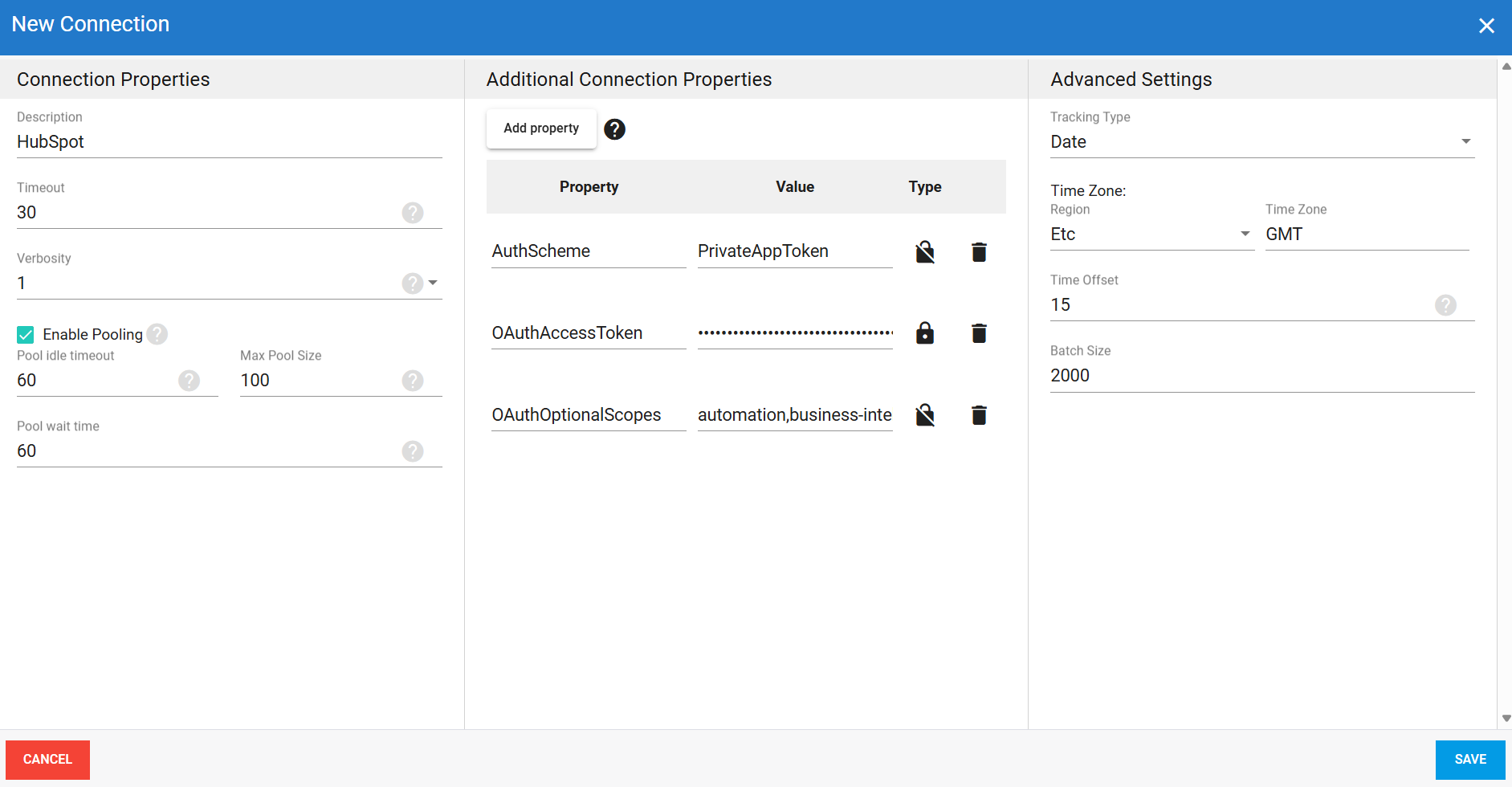
- (Optional) In the Additional Connection Properties panel, click Add property and enter any extra parameters you need.
- Configure the advanced settings to match your environment, including Tracking Type.
- Click Save.
Connection properties
| Property | What to enter |
|---|---|
| Description | Unique name for the connection. Example: HubSpot. |
| Timeout | Time in seconds to wait before a connection attempt or query execution times out. |
| Verbosity | Controls how much detail the connector writes to the log. Each level includes everything from the level below it, plus additional detail.
|
| Enable Pooling | Enables connection pooling, which keeps a set of database connections open and reuses them across extractions instead of opening a new connection each time. This reduces overhead and improves performance when multiple extractions run at the same time. |
| Pool idle timeout | Time in seconds a connection can stay idle before returning to the pool. |
| Max Pool Size | Maximum number of connections allowed in the pool at the same time. |
| Pool wait time | Time in seconds DataSync waits for an available connection before throwing an error. |
Additional connection properties
Use this panel to enter connection string properties not available in the Connection Properties panel. For sensitive values such as passwords, set the type to Encrypted. The value is hidden in the interface and stored encrypted in the back end.
| Property | What to enter |
|---|---|
OAuthAccessToken | Access token for your HubSpot private app. Example: pat-na1-12345678-abcdefgh-ijklmno. |
OAuthOptionalScopes | Comma-separated list of API scopes available to your app. Refine the list based on the data you need to retrieve. Example: automation,business-intelligence,crm.lists.read,crm.objects.contacts.read,crm.objects.deals.read,oauth. |
AuthScheme | Authentication scheme for the connection PrivateAppToken when using a private app access token. |
Advanced settings
These settings control how the connector tracks data changes, handles time and regional configuration, and processes records during extraction. Configure them to match your Hubspot environment so that results stay accurate and consistent.
| Setting | What to select |
|---|---|
| Tracking Type | Method for tracking data changes: None or Date. |
| Region | Region setting for the connector, if required by your setup. |
| Time Zone | Time zone matching your Hubspot environment. |
| Time Offset | Refresh offset in seconds to compensate for timing issues in record selection. Minimum 0, maximum 3600. |
| Batch Size | Number of records processed per batch during extraction. Larger batches can improve performance but use more memory. Default is 2000, maximum is 10000. Adjust based on your network speed and disk performance. The default works well in most cases. |
Example setup