Reporting Tree Permissions
The Reporting Tree options in Excel and in reports are only available to roles where they have been explicitly enabled in SEI. Granting access controls which users can select, filter, or duplicate data using a reporting tree. Managing the trees themselves, creating, editing, or deleting them, is controlled separately.
When you grant permissions to a role, you also have to make sure the right users are assigned to that role. Otherwise, the reporting tree options won't apply to them.
Grant permissions for the Excel Add-in
When a user opens a sheet in Excel for the first time, the three reporting tree options appear in the ribbon. Which options remain active depends on the settings configured in Administration, and any disabled option appears greyed out.

- In the navigation panel, click the gear icon to open the Administration page.
- Expand Security, then select Roles.
- In the Manage dropdown, select General Roles.
- From the list, select the role to grant access to.
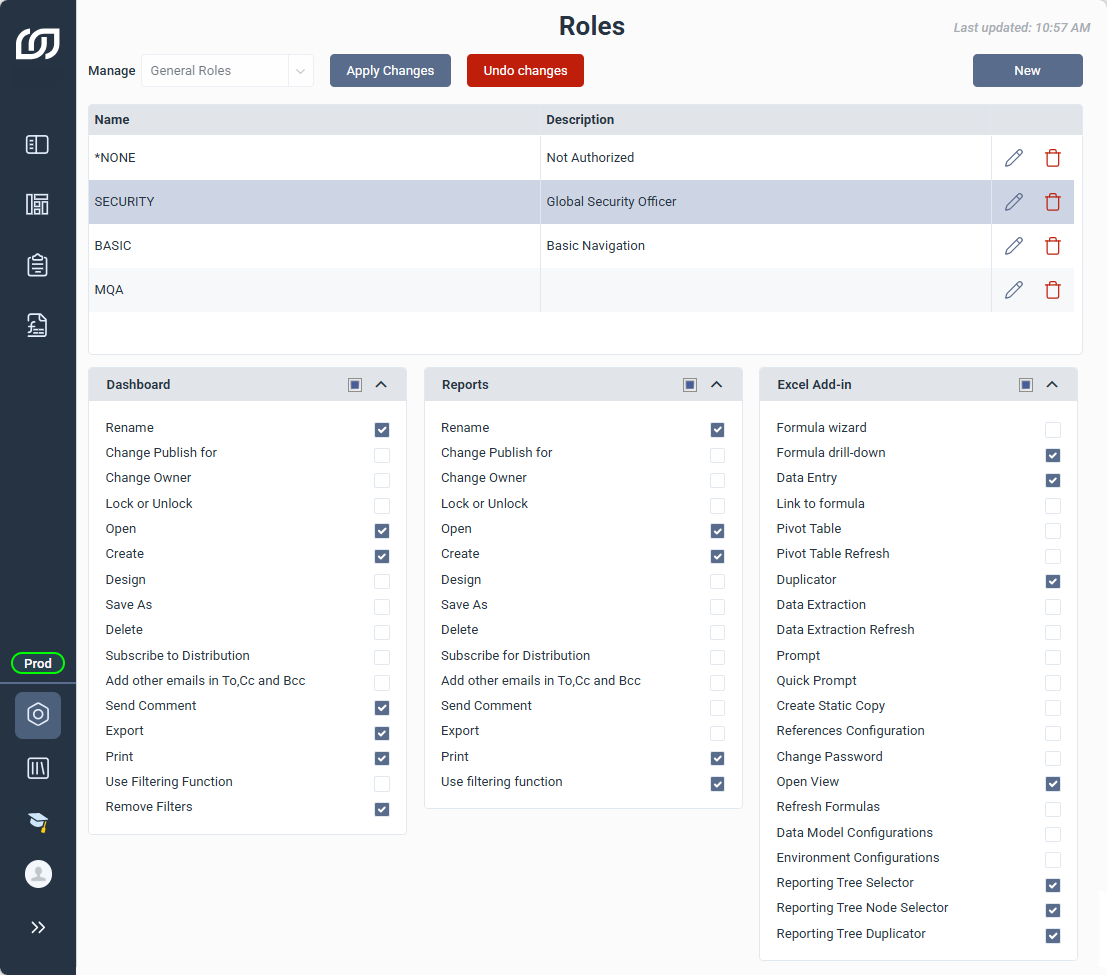
- Under Excel Add-in, check the three reporting tree permissions.
- Click Apply Changes to save.
- (Optional) Repeat these steps for additional roles as needed.
| Permission | What it does |
|---|---|
| Reporting Tree Selector | Attaches a reporting tree to the sheet. |
| Reporting Tree Node Selector | Selects a node as the active filter for the sheet. |
| Reporting Tree Duplicator | Duplicates the sheet once per node. |
Grant permissions for reports
Enabling this permission gives full access to reporting trees in reports. Once a reporting tree is added to a report, report data can be filtered by selecting different nodes directly.
- In the navigation panel, click the gear icon to open the Administration page.
- Select Security, then Roles.
- In the Manage dropdown, select General Roles.
- From the list, select the role to grant access to.
- Under the Reports section, select Use Filtering Function.
- Click Apply Changes to save.
- (Optional) Repeat these steps for additional roles as needed.
Control access to manage reporting trees
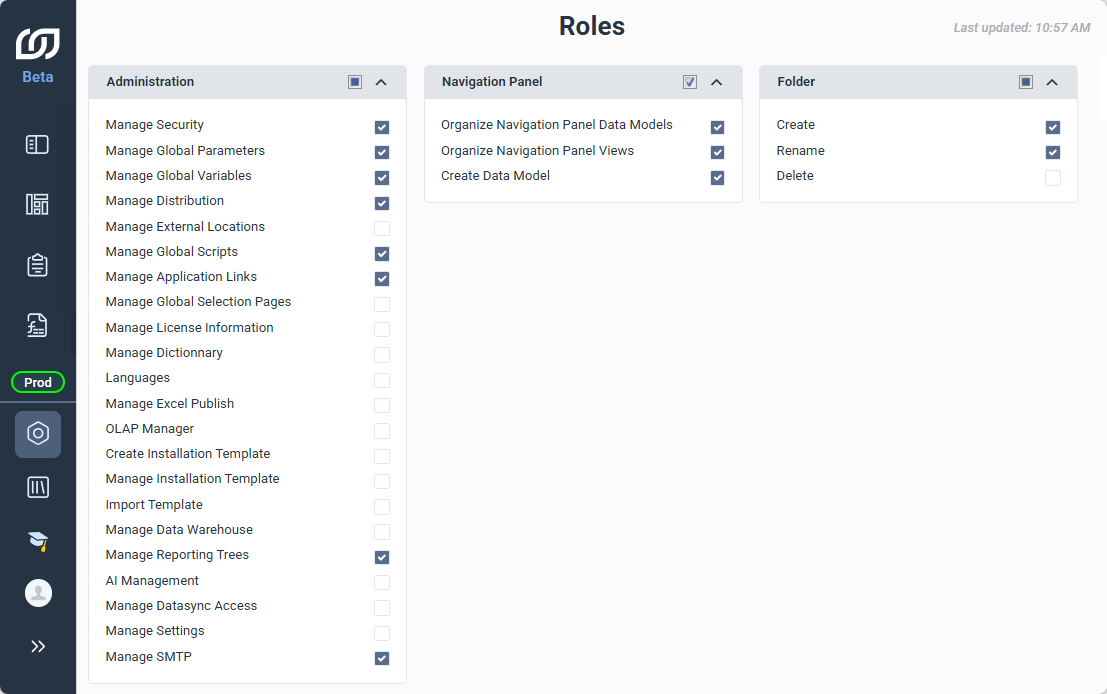
The Manage Reporting Trees permission controls who can access the Reporting Trees page in Administration to create, edit, or delete reporting trees. This is separate from the permissions above, which control who can use an existing reporting tree in Excel or in reports.
- In the navigation panel, click the gear icon to open the Administration page.
- Select Security, then Roles.
- In the Manage dropdown, select General Roles.
- Select the Security role.
- Under the Administration section, make sure Manage Reporting Trees is enabled.
- Click Apply Changes.