Manage Reporting Tree Nodes
A reporting tree is built from nodes, which are either groups or filters. Groups organize the hierarchy into levels, such as departments, regions, or business units, while filters define the actual data included at each level using global parameters.
Filters can be added at the root of the tree or nested inside groups and subgroups. Top level filters apply across the entire tree, while nested filters apply only within their group. This structure keeps the hierarchy consistent as it changes over time, so reports continue to reflect its current state.
- Reporting Tree
- Group
- Subgroup
- Filter
- Filter
- Subgroup
- Root Level Filter
- Group
- Filter
- Filter
- Group
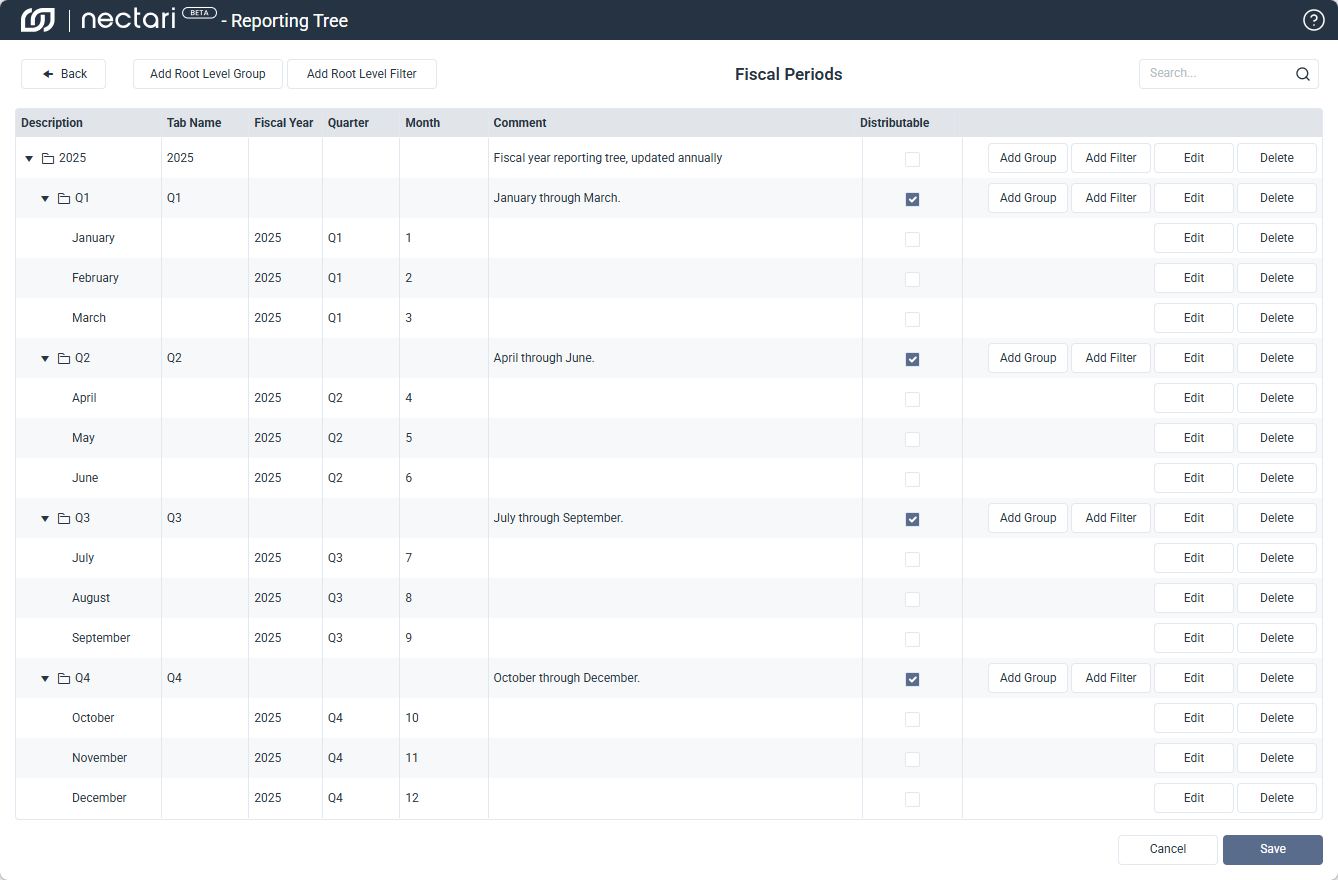
Add a group
- In the navigation panel, click the gear icon to open the Administration page.
- Select Reporting Trees.
- Choose a reporting tree from the list.
- Click the Manage Nodes icon.
- Click Add Root Level Group.
- Enter a description for the group.
- Click the paste icon under Tab Name to copy the description, or manually enter the tab label.
- (Optional) Add a comment.
- Check Distributable if the group and its filters should be available for distribution.
- Click Save.
Nested groups for subcategories can be added by clicking Add Group inside an existing group.
Add a filter
Filters can be added at the root level or inside a group, depending on where the segmentation should apply within the hierarchy.
- Click the Manage Nodes icon next to a reporting tree.
- Add a filter using one of two methods:
- Click Add Root Level Filter to filter at the top level.
- Click Add Filter inside a group to filter within that group.
- Enter a description for the filter.
- Click the paste icon under Tab Name to copy the description, or manually enter the tab label.
- Use the prompt to select a value, or wildcards for a more precise matching.
- (Optional) Add a comment.
- Select the Distributable checkbox if the filter should be available for distribution.
- Click Save.
Search values with wildcards
Wildcards apply only to text values, not numbers. To use them, select the prompt icon next to a filter and choose wildcards from the filter method.
Supported Wildcards
?matches exactly one character*matches one or more characters!excludes characters or ranges;separates multiple values[a:b]defines a range between two values
| Example | What it matches |
|---|---|
4000 | Matches exactly 4000. |
4000;5000;6000 | Matches 4000, 5000, or 6000. |
4* | Matches any value starting with 4. |
4??? | Matches values starting with 4 with exactly four characters. |
[4000:4999] | Matches values between 4000 and 4999. |
!4000 | Excludes 4000. |
!4* | Excludes values starting with 4. |
!4??? | Excludes values starting with 4 with exactly four characters. |
![4000:4999] | Excludes values between 4000 and 4999. |
[10000:10200]!10100 | Matches values between 10000 and 10200, but excludes 10100. |
!1000;2000;7000 | Excludes 1000, 2000, and 7000. |
4???-???-10 | Starts with 4, followed by three characters, then -, any three other characters, another -, and finish with 10. |
4???;[4000:4999] | ERROR Combining ; and [a:b] is not supported. |
Reorganize nodes
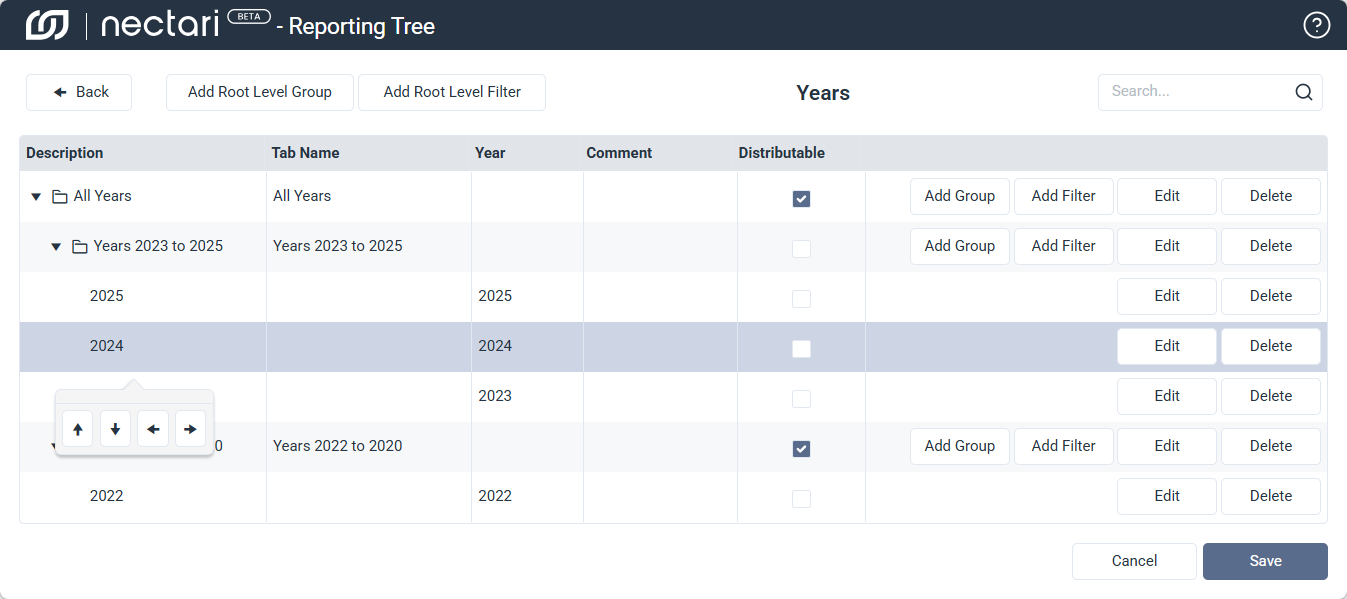
Groups and filters can be restructured in the Manage Nodes window by dragging and dropping them, or by using the arrow controls.
| Control | What it does | |
|---|---|---|
 | Move up | Moves the node one position higher within its current group, without changing its level in the hierarchy. |
 | Move down | Moves the node one position lower within its current group, without changing its level in the hierarchy. |
 | Promote | Moves the node up one level in the hierarchy, making it a sibling of its former parent group. |
 | Demote | Moves the node down one level in the hierarchy, nesting it under the node directly above it. |