Create a Reporting Tree
A Reporting Tree organizes reports around a business structure, such as departments, cost centers, or territories. Each level of the hierarchy is represented as a node, and nodes connect into a tree that aggregates data from child nodes into their parent. This structure is common for financial reporting, but it also applies to sales, logistics, manufacturing, or any other business function organized into levels.
You build a reporting tree from groups of nodes, where each node represents an organizational level or business context. Once the tree exists, you can use it to filter reports, consolidate data across levels, and distribute customized output to each unit automatically. Each reporting tree uses global parameters as filters, applying data segmentation at different levels of the hierarchy.
When to use reporting trees
- Consolidate data across departments, regions, or business units into a single hierarchy.
- Apply filters at every level without creating a separate filter for each unit.
- Distribute reports automatically to each node in the hierarchy.
A reporting tree with 2025 as the root node, divided into Q1 through Q4, filters data by quarter separately, or combines all four quarters at the 2025 level above them. Each quarter can be divided further into months for more granular filtering.
Create a reporting tree
- In the navigation panel, select the gear icon to open the Administration page.
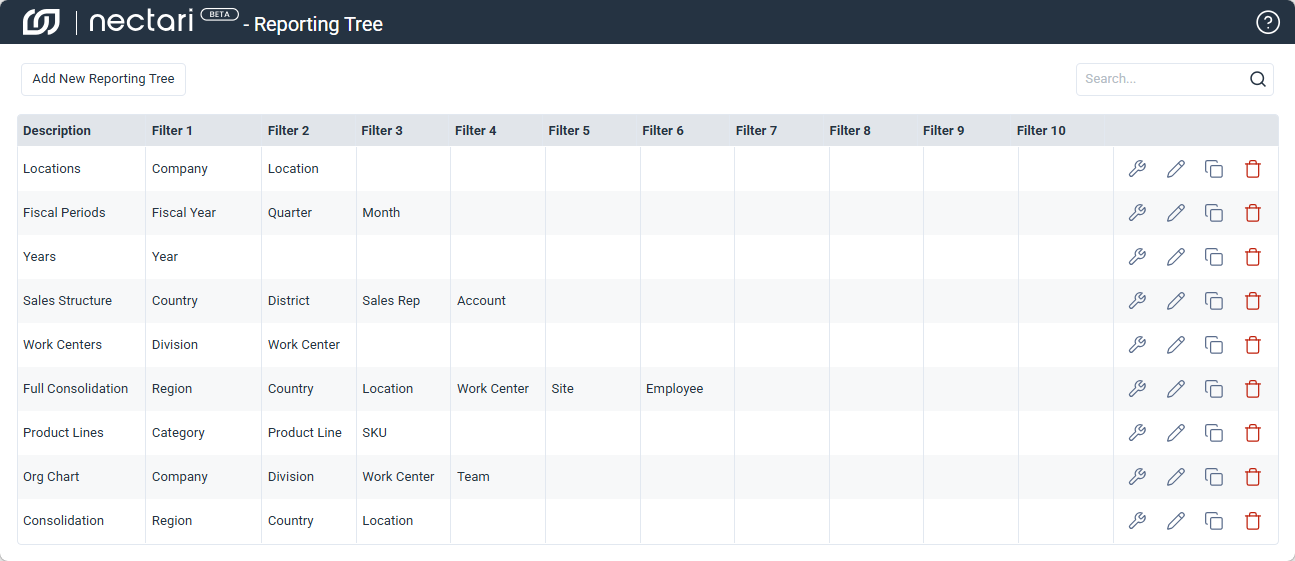
- Select Reporting Trees from the sidebar.
- Click Add New Reporting Tree.
- Enter a name for the reporting tree.
- Select global parameters for each filter dropdown to populate the root level filters in the tree.
- Click Confirm.
- Add and organize the nodes for the reporting tree.
The Duplicate icon copies an existing reporting tree, including all its nodes and filters. Building next year's fiscal reporting tree from the current year's, for example, only requires updating the filter values instead of rebuilding the structure from scratch.

Edit a reporting tree
- In the Reporting Trees window, select a reporting tree form the list.
- Click the pencil icon to open the dialog.
- Make any necessary changes.
- Click Confirm to save.
Delete a reporting tree
- In the Reporting Trees window, select a reporting tree form the list.
- Click the trash icon.
- Click Delete in the confirmation dialog.