Distribute Reports with a Reporting Tree
A reporting tree can be used in a distribution job to automatically generate and distribute a filtered report version for each node in the hierarchy, such as a department, region, or cost center. This removes the need to create a separate job or filter for each business unit, since the tree structure already defines how the data should be segmented.
Using a reporting tree in a distribution job requires a reporting tree with its nodes already configured. This option is also limited to views in Excel format.
When to distribute reports with a reporting tree
- Automate report distribution to departments or business units without creating a separate job for each one.
- Distribute large numbers of report variations, such as one per branch, region, or manager, through a single distribution job.
- Match each report to its recipient's position in the hierarchy, based on the structure defined in the reporting tree.
Build a distribution job using a reporting tree
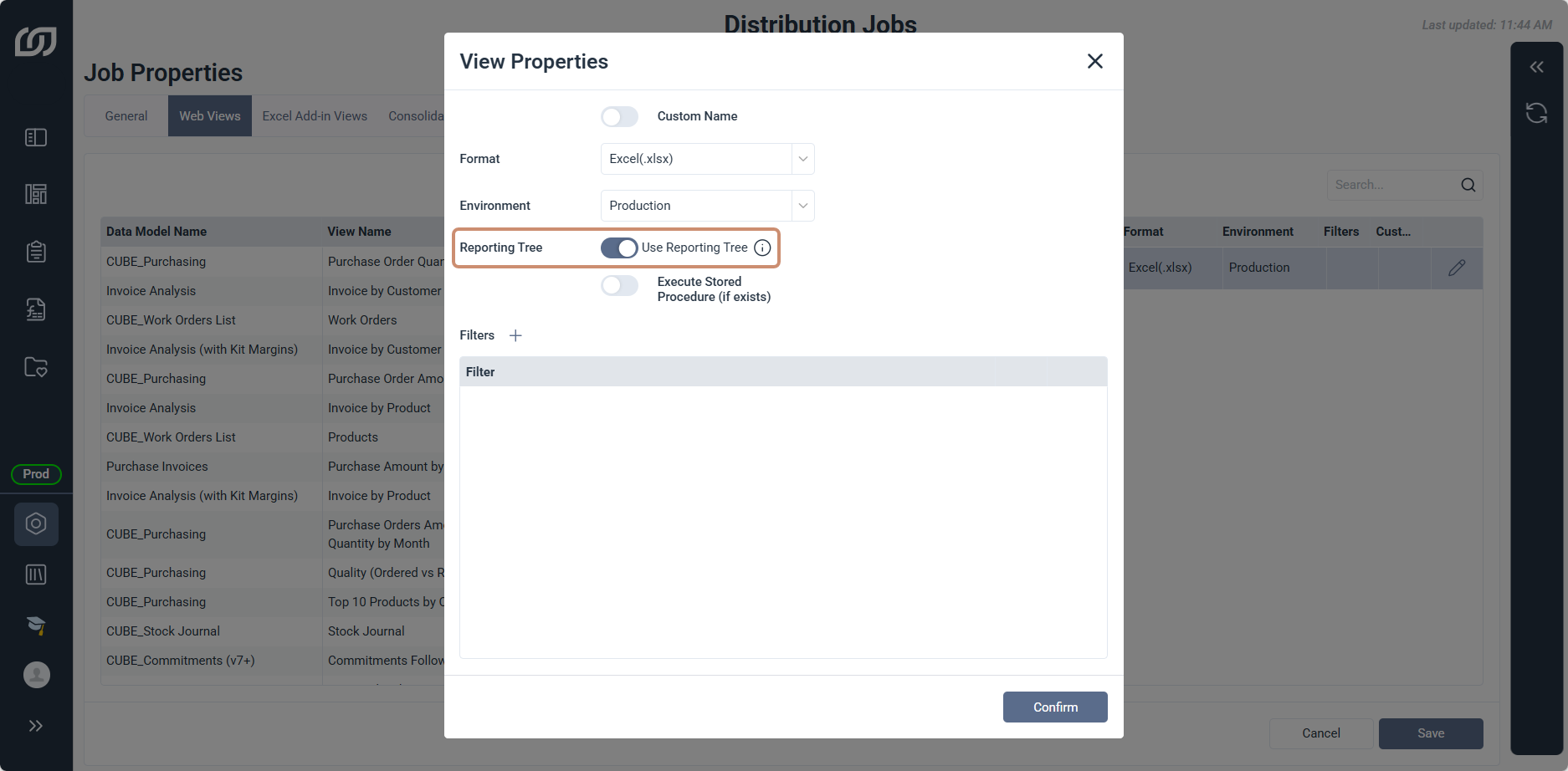
The Use Reporting Tree toggle only appears when the selected view uses the Excel (.xlsx) or Excel (.xls) format. When enabled, the distribution job generates one sheet for each node of the reporting tree.
A distribution job using a Fiscal Periods reporting tree generates one sheet per distributable quarter. With Q1 and Q2 marked as distributable, the job produces two sheets from the same view, one filtered to Q1, the other to Q2.
- In the navigation panel, click the gear icon to open the Administration page.
- Select Distribution, then Distribution Jobs.
- In the Options panel, click Create a New Job.
- In the Web Views tab, select a view and move it to the right using the arrow.
- Click the pencil icon.
- Under Format, select Excel(.xlsx) or Excel(.xls) from the dropdown.
- Toggle Use Reporting Tree.
- Click Confirm.
- Continue with the standard distribution job settings and click Save.