Inventory Replenishment & PO Creation
The Inventory Replenishment & PO Creation Writeback template lists inventory availability and creates purchase orders in Acumatica directly from a workbook. You can use the template for low stock replenishment, warehouse restocking, reviews of suggested order quantities, and purchase orders with many items. It uses the NECWRITEBACK formula, generated with the Writeback Wizard, to send changes from your workbook back to Acumatica.
Click Initialize before you edit the inventory planning grid. Initialize creates a workbook copy with static data, so a refresh doesn't erase your changes.
Write a purchase order back to Acumatica
- Fill in the required fields of the purchase order header.
- Narrow the items in the grid with the optional filters.
- Click Initialize.
- Enter an Order Qty for each item to order, based on the stock quantities and the Suggested Order.
- Review the purchase order in the Status column and the validation summary, then click Push to Acumatica.
- Click Reset before you start another purchase order.
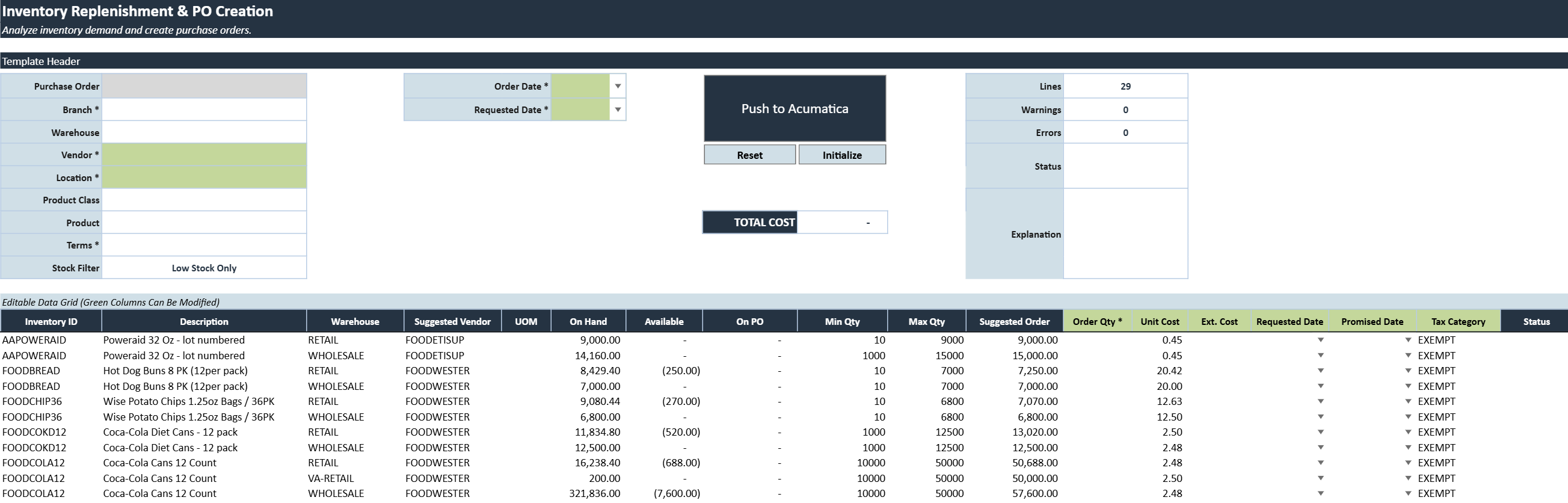
Purchase order header fields
The header holds the settings of the purchase order and the filters of the inventory planning grid. Fields marked with an asterisk (*) are required. Warehouse, Product Class, Product, and Stock Filter are optional filters.
| Header field | What it does |
|---|---|
| Purchase Order | Purchase order number returned by Acumatica after a successful writeback. The populated value links to the created purchase order. |
| Branch * | Branch for which the purchase order is created. |
| Warehouse | Optional warehouse filter used to narrow the inventory records displayed. |
| Vendor * | Vendor assigned to the purchase order. Lines whose suggested vendor differs from this vendor are identified with a warning. |
| Location * | Vendor location assigned to the purchase order. |
| Product Class | Optional filter used to display inventory items from a specific product class. |
| Product | Optional filter used to display a specific inventory item. |
| Terms * | Payment terms applied to the purchase order. |
| Stock Filter | Controls which inventory records are displayed, such as showing low stock items only. |
| Order Date | Date assigned to the purchase order. If left blank, Acumatica defaults the date during writeback. |
| Requested Date | Default requested receipt date for the purchase order. If left blank, Acumatica defaults the date during writeback. |
Vendor sets the vendor of the purchase order but doesn't limit the grid to the suggested items of that vendor.
Writeback actions
| Writeback action | What it does |
|---|---|
| Push to Acumatica | Validates the selected order lines and creates the purchase order in Acumatica. A confirmation message indicates whether the writeback succeeded. |
| Initialize | Creates a separate workbook copy with (Initialized) added to the file name. Data extractions are disabled and the extracted inventory data is made static in this copy so it remains available while order quantities are being prepared. |
| Reset | Clears the current changes and restores the template to its last saved state. Any unsaved order quantities or edits are removed. |
Inventory planning grid
The inventory planning grid lists the current stock quantities and the values that build the purchase order. You can edit the columns shaded green. Only lines with an Order Qty greater than zero are included in the purchase order.
| Inventory planning column | What it contains |
|---|---|
| Inventory ID | Inventory item available for replenishment. |
| Description | Description of the inventory item. |
| Warehouse | Warehouse associated with the displayed inventory balance. |
| Suggested Vendor | Preferred or suggested vendor configured for the inventory item. |
| UOM | Purchase unit of measure used for the order line. |
| On Hand | Quantity physically on hand at the warehouse. |
| Available | Quantity currently available after considering allocations and demand. |
| On PO | Quantity already included on open purchase orders. |
| Min Qty | Minimum stock quantity configured for the item and warehouse. |
| Max Qty | Maximum stock quantity configured for the item and warehouse. |
| Suggested Order | Suggested replenishment quantity based on current inventory and configured stock levels. |
| Order Qty * | Quantity to purchase. Lines with a value greater than zero are included in the writeback. Only lines greater than zero are included in the purchase order. |
| Unit Cost | Unit cost used for the purchase order line. |
| Ext. Cost | Calculated extended cost based on Order Qty × Unit Cost. |
| Requested Date | Requested receipt date for the individual line. |
| Promised Date | Vendor promised receipt date for the individual line. |
| Tax Category | Tax category applied to the purchase order line. |
| Status | Displays whether the line is ready, contains a blocking error, or requires review. |
Review the purchase order before writeback
You can write the purchase order back to Acumatica only when no line has a blocking error. A vendor warning doesn't block the writeback, but confirm that you want to buy the item from the selected vendor.
- Complete Branch, Vendor, Location, and Terms in the header.
- Check the Unit Cost, Requested Date, and Promised Date of each line you order.
- Check that Lines matches the number of items you expect to order.
- Review each item under Warnings, such as an item whose suggested vendor differs from the purchase order vendor.
- Correct every blocking error under Errors.
- Confirm that Status shows the purchase order is ready.
- Check the Total Cost of the purchase order.
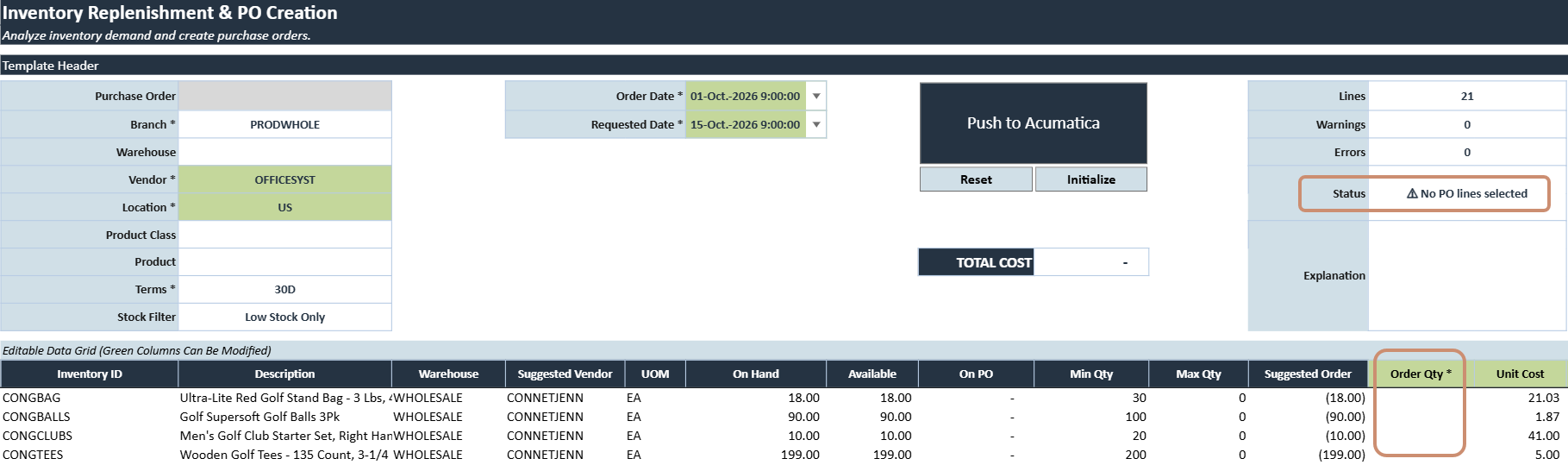
The Status shows No PO lines selected when no line has an Order Qty greater than zero. Enter an Order Qty on each item to order.