Sales Pricing Manager
The Sales Pricing Manager Writeback template updates base, customer, and customer price class sales prices in Acumatica directly from a workbook. You can use the template for price increases or decreases across many items, promotional pricing, price updates for one customer, margin reviews, and price changes with a future effective date. It uses the NECWRITEBACK formula, generated with the Writeback Wizard, to send changes from your workbook back to Acumatica.
Click Initialize before you edit prices. Initialize creates a workbook copy with static data, so a refresh doesn't erase your changes.
Write sales price changes back to Acumatica
- Fill in the worksheet header.
- Narrow the pricing records with the filter fields.
- Click Initialize.
- Select a Cost Basis and, if needed, a Warehouse for the margin calculations.
- Enter a Price Increase %, or edit % Change or New Price on individual lines.
- Review the sales prices in the margin summary and the validation summary, then click Push to Acumatica.
- Click Reset before you start another price update.
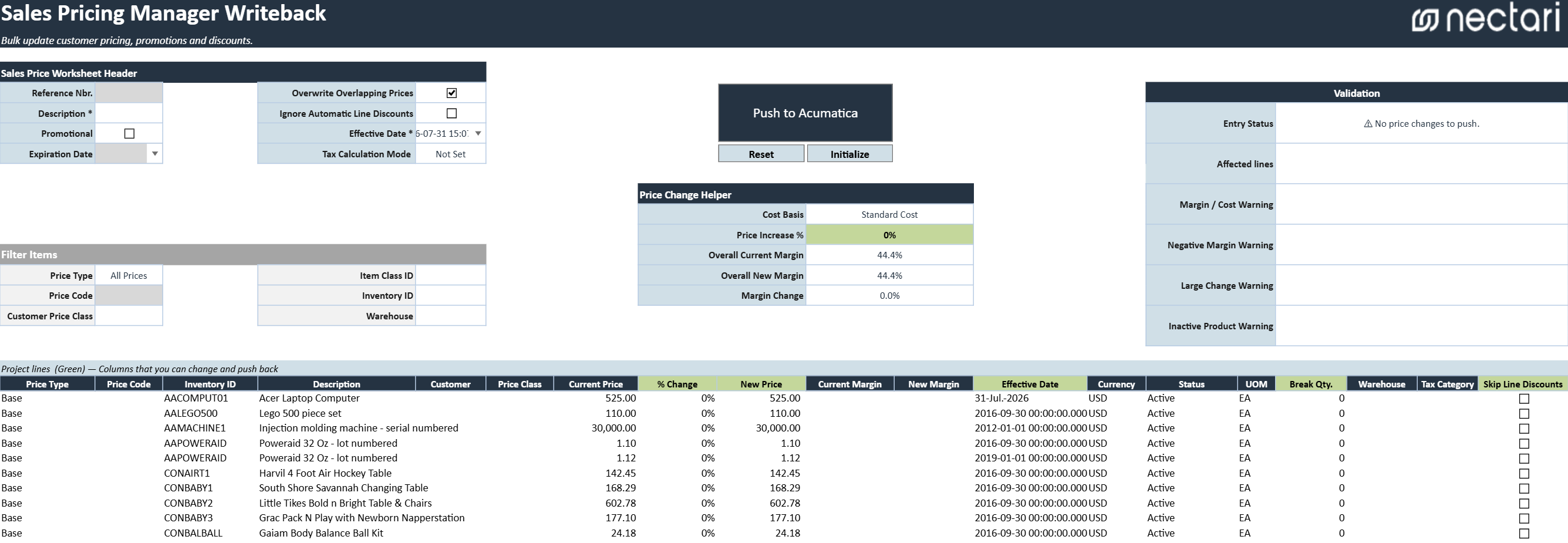
Sales price worksheet header fields
The worksheet header holds the settings of the sales price worksheet that Acumatica creates. Fields marked with an asterisk (*) are required. For promotional pricing, select Promotional and enter an Expiration Date later than the Effective Date.
| Header field | What it does |
|---|---|
| Reference Nbr. | Reference number returned by Acumatica after a successful writeback. The populated value links to the created sales price worksheet. |
| Description * | Description of the sales price update or worksheet. |
| Promotional | Indicates that the worksheet contains promotional prices with a limited effective period. |
| Expiration Date | Date on which promotional prices expire. Required for promotional pricing and must be later than the effective date. |
| Overwrite Overlapping Prices | Allows existing sales prices with overlapping effective periods to be replaced when the worksheet is released. |
| Ignore Automatic Line Discounts | Prevents automatic line discounts from being applied to prices created from the worksheet. |
| Effective Date * | Default date on which the updated prices become effective. |
| Tax Calculation Mode | Determines whether prices are treated as tax inclusive or tax exclusive according to the selected Acumatica mode. |
Overwrite Overlapping Prices works only when the sales price retention type is set to Fixed Number of Months on the AR Preferences form in Acumatica.
Pricing grid filters
The filter fields control which existing sales prices the pricing grid loads. A blank filter keeps every value for that field.
- Price Type limits the grid to one type of price, such as base, customer, or customer price class prices.
- Price Code keeps only the prices of one customer or customer price class code.
- Customer Price Class shows only the prices of one customer price class.
- Item Class ID narrows the grid to one inventory item class.
- Inventory ID loads the prices of a single inventory item.
- Warehouse keeps only the prices of one warehouse and sets the warehouse costs for the margin calculations.
Setting Price Type to Base, Item Class ID to SOFTWARE, and Warehouse to RETAIL loads only the base prices of software sold from the retail warehouse, with margins based on retail warehouse costs.
Writeback actions
| Writeback action | What it does |
|---|---|
| Push to Acumatica | Validates the changed pricing lines and creates a sales price worksheet in Acumatica. A confirmation message indicates whether the writeback succeeded. |
| Initialize | Creates a separate workbook copy with (Initialized) added to the file name. Data extractions are disabled and the extracted pricing data is made static in this copy so it remains available while changes are being prepared. |
| Reset | Clears the current changes and restores the template to its last saved state. Any unsaved pricing edits are removed. |
Sales pricing grid
The pricing grid lists the current sales prices and the new values you enter. You can edit the columns shaded green. Only lines with a changed New Price or % Change are included in the writeback.
| Pricing grid column | What it contains |
|---|---|
| Price Type | Type of sales price represented by the line. |
| Price Code | Customer or customer price class code associated with the price, when applicable. |
| Inventory ID | Inventory item whose sales price is being reviewed or updated. |
| Description | Description of the inventory item. |
| Customer | Customer associated with a customer specific price. |
| Price Class | Customer price class associated with the price. |
| Current Price | Existing sales price currently stored in Acumatica. |
| % Change | Percentage increase or decrease from the current price to the proposed new price. Editing this value recalculates New Price. |
| New Price | Proposed sales price to write back to Acumatica. Editing this value recalculates % Change. |
| Current Margin | Margin percentage based on the current price and selected cost basis. |
| New Margin | Margin percentage based on the proposed new price and selected cost basis. |
| Effective Date | Date on which the line's proposed price becomes effective. |
| Currency | Currency in which the sales price is defined. |
| Status | Current inventory item status. |
| UOM | Unit of measure to which the sales price applies. |
| Break Qty. | Minimum quantity required for the price to apply. |
| Warehouse | Warehouse associated with a warehouse specific sales price, when applicable. |
| Tax Category | Tax category associated with the price line. |
| Skip Line Discounts | Indicates that automatic line discounts should not be applied to the resulting price. |
Price change and margin helpers
The helpers summarize the effect of the new prices. Except for Price Increase %, which changes the prices in the grid, these values are for reference only and aren't written back to Acumatica.
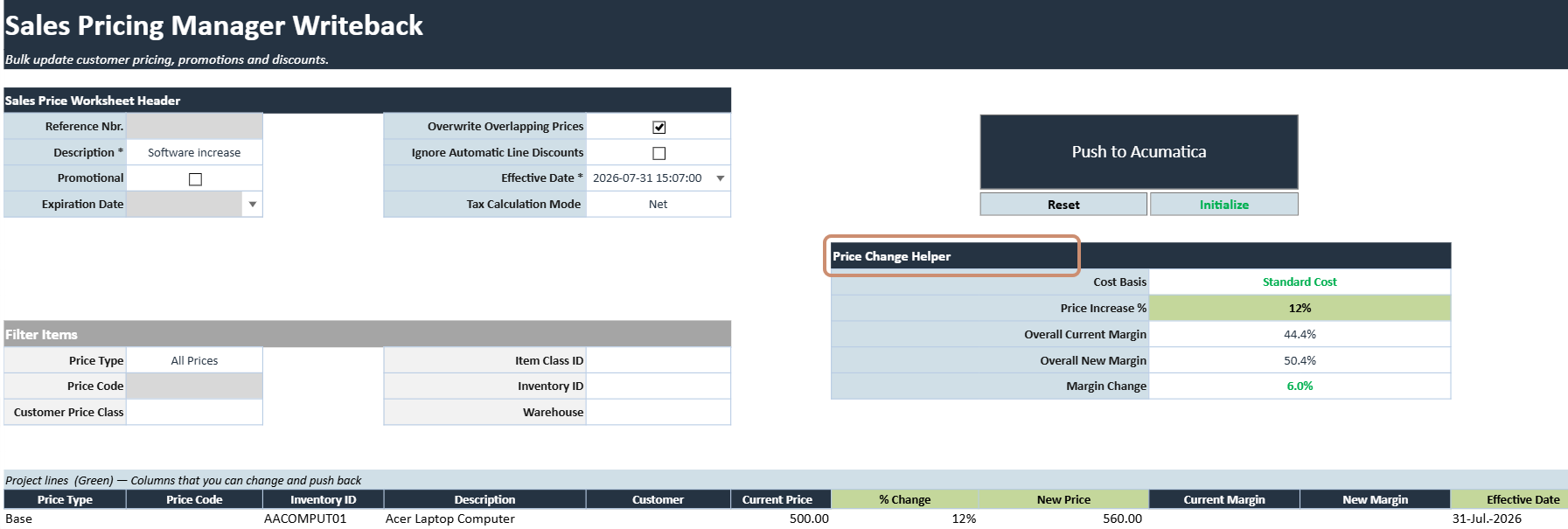
- Cost Basis sets the margin cost source, such as standard cost or warehouse standard, average, or last cost.
- Price Increase % applies a percentage change to every price displayed in the grid.
- Overall Current Margin shows the combined margin percentage of the current prices.
- Overall New Margin shows the combined margin percentage of the new prices.
- Margin Change calculates the difference between the overall current margin and the overall new margin.
Review the sales prices before writeback
A warning doesn't always block the writeback, but check each warning to confirm that the new price is intentional.
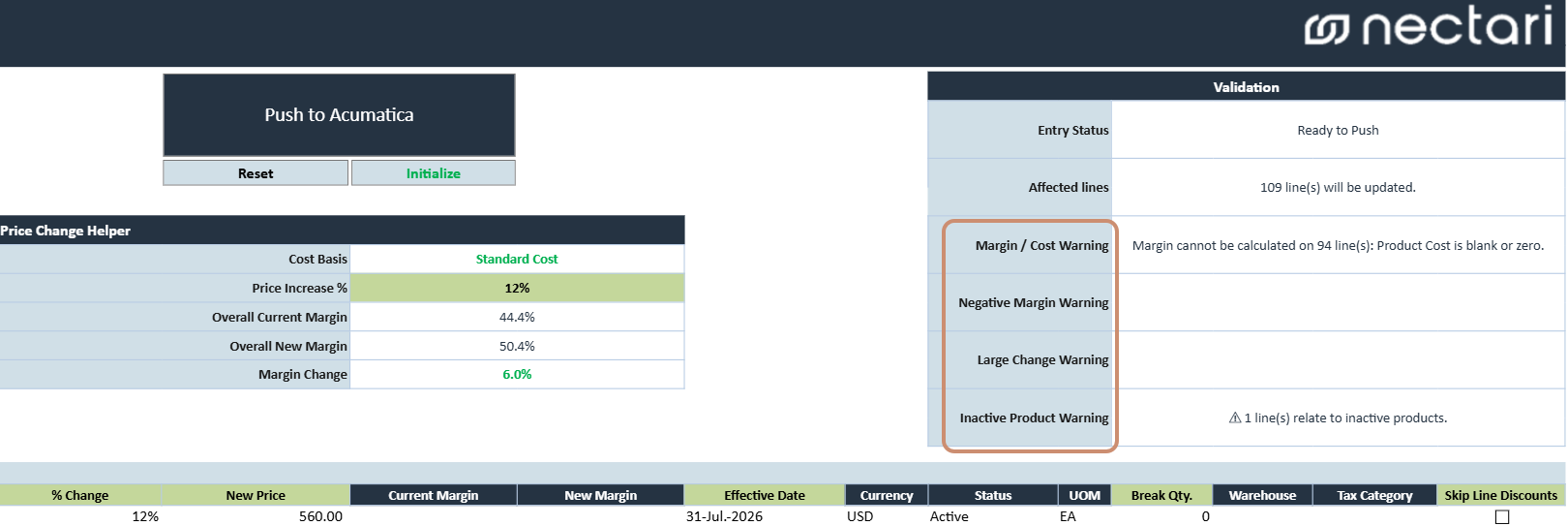
- Confirm that Entry Status shows price changes ready to push, with no blocking errors.
- Check that Affected Lines matches the number of lines you expect to change.
- Check the Effective Date and, for promotional prices, the Expiration Date.
- Review every warning in the validation summary.
| Pricing warning | When it appears |
|---|---|
| Margin / Cost Warning | The selected cost basis is unavailable, or the margin can't be calculated. |
| Negative Margin Warning | A new price results in a negative margin. |
| Large Change Warning | A price increase or decrease is unusually large. |
| Inactive Product Warning | A new price belongs to an inactive inventory item. |