AR Invoices, Debit Memos, Credit Memos
The AR Invoices, Debit Memos, Credit Memos Writeback template creates accounts receivable (AR) invoices, debit memos, and credit memos in Acumatica directly from a workbook. You can use the template for batches of customer invoices, recurring billing, project or contract billing, and other manual AR transactions. It uses the NECWRITEBACK formula, generated with the Writeback Wizard, to send changes from your workbook back to Acumatica.
Write an invoice, debit memo, or credit memo back to Acumatica
- Select the document Type and fill in the invoice header.
- Enter the invoice lines in the invoice grid.
- Review the invoice in the Validation column and the entry summary, then click Writeback.
- Click Reset before you start another invoice.
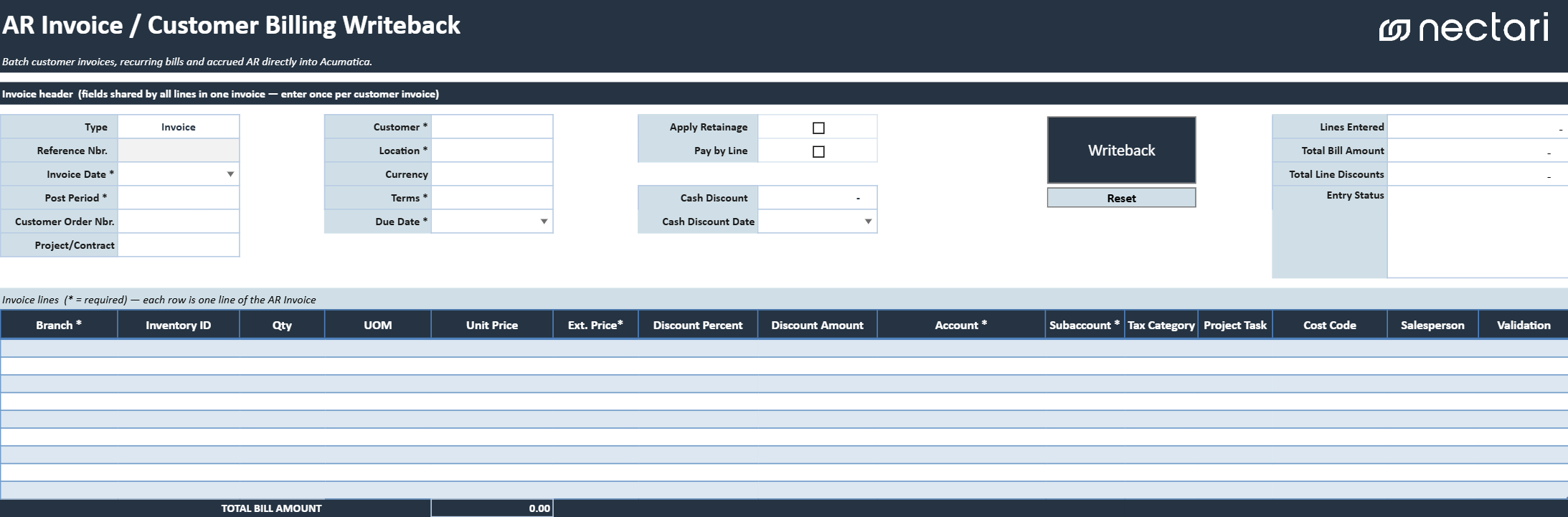
Invoice header fields
The invoice header holds the information that applies to every line of the document. Fields marked with an asterisk (*) are required.
| Header field | What it contains |
|---|---|
| Type | Acumatica AR document type to create, such as an invoice, debit memo, or credit memo. |
| Reference Nbr. | Reference number returned by Acumatica after a successful writeback. The populated value links to the created document. |
| Invoice Date * | Date assigned to the customer invoice or AR document. |
| Post Period * | Financial period in which the document will be recorded. |
| Customer Order Nbr. | Customer purchase order or reference number associated with the document. |
| Project/Contract | Project or contract associated with the document, when applicable. |
| Customer * | Customer associated with the document. |
| Location * | Customer location used for the document. |
| Currency | Currency of the AR document. |
| Terms * | Payment terms used to calculate the due date and available cash discount. |
| Due Date * | Date by which payment is due. |
| Apply Retainage | Indicates whether retainage applies to the document. |
| Pay by Line | Indicates whether individual document lines can be paid separately. |
| Cash Discount | Cash discount amount calculated for the document. |
| Cash Discount Date | Last date on which the cash discount is available. |
Writeback actions
| Writeback action | What it does |
|---|---|
| Writeback | Validates the completed template and creates the AR document in Acumatica. A confirmation message indicates whether the writeback succeeded. |
| Reset | Clears the current AR document so the template can be used for another entry. Use this only after the current document has been successfully written back or is no longer needed. |
Invoice grid
The invoice grid contains the inventory, revenue, project, tax, and salesperson details of the AR document. Each line needs either an Inventory ID or the revenue account coding. Columns marked with an asterisk (*) are required on every line you fill in.
| Invoice grid column | What it contains |
|---|---|
| Branch * | Branch assigned to the invoice line. |
| Inventory ID | Inventory item associated with the line, when applicable. |
| Qty | Quantity billed for the selected item or service. |
| UOM | Unit of measure used for the quantity. |
| Unit Price | Selling price per unit. Used with Qty to calculate Ext. Price. |
| Ext. Price * | Extended line price. Calculated from quantity and unit price when available, or entered directly. |
| Discount Percent | Discount percentage applied to the line. |
| Discount Amount | Discount amount applied to the line. |
| Account * | Revenue or other general ledger account assigned to the line. |
| Subaccount * | Subaccount associated with the selected account. |
| Tax Category | Tax category used to determine the applicable taxes. |
| Project Task | Project task associated with the line, when applicable. |
| Cost Code | Project cost code associated with the line, when applicable. |
| Salesperson | Salesperson associated with the invoice line. |
| Validation | Displays missing field errors, invalid combinations, or confirmation that the line is ready. |
Review the invoice before writeback
You can write the invoice back to Acumatica only when every required field is complete and no line shows an error.
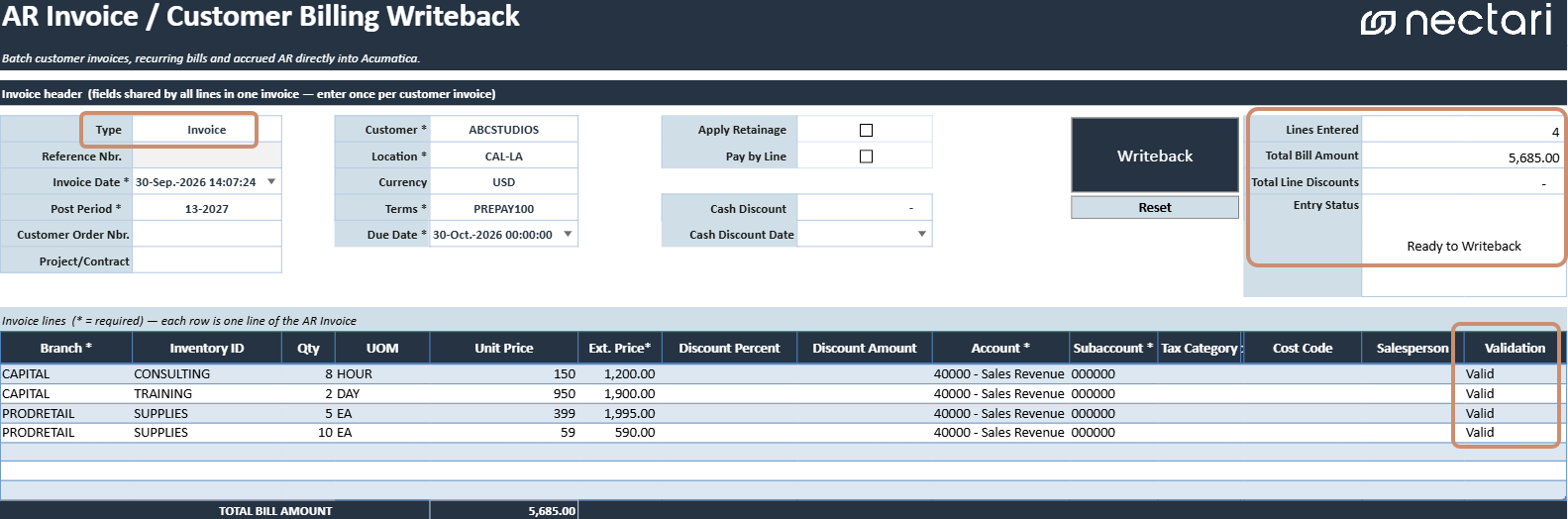
- Confirm that the correct document Type is selected.
- Complete every required (*) field in the header and on each line you filled in.
- Add an Inventory ID or the revenue account coding to each line.
- Correct every error in the Validation column.
- Check Lines Entered, Total Bill Amount, and Total Line Discounts in the entry summary.
- Confirm that Entry Status shows the document is ready for writeback.