Formula Wizard
The Formula Wizard is a tool in the workbook ribbon that generates NECFORMULA functions. A NECFORMULA is a custom function specific to SEI that pulls a value from a data model based on the criteria you define. It works like any other cell function: it sits in a cell, returns a result, and updates when you refresh.
The wizard walks you through selecting an environment, a data model, a field, and an operator (like Sum, Avg, or Count). You can then add filters and filter groups to narrow the results. The wizard builds the function syntax for you, so you don't need to write it manually.

When to create formulas
- Build formulas without writing syntax by selecting the environment, data model, field, and operator from dropdown menus.
- Pull data from data models directly into workbook cells using filters to target specific subsets of data.
- Reduce formula errors since the wizard handles the function syntax and validates the result before saving.
- Work with data security because it respects user level data security applied to the data model.
Create a formula
- Select the cell where you want to insert the formula.
- On the Analysis tab, select Formula Wizard.
- Select the environment and data model.
- Select the field for the formula.
- Choose an operator from the list.
- (Optional) Add filters or groups.
- Select Preview Value to confirm the results before saving.
- Click Save.
When you preview, if the formula is invalid, an error message appears. A timeout occurs if the query exceeds 300 seconds (5 minutes) or returns more than 500,000 rows.
Formula properties
| Field | What to configure |
|---|---|
| Environment | The environment to pull data from. If set to Current Environment, data is retrieved dynamically from whichever environment is active. |
| Data Model | The data model the formula connects to. |
| Field | The field to aggregate. This can be a dimension, measure, or description. |
| Operator | The aggregation to apply. Available operators depend on the data model and field: Avg, Count, Count Distinct, Description, Dynamic List, Min, Max, Sum, Sum (Inversion), Sum (Credit), Sum (Debit). |
Add filters to a formula
Filters narrow what data the formula returns. You can add individual filters or filter groups, and combine them with And / Or logic. For each filter, you select a field, an operator, and a value.
- Individual filters target a single condition.
- Groups wrap multiple filters together so they are evaluated as one unit.
Values can be entered manually or by referencing a cell. You can also search for a specific value using the prompt icon next to a filter. Select a filter method from the prompt to search, or use wildcards for more precise matching.
You want to retrieve the Sum of Net Sales from the Sales Analysis data model for 2024, but only for transactions above $5,000, in the US or Canada, and excluding product lines flagged as Returns or Samples. All four conditions are joined with And, meaning every filter must be true. The group wraps the two country conditions with Or so that either country qualifies.
Example
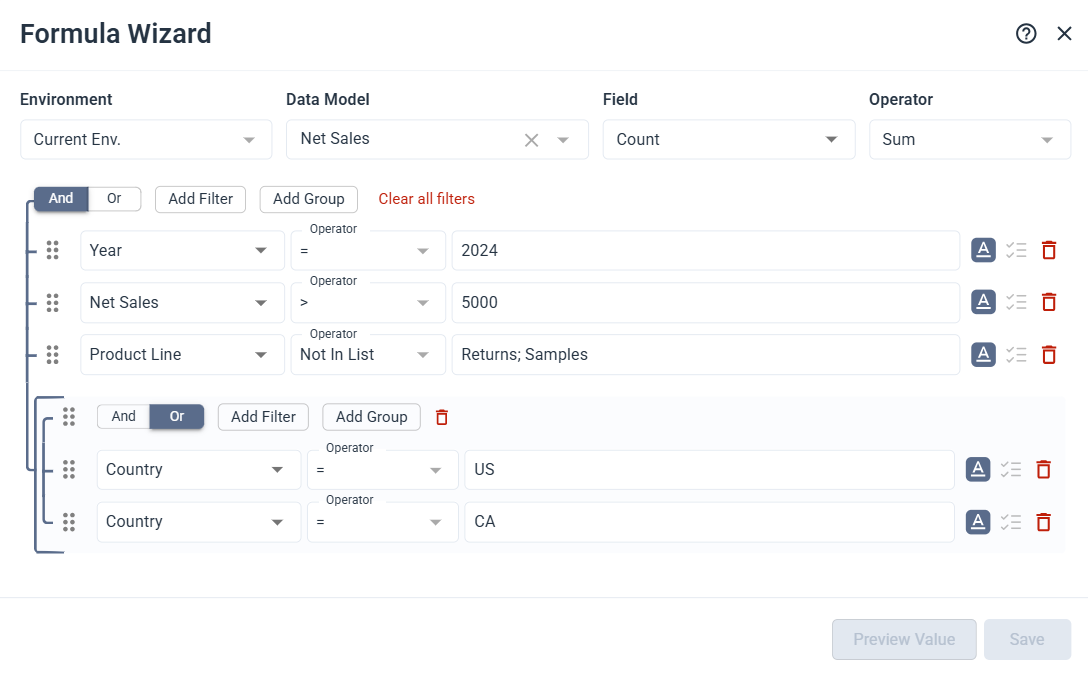
If the two country filters were not in a group, the Or would break the logic and the formula could return results from any country as long as one of the other conditions is true. The group keeps the country conditions together so they are evaluated as a single unit.
Enter filter values
Each filter value can be entered as a text string or as a cell reference. The behavior depends on how the value field is configured.
| Mode | How it works | How to set it |
|---|---|---|
| Cell reference | The value is pulled dynamically from a cell in your sheet. The formula updates when the cell value changes. | Select the underscore in the value field, then select the cell in your sheet. |
| Text string | The value is typed directly and stays fixed regardless of what's in your sheet. | Select the A icon next to the value field. When active, the icon turns blue. |
If you use the prompt to select a value, it is automatically set as a text string.
Search values with wildcards
Wildcards and expressions apply only to text values, not numbers. To use them, select the prompt icon next to a filter and choose wildcards from the filter method. These expressions work with the Equal, Not Equal, In List, and Not In List operators.
Supported wildcards
?matches exactly one character*matches one or more characters!excludes characters or ranges;separates multiple values&combines conditions[a:b]defines a range between two values"..."treats special characters as literal text
| Example | What it matches |
|---|---|
4000 | Matches exactly 4000. |
4000;5000;6000 | Matches 4000, 5000, or 6000. |
4* | Matches any value starting with 4. |
4??? | Matches values starting with 4 with exactly four characters. |
A*&*Z | Matches values that start with A and end with Z. |
[4000:4999] | Matches values between 4000 and 4999. |
[A*:F*] | Matches values from A through F using prefix matching. |
!4000 | Excludes 4000. |
!4* | Excludes values starting with 4. |
!4??? | Excludes values starting with 4 with exactly four characters. |
[10000:10200]!10100 | Matches values between 10000 and 10200, but excludes 10100. |
!1000;2000;7000 | Excludes 1000, 2000, and 7000. |
"10:00" | Matches the literal value 10:00 (: is not treated as a range operator here). |
[4???:5???] | ERROR ? inside a range bound is not supported. |
[A*B:C] or [**:C] | ERROR * in the middle of a range bound or multiple * in a range bound are not supported. |
Name multiple formulas in a cell
When a cell contains more than one NECFORMULA function, you can assign a custom name to each one to tell them apart.
- Select a cell that contains multiple NECFORMULA functions.
- On the Analysis tab, select Formula Wizard.
- In the list on the left, select the pencil icon next to the formula you want to rename.
- Enter the new name and select Save.
Refresh formulas
Refreshing updates your formulas with the latest data from the data source.
- On the Toolbar panel, select Refresh.
- Make sure the Formulas toggle is on.
- Select Entire Workbook to refresh all formulas, or Current Sheet to refresh only the active sheet.
Drill down on a formula
If you create a drill down, you can then drill down directly on a NECFORMULA to see the detailed data behind the aggregated value. You can access access it from two ways: directly from the ribbon or with the toolbar on the left-side of the workspace.
- From the ribbon
- From the toolbar
From the ribbon
- Select a cell that contains a NECFORMULA.
- On the Analysis tab, in the Tools section, select Drill Down.
- The drill down dialog opens and shows the formula details.
From the toolbar
- Select a cell that contains a NECFORMULA.
- On the Toolbar panel on the right, select Drill Down.
- The drill down dialog opens and shows the formula details.