User Settings
User Settings is where you manage your personal profile, adjust how SEI behaves for you, and configure regional preferences. Settings here apply only to your account and do not affect other users.
To access it, select your profile picture at the bottom of the Navigation Panel and choose User Settings. Select any of the four tabs to adjust any of your account preference.
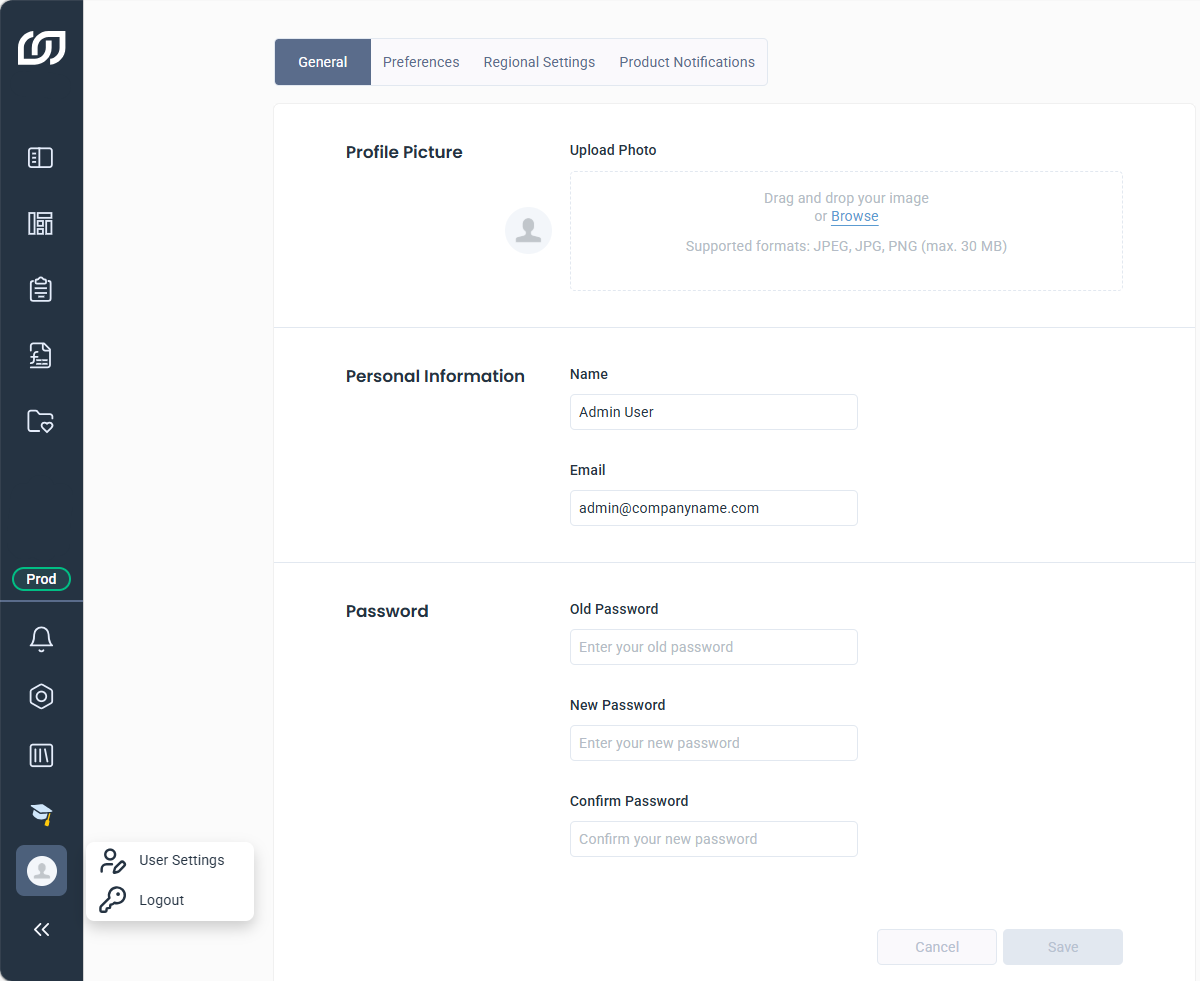
General
The General tab covers your profile information and account credentials.
| Setting | Details |
|---|---|
| Profile Picture | Upload a photo by dragging an image or browsing your files. Supported formats: JPEG, JPG, or PNG up to 30 MB. |
| Personal Information | Set or update your displayed name and email address in SEI. The address used to receive notifications and distributed reports. |
| Password | Change your password by entering your current one and setting a new one. The new password must be at least 8 characters long, contain at least one uppercase letter, one lowercase letter, and one number. |
The Password section is not available when you sign in with Single Sign-On (SSO).
Preferences
The Preferences tab controls how SEI behaves when you open and interact with visualizations.
Settings
| Setting | Details |
|---|---|
| Selection Page Overwrite | When enabled, values entered in the Selection Page dialog automatically replace any previously saved filters. This means you no longer need to toggle Overwrite all existing filters each time you open a view. |
| First day of the week | Sets the starting day in date and datetime pickers. |
Opening Parameters
| Setting | Details |
|---|---|
| Default Tab | The tab that opens in the Navigation Panel when you log in. Choose from Data Models and Views, Dashboards, Reports, Workbooks, or Favorites. |
| Link To opening behavior | Controls how visualizations open when using the Link To feature:
|
Export Parameters
| Setting | Details |
|---|---|
| Default Format | The default file format used when exporting a visualization. |
Regional Settings
Regional settings control how content, numbers, dates, and times appear across SEI. These settings only affect what you see and do not change the underlying data.
| Setting | Details |
|---|---|
| Content Language | The language used for interface elements such as folder names and visualization names. This is separate from the interface language chosen at login. For example, you can keep the interface in English while displaying data model names in French. |
| Culture | Determines how numbers are formatted, including decimal separators and digit grouping, based on regional conventions. |
| Date Format | The format used to display dates in visualizations when no format is defined in the Data Model Designer. |
| Time Format | The format used to display time in visualizations when no format is defined in the Data Model Designer. |
Product Notifications
The Product Notifications tab removes all data tied to your account in the notification system. This includes feedback comments, reactions, and analytics. This action cannot be undone.
- Select Delete to remove all data associated with product notifications.
- Check the confirmation checkbox.
- Click Delete again to confirm.