Settings
The Settings page is the central place for administrators to configure SEI. From here, you can adjust everyday preferences, manage feature visibility, connect external tools like DataSync, and enable logging for troubleshooting. Settings are organized into two tabs, General and Advanced.
To open the page, log in with an administrator account. Select the gear icon in the navigation panel to open the Administration section, then select Settings in the sidebar.
General
| Setting | What it does |
|---|---|
| Notifications | Turns product notifications on or off for all users. Notifications include updates and news published by the SEI team. When turned off, the bell icon is hidden from the navigation panel. |
| Dashboards | Sets the resolution used when exporting dashboard screenshots. A lower resolution produces smaller files with lower image quality, best for quick sharing. A higher resolution produces larger files with sharper images, best for presentations or printing. |
Advanced
| Setting | What it does |
|---|---|
| DataSync | Enter your DataSync URL to open DataSync directly from SEI. Example: https://datasync.compagnie.com:3000/home.Once a URL is added, the DataSync Access button becomes active in the Administration sidebar. |
| Logs | Turns on logging to capture activity for troubleshooting and usage analysis. Two options are available:
|
DataSync Access
DataSync is the SEI tool used to extract, transform, and load data from various sources into your data warehouse. The DataSync Access button opens DataSync directly from SEI, so you don't have to navigate to it separately. Each admin user can configure one DataSync URL at a time. You can update or remove the URL at any time from the Advanced tab.
Once a URL is added, the DataSync Access button becomes active in the Administration sidebar. Without a URL, the button stays visible but is grayed out. Refresh the page to complete the activation.
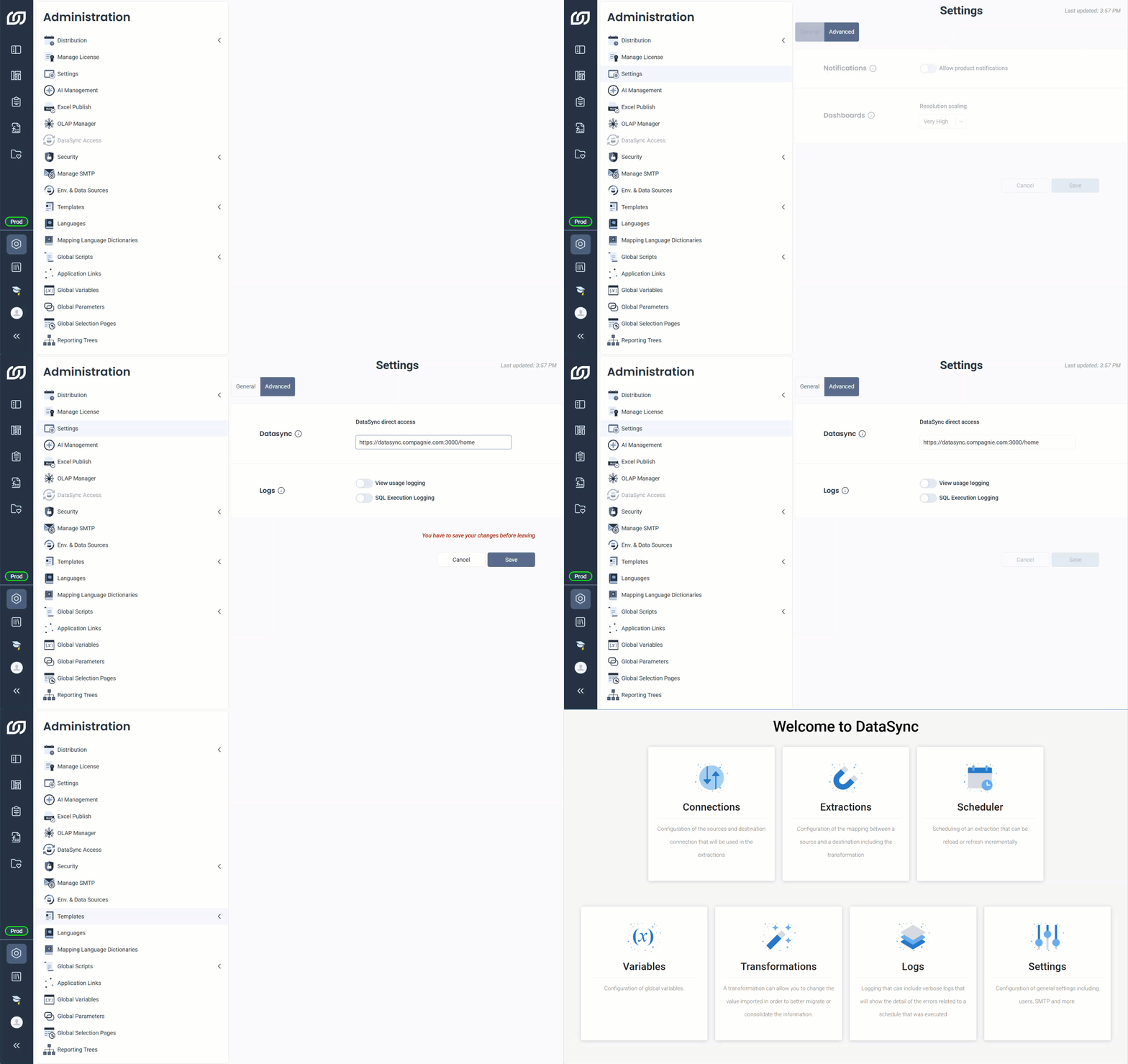
The URL can point to any DataSync page. For example, link to the Extractions page if that's your most frequent destination, or to the Settings page for quick access to configuration.