Odoo Source Connector
The Odoo source connector in DataSync lets you retrieve data from your Odoo instance for loading or synchronizing in your data warehouse. After creating all required source connections, configure your destination connection to finalize the setup.
Before you create source connections in DataSync, make sure your Odoo environment is correctly configured. You need to verify the databases in your instance and confirm the time zone. The time zone in Odoo must match the time zone you specify in DataSync, otherwise synchronization issues can occur.
Create an API key
- In Odoo, select your user profile icon in the upper right.
- Under My Preferences, select the Security tab.
- Select Add API Key.
- Enter your current password.
- In What's this key for, enter a description for the key so you can identify it later.
- Under Give a duration for the key's validity, select a duration.
- Click Generate key.
- Under Write down your key, copy the key and store it. You cannot view it again after you close this dialog.
- Click Done.
Find your database name
You can find your database name in two ways, depending on your account type and deployment.
Option 1: From your user profile (admin accounts)
- In Odoo, select your user profile icon in the upper right.
- Select My Databases, and then sign in with your email and password.
- Under Databases, locate the database you want to use and copy its name. You will need this name when you configure the connection in DataSync.
Option 2: From the URL
Use this option if you do not have admin access, or as an alternative method. Note that the URL does not always match the actual database name, so verify it before using it in DataSync.
- Odoo Online: The database name typically matches your Odoo subdomain. For example, if your URL is
https://contoso.odoo.com, the database name iscontoso. In most cases, DataSync detects this value automatically from the URL. If it cannot, you need to enter the database name manually. - Odoo On-Premises: Sign out of Odoo, and then select Manage Databases on the login screen to find your database name.
Create an Odoo source connection in DataSync
- Log in to DataSync.
- From the welcome screen, select Connections.
- Next to Source Connections, click New.
- Select Odoo.
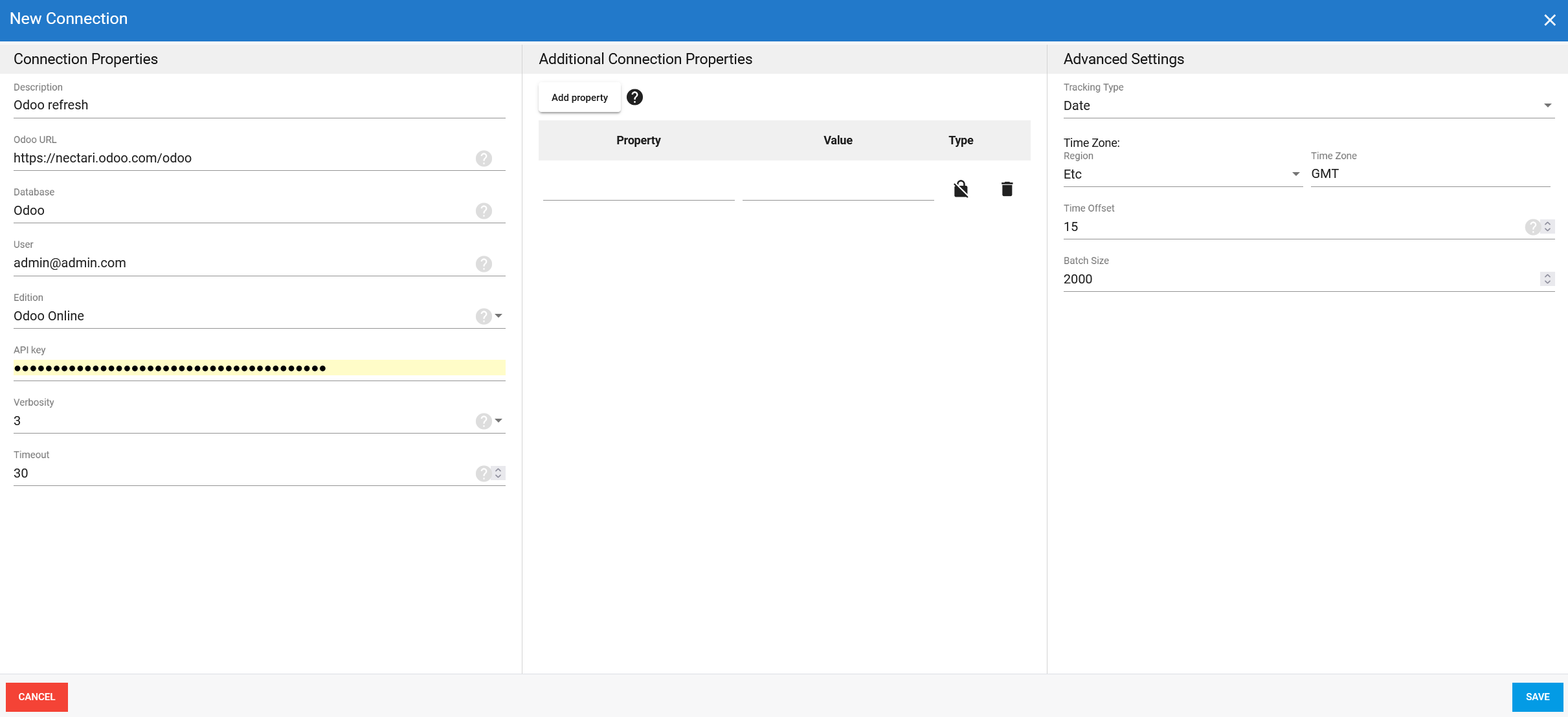
- In the Connection Properties panel, enter the connection properties.
- (Optional) In the Additional Connection Properties panel, select Add property and enter the parameters for each property.
- In the Advanced Settings panel, configure the settings, including Tracking Type and any other values according your setup requires.
- Click Save.
Parameters
Connection properties
| Parameter | Description |
|---|---|
| Description | Unique name for this connection. For example: Odoo Refresh |
| Odoo URL | Base URL of the Odoo instance you want to connect to. For example: https://company.odoo.com/odoo |
| Database | Name of the Odoo database you want to connect to. |
| User | Odoo user account used to authenticate. This is typically your username or email address. |
| API key | API token or password used to authenticate. For Odoo 14 and later, use an API token (recommended). For Odoo 13 and earlier, enter your Odoo account password instead. |
| Edition | Choose edition of Odoo you are connecting to. Select Odoo Online or Odoo On-Premises. Note that only Odoo Online is supported at this time. |
| Timeout | Number of seconds DataSync waits for a connection or query to respond before it times out. |
| Verbosity | Controls how much detail the connector writes to the log. Higher levels include everything from the level below, plus additional detail.
|
Additional connection properties
Use this panel to enter connection string properties that are not available in the Connection Properties panel. For each property, select Visible or Encrypted. Use Encrypted for sensitive values such as passwords. The value is hidden in the interface and stored encrypted in the back end.
| Parameter | Description |
|---|---|
| Property | Connection string property that defines the action or behavior. For example, ReadOnly |
| Value | Value for the property. For example, True |
| Type | Visibility of the property: Visible or Encrypted. |
Advanced settings
These settings control how the Odoo connector tracks data changes, handles time and regional configuration, and processes records during extraction. Configure them to match your system environment to get accurate and consistent results.
| Setting | Description |
|---|---|
| Tracking Type | Method for tracking changes: None or Date. |
| Region | Region setting for the connector, if required by your setup. |
| Time Zone | Time zone matching the Odoo application server. |
| Time Offset | Refresh offset in seconds to compensate for timing issues in record selection. Minimum value is 0; maximum is 3600 seconds. |
| Batch Size | Quantity of records processed in each batch during extraction. Larger batch sizes increase memory usage but can improve performance up to a point. The default value is 2000 and the maximum should not exceed 10000 records. Adjust according to your network speed and disk performance; in most cases the default (2000) works best. |
Example