Acumatica Source Connector
The Acumatica source connector in DataSync lets you retrieve data from one or more Acumatica tenants (companies) for synchronization or consolidation into your destination. In Acumatica, tenants represent individual companies, and you must have at least one tenant to proceed.
For optimal results, it's recommended to create two source connections per tenant: a refresh connection, which uses date tracking for incremental loads based on the LastModifiedDate field, and a no refresh connection, used for tables without a tracking field, typically smaller reference tables. Prebuilt Acumatica Source Connections Template is available for quick configuration of required connections.
After creating all required source connections, configure your destination connection to finalize the setup.
Verify details in Acumatica
Before creating source connections in DataSync, ensure your Acumatica environment is correctly configured. This includes verifying the tenants registered in your instance and confirming the time zone, which must match the time zone specified in DataSync to avoid synchronization issues.
Review tenants
- Log in to Acumatica.
- From the main menu, select System Management. If not visible, click More Items to show additional options.
- Under System Maintenance, select Tenants.
The list of tenants appears, allowing you to confirm how many are currently registered in your Acumatica instance.
Confirm time zone
- From the main menu, click the profile icon on the upper-right corner.
- Click My profile from the dropdown list.
- In General Info, note the time zone. This must match the time zone in DataSync.
Create the Client ID and Client Secret (OAuth)
- In Acumatica, select Integration. If not visible, click More Items to show additional options.
- Under Preferences, select Connected Applications.
- Click the + icon to add a new record.
- In Client Name, enter
OAuthor another unique name. - In Flow, select Authorization Code from the dropdown list.
- Click Save. The Client ID is generated automatically.
- Select the Secrets tab and click Add Shared Secret.
- Enter a description.
- In Value, make sure to copy the secret and store it securely. You will not be able to view it again after saving.
- Click Ok when done.
Add the Callback URL in Acumatica (OAuth)
- In Acumatics, select Integration. If not visible, click More Items to show additional options.
- Under Preferences, select Connected Applications.
- In Client ID, Select the connected application you created earlier.
- Select the Redirect URIs tab.
- Click the + icon to add a row.
- In DataSync, copy the full Callback URL from the connection panel.
- Paste the URL into the new row in Acumatica.
- Click Save.
Create a source connection in DataSync
- Log in to DataSync.
- From the welcome screen, select Connections.
- Next to Source Connections, click New.
- Select Acumatica.
- In the Connection Properties panel, select an authentication mode: Basic or OAuth2.
- Enter the required connection properties.
- (Optional) In the Additional Connection Properties panel, select Add property and enter the parameters for each property.
- In the Advanced Settings panel, configure the settings, including the Tracking Type and other values according to your requirements.
- Click Save.
Connection properties
| Parameter | Description |
|---|---|
| Description | Unique name for the connection. Example: Acumatica Refresh |
| URL | Acumatica instance URL. Keep %20 for spaces as shown in your browser.Example: https://company.acumatica.com/ODataV4/InstanceName |
| Authentication Mode | Authentication method used by the connector: Basic or OAuth2. |
| Username | Acumatica username with required API permissions (Basic authentication only). |
| Password | Password for the specified username (Basic authentication only). |
| Callback URL | Redirect URL automatically generated by DataSync. Must be added to the Connected App in Acumatica (OAuth2 only). |
| Client ID | Identifier assigned when registering the connected application (OAuth2 only). Example: 9986313F-C5E6-161F-ED75-346CBBCB948F@Company |
| Client Secret | Secret assigned for the connected application (OAuth2 only). Example: ZIRz91x0ZSn_bunidUlZsB |
| Authorization URL | URL used to obtain the authorization code. Add identity/connect/authorize to your base Acumatica URL (OAuth2 only). Example: https://company.acumatica.com/ODataV4/identity/connect/authorize |
| Access Token URL | URL used to exchange the authorization code for an access token. Add identity/connect/token to your base Acumatica URL (OAuth2 only). Example: https://company.acumatica.com/ODataV4/identity/connect/token |
| Scope | Permissions requested from Acumatica (OAuth2 only). Default: openid, api, offline_access. |
| Convert all dates and times to GMT | Conversion of OData DateTime values to GMT. |
| Use client-side paging | Paging capability for large datasets. |
| Page Size | Maximum results to return per page when client-side paging is enabled. Larger values return more rows per page but may cause timeouts. |
| Timeout | Time in seconds to wait for connection opening and query execution before timeout. |
| Data format | Format for retrieved data: ATOM or JSON. |
| Verbosity |
|
| Enable Pooling | Connection pooling option for performance. |
| Pool idle timeout | Maximum idle time for connections before returning them to the pool, in seconds. |
| Max Pool Size | Maximum number of connections allowed in the pool. |
| Pool wait time | Maximum wait time for connection allocation before error is thrown, in seconds. |
Additional connection properties
Use this panel to enter connection string properties that are not available in the Connection Properties panel. For each property, select Visible or Encrypted. Use Encrypted for sensitive values such as passwords. The value is hidden in the interface and stored encrypted in the back end.
| Parameter | Description |
|---|---|
| Property | Connection string property that defines the action or behavior. Example: ReadOnly |
| Value | Value for the property. Example: True |
| Type | Visibility of the property: Visible or Encrypted. |
Advanced settings
These settings control how the Acumatica connector tracks data changes, handles time and regional configuration, and processes records during extraction. Configure them to match your system environment to get accurate and consistent results.
| Setting | Description |
|---|---|
| Tracking Type | Method for tracking changes: None or Date. |
| Region | Region setting for the connector, if required by your setup. |
| Time Zone | Time zone matching the Acumatica application server. This must be identical to the profile time zone in Acumatica to avoid data mismatches. |
| Time Offset | Refresh offset in seconds to compensate for timing issues in record selection. Minimum value is 0; maximum is 3600 seconds. |
| Batch Size | Quantity of records processed in each batch during extraction. Larger batch sizes increase memory usage but can improve performance up to a point. The default value is 2000 and the maximum should not exceed 10000 records. Adjust according to your network speed and disk performance; in most cases the default (2000) works best. |
Example
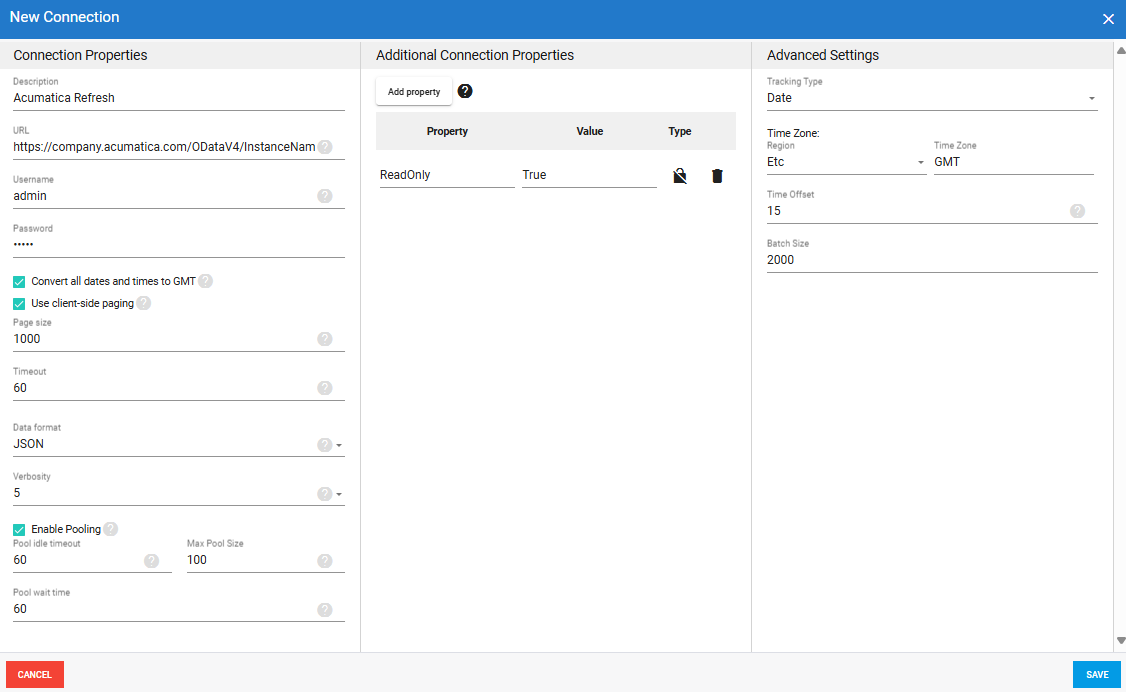
For Acumatica, you must import and publish the SEI customization project in Acumatica. See Upload Project into Acumatica for more details.