Manage License (New)
The Manage License page is where you view and manage your license, track usage, manage AI credits, review invoices, and keep payment details up to date. Your server needs an active internet connection to validate your subscription.
This page applies to the license model introduced in 2026. If you're on an older license, see Manage License (Old).
| Tab | Use it to |
|---|---|
| License | View your license type, usage (KPIs), and manage AI credit subscriptions. |
| Active sessions | See who is currently logged in and what type of user they are. |
| Billing | View, search, and download your invoice history. |
| Payment | Add or update your saved payment method. |
License
This tab gives you a full picture of your current license: what you have, how much you are using, and what plan you are on. At the top, you will find your Serial Number, the Last license sync timestamp, and your billing frequency (monthly or yearly). Click Release License to detach the license from this server so you can reuse it on another one.
You can view if your license model includes the Data Management add-on. The add-on covers OLAP (including the OLAP runtime), data transformation, and migration using DataSync.
The Payment & Billing card links to your payment and billing settings. If there is a problem with your payment method, such as an expired card, insufficient funds, or a failed transaction, the card turns in red. Resolve it quickly to avoid interrupting your subscription.
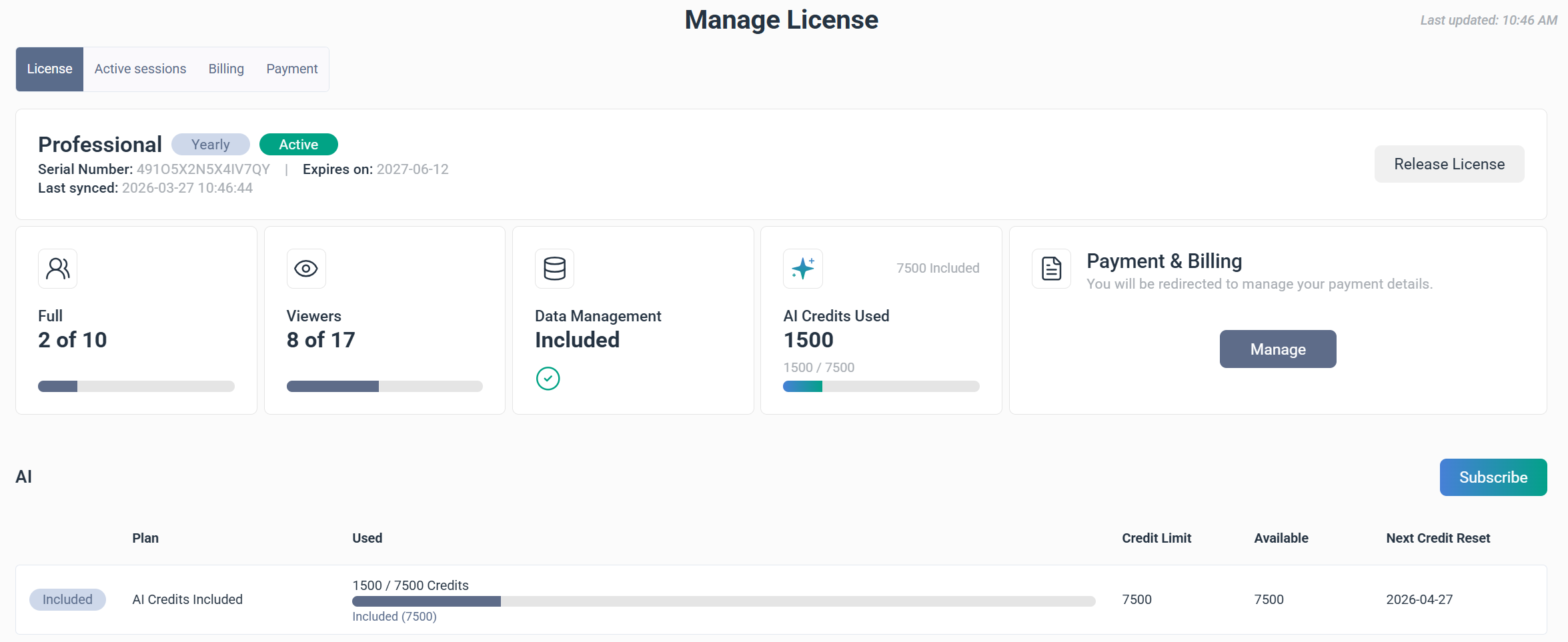
Quick Stats
These key indicators give you a quick snapshot of your license usage so you always know where you stand.
- Full – total licensed full users, how many are in use, and how many remain.
- Viewers – total licensed viewer users, how many are in use, and how many remain.
- Data Management – whether data management is included in your license.
- AI credits – credit usage for the current billing period versus your total available credits.
AI credits
Your license includes a base amount of AI credits. Subscribing to additional credits lets you increase that limit. You are only charged for what you actually use each month (pay-as-you-go), not the full limit you set. AI credits are billed in USD.
Example: If your limit is $12 USD but you only used $5 USD worth of credits, you are charged $5 USD.
Credits reset at the start of each billing period. After reset, you receive your base credits plus any additional credits from your subscription. The Next Credit Reset date tells you exactly when this happens.
Purchasing additional credits requires SEI to be configured with HTTPS.
Subscribe to additional AI credits
- In the navigation panel, click the gear icon to open Administration.
- Select Manage License from the sidebar.
- Select Subscribe.
- Enter a spending limit up to $500 USD.
- Click Next and review your order summary.
- Click Proceed to Payment.
- Enter your payment details and click Confirm Payment.
Change or cancel your subscription
Click Change Limit to update your spending limit at any time, or Unsubscribe to stop purchasing additional credits starting with your next billing cycle. Your limit will revert to the free tier included with your license.
After unsubscribing, it may take up to one hour for the change to appear on your invoice.
Active sessions
The Active sessions tab shows everyone currently logged in. A single user can have more than one active session open at the same time. For each session, you can see the ID, User Name, Last Accessed At timestamp, User Type, and which Module they are using.
The icons in the top-right corner give you a live count of active sessions by user type. Hover over any icon to see a breakdown. This is useful for monitoring your license allocation at a glance.
| Icon | What it counts |
|---|---|
 | Total viewer users, how many are assigned, and which module they are on. |
 | Total full users, how many are assigned, and which module they are on. |
 | Total system managers and which module they are on. |
 | Total users currently active on the web. |
 | Total users currently active in the Excel Add-in. |
Billing
The Billing tab shows your invoice history for the past two years. For older invoices, contact support directly.
- Date is the date the invoice was issued.
- Invoice is the official invoice number.
- Subscription is the subscription linked to this invoice.
- Status indicates whether the invoice is Paid or Unpaid.
- Amount is the total amount billed.
- Download lets you save the invoice as a PDF.
Filter invoices
Filtering by date is the fastest way to locate a specific invoice.
- Select a start and end date in the Period fields.
- Click Apply to filter list.
Payment
The Payment tab is where you add or update your payment method. Only one card can be saved at a time, but you can update it whenever you need to.
Add or update your payment method
- Go to the Payment tab.
- Enter your email, address and card information.
- email: address used for subscription confirmations, invoices, cancellation notices, and payment failure alerts.
- email language: language for all subscription-related emails.
- Review your information.
- Click Confirm to save.