AP Bills Entry
The AP Bills Entry Writeback template creates vendor bills in Sage Intacct directly from a workbook. You can use the template for vendor invoices and other accounts payable expenses, instead of entering each bill manually in Sage Intacct. It uses the NECWRITEBACK formula, generated with the Writeback Wizard, to send the completed bill to Sage Intacct.
Write a vendor bill back to Sage Intacct
- Fill in the bill header.
- Enter the transaction lines in the bill grid.
- Review the bill in the Validation column and the entry summary, then click Push to Intacct.
- Click Reset before you start another bill.
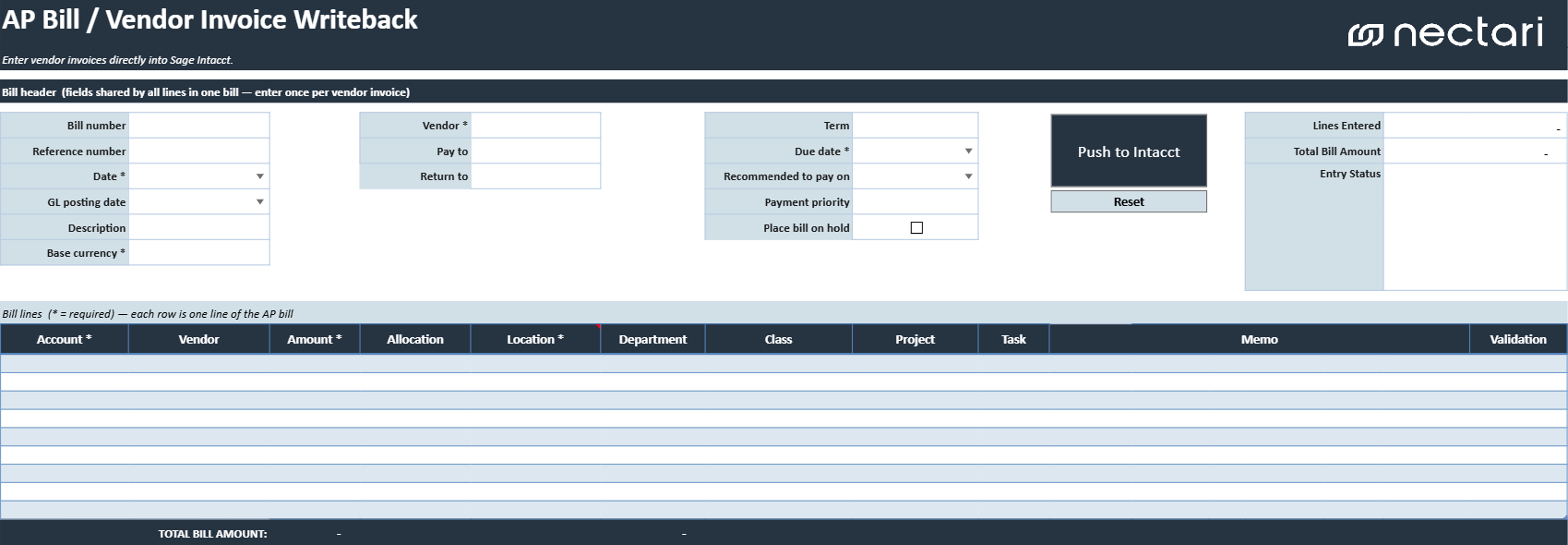
Bill header fields
The bill header holds the information that applies to every line of the bill. Fields marked with an asterisk (*) are required.
| Header field | What it contains |
|---|---|
| Bill number | Vendor invoice or bill number used to identify the document. |
| Reference number | Reference number returned by Sage Intacct after a successful writeback. The populated value links to the created bill. |
| Date * | Date of the vendor bill. |
| GL posting date | Date the bill is posted to the general ledger. |
| Description | Brief description of the bill. |
| Base currency * | Base currency used for the bill. |
| Vendor * | Vendor associated with the bill. |
| Pay to | Vendor contact or address to which payment should be sent. |
| Return to | Vendor contact or address used for returns, when applicable. |
| Term | Payment terms used to determine the due date. |
| Due date * | Date by which payment is due. |
| Recommended to pay on | Suggested payment date for the bill. |
| Payment priority | Priority used when selecting the bill for payment. |
| Place bill on hold | Prevents the bill from being selected for payment until the hold is removed. |
Writeback actions
| Writeback action | What it does |
|---|---|
| Push to Intacct | Validates the completed template and creates the bill in Sage Intacct. A confirmation message indicates whether the writeback succeeded. |
| Reset | Clears the current bill so the template can be used for another entry. Use this only after the current bill has been successfully written back or is no longer needed. |
Bill grid
The bill grid contains the transaction lines of the bill, and the Total Bill Amount at the bottom of the grid adds up the line amounts. Columns marked with an asterisk (*) are required on every line you fill in.
Depending on your Sage Intacct configuration, other dimensions can also be required, such as department, class, or project.
| Bill grid column | What it contains |
|---|---|
| Account * | General ledger expense or asset account assigned to the line. |
| Vendor | Vendor associated with the transaction line, when applicable. |
| Amount * | Amount of the transaction line. |
| Allocation | Allocation definition used to distribute the line amount, when applicable. |
| Location * | Location associated with the transaction line. |
| Department | Department associated with the transaction line, when applicable. |
| Class | Class associated with the transaction line, when applicable. |
| Project | Project associated with the transaction line, when applicable. |
| Task | Project task associated with the transaction line, when applicable. |
| Memo | Description or memo for the individual transaction line. |
| Validation | Displays missing field errors, invalid combinations, or confirmation that the line is ready. |
Review the bill before writeback
You can write the bill back to Sage Intacct only when every required field is complete and no line shows an error.
- Complete every required (*) field in the header and on each line you filled in.
- Correct every error in the Validation column.
- Verify Lines Entered and Total Bill Amount in the entry summary.
- Confirm that Entry Status shows the bill is ready for writeback.