Application Icon Missing and Cannot Uninstall
Troubleshooting
Problem
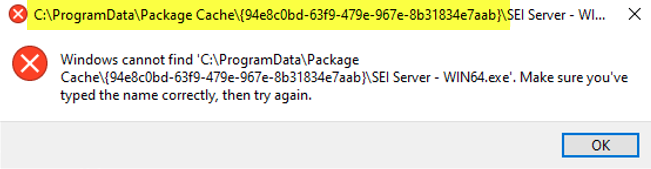
When opening Programs and Features or Apps and Features, the application icon is missing and the application cannot be uninstalled.

Cause
This issue occurs when the cached installation package used by Windows Installer is missing or corrupted. Without this cached package, Windows cannot properly display the application details or complete the uninstall process.
Solution
Uninstalling the app:
- Verify whether the application is already uninstalled by checking if the installation folder still exists.
- If the folder is still present, open Programs and Features or Apps and Features.
- Double‑click the SEI Server entry.
- When prompted, click Yes to uninstall the application.
- If the uninstall still fails, use the original downloaded installation package to perform the uninstall.
- To ensure SEI is fully removed, follow these manual uninstall steps.
Keeping the app installed:
- If you want to keep SEI installed, copy the downloaded installation package into the cache folder path shown in the error message. This restores the missing package and allows Windows to display the application correctly.