Worksheet has too many rows to display
Troubleshooting
Problem
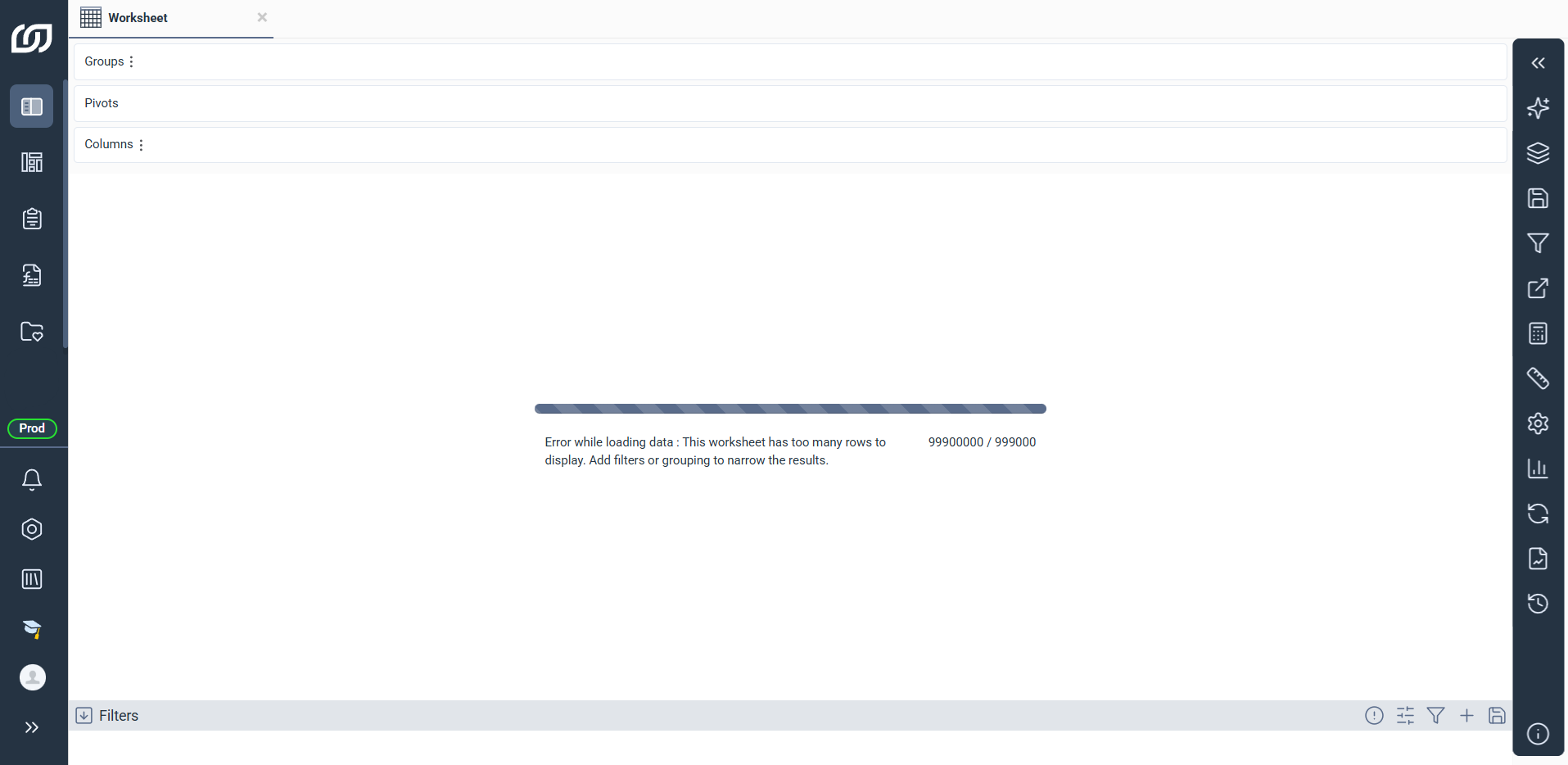
When you open a worksheet in SEI, you see this message: "This worksheet has too many rows to display. Add filters or grouping to narrow the results." This isn't an error with your data. The worksheet just contains too much to show all at once.
Cause
The worksheet returns more rows than your browser can load at once. To keep things responsive, the result set needs to be smaller before the worksheet can display. Once you reduce it, the worksheet opens normally.
Solution
You have two ways to fix this. (A) Use filters if you're looking for specific rows, or (B) grouping if you want a summary instead of every individual row.
(A) Apply filters to load only the rows you need, using the Selection Page:
- In the toolbar on the right, select Filtering.
- Select Selection Page.
- For each field, type a value or select the prompt button to see what's available.
- Select Confirm.
(B) Use grouping to summarize rows together:
- In the toolbar on the right, select Dimensions and Measures.
- Pick a dimension from the list. You can use the search bar to find one quickly.
- Drag the dimension into Groups.
- Repeat with other dimensions if you need to.
Good to know
If you open this worksheet often, save your filters so you don't have to set them again next time.