Distribution Job Missing a Time Zone
Troubleshooting, Administration
Problem
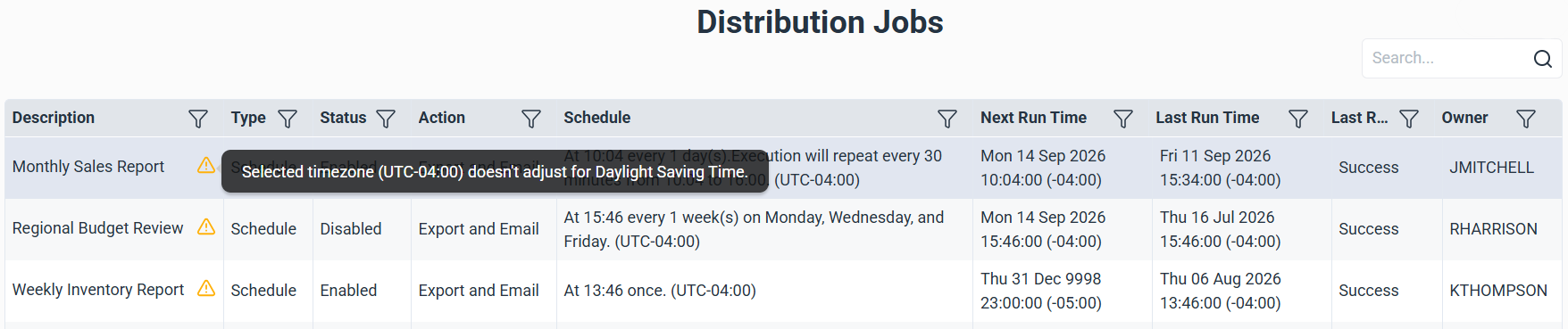
The error Selected timezone (UTC...) doesn't adjust for Daylight Saving Time means no time zone is selected for the job. This doesn't prevent the job from running, but its delivery time shifts by an hour whenever the clocks change, since it stays on a fixed UTC offset instead of adjusting automatically.
Cause
Distribution schedules didn't support time zones before Release 2026 Version 9, so jobs created earlier than that have none set. This warning can also appear on a newer job if no time zone was selected when it was created.
Solution
Add a time zone to the affected job.
- In the navigation panel, select the gear icon to open the Administration section.
- Expand Distribution, then select Distribution Jobs.
- Select the job to add a time zone to.
- In the Toolbar, click the wrench icon.
- Select the Schedule tab.
- Under Time Zone, select the correct time zone.
- Click Save.