SFTP External Locations
An SFTP external location defines a reusable connection to a remote server, used to securely transfer distribution files over SFTP. Authentication uses a username and password, a private key, or both together. When both are provided, the private key takes priority for authentication.
Create an SFTP external location
- In the navigation panel, select the gear icon to open the Administration section.
- Select Distribution, then External Locations.
- In the Options panel on the right, click Create a new External Location.
- Next to Type, select SFTP.
- Enter the connection details.
- Click Save.
Use for distribution
Once saved, the external location becomes available for use in distribution jobs. Selecting the action Export to External Location from the General tab makes it possible to choose that external location.
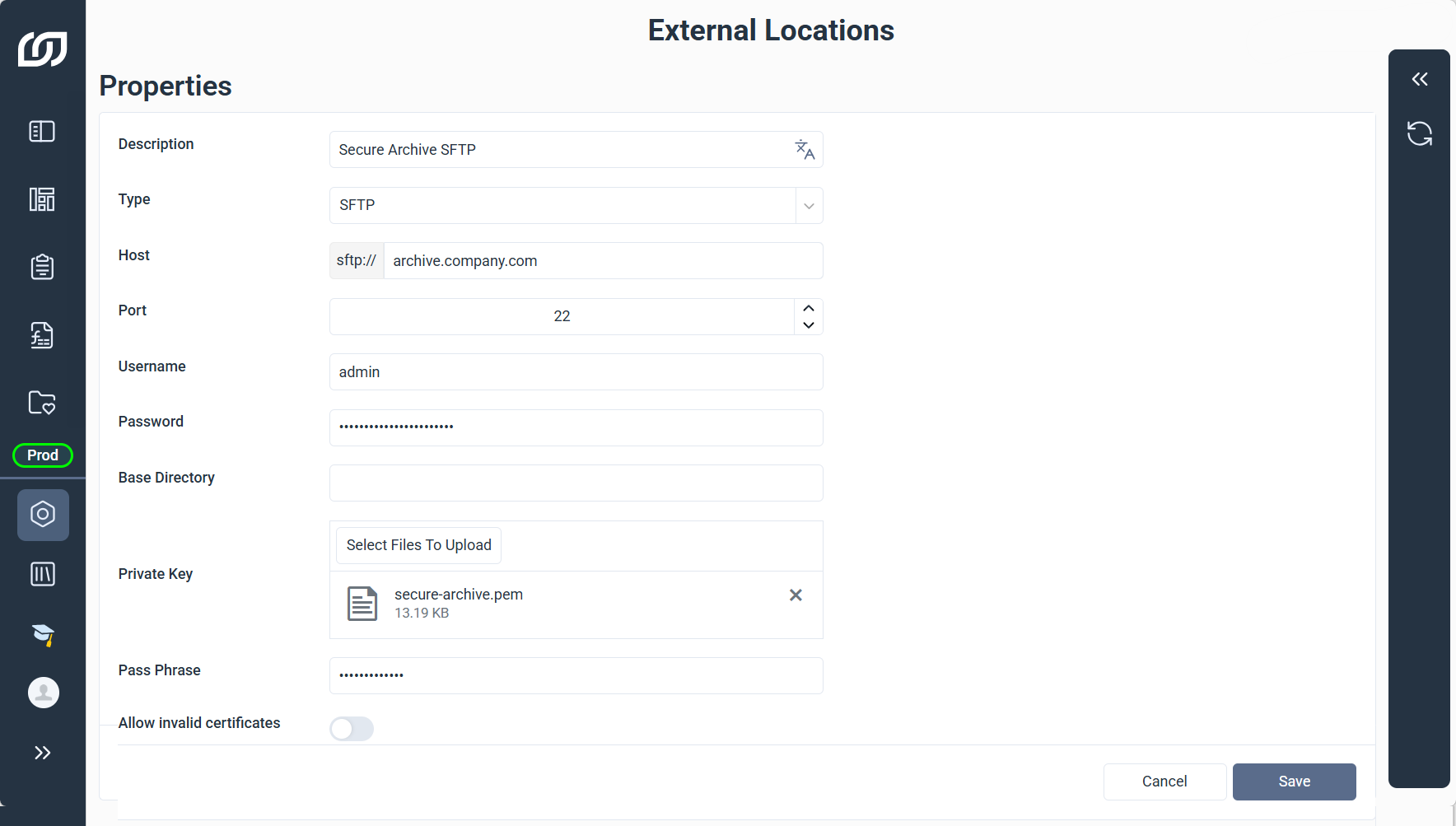
SFTP connection details
| SFTP Property | What it does |
|---|---|
| Description | Enter a meaningful label to identify the connection. |
| Type | The protocol used for the connection. |
| Host | Specify the server address, IP or domain, of the remote SFTP server. |
| Port | Specify the communication port. Default: 22. |
| Username | Enter the username for authenticating with the server. |
| Password | Enter the password associated with the username. |
| Base Directory | Optional Define the root directory for file transfers. Leave blank to use the user's root directory. |
| Private Key | Upload the private key file used for authentication. |
| Pass Phrase | Enter the password for the private key. Required only if the key file is encrypted. |
| Allow Invalid Certificates | Optional Allow connections to servers with self-signed or expired certificates. |
Allow Invalid Certificates
Allowing invalid certificates reduces connection security, and should only be enabled when necessary, such as connecting to a server with a self-signed internal certificate.