Schedule in Distribution Jobs
The Schedule tab controls how often a distribution job runs, the delivery time, and when the schedule ends. Together, these settings automate when and how often the job runs, instead of needing to trigger it manually each time.
Every frequency shares the same two delivery options. At delivers the job once, at a single fixed time. From and until deliver the job multiple times instead, at a set interval, throughout that time range.
Set a delivery frequency
- Once
- Daily
- Weekly
- Monthly
Once
When a job needs to send only Once, it's set on the date it runs. Even though the job only runs on that single date, From and until can still send it multiple times that day, within a set time window.

- Start On sets the date the job runs.
- At sets a single fixed delivery time.
- From and until set a time range instead, sending at a set interval (in minutes) throughout that range.
A job set to run on September 30, going out from 4:00 PM to 6:00 PM at an interval of 15 minutes, sends nine times throughout that two-hour window, even though Once only means it happens on that one date.
Daily
For a job that repeats every set number of days, it's scheduled as Daily, recurring from a starting date at whatever interval is set below. Delivery can then happen at one specific time, or repeat several times within a set time window on each active day.
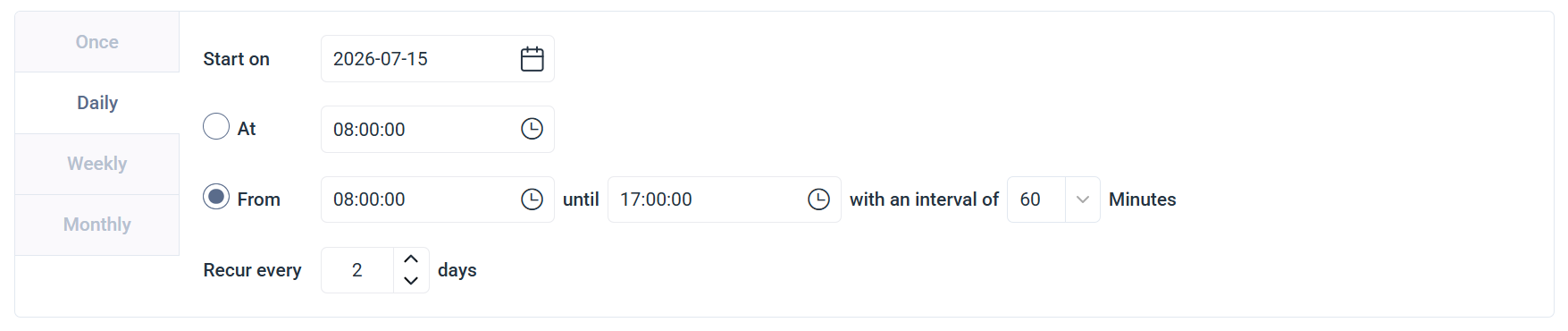
- Start On sets the date the recurrence begins.
- At sets a single fixed delivery time.
- From and until set a time range instead, delivering at a set interval (in minutes) throughout that range.
- Recur every X days sets the number of days, from 1 to 31, between each active day.
A job recurring every 2 days, delivering from 8:00 AM to 5:00 PM at an interval of 1 hour, sends 10 deliveries on each active day.
The Recur every X days count resets on the first day of each month, rather than continuing from the last run. For example, a job set to recur every 2 days that last ran on August 31 runs again on September 1, one day earlier than expected.
Weekly
To run only on certain days of the week, a job is scheduled as Weekly, active on whichever days are selected. Delivery can then happen at one specific time, or repeat several times within a set time window on each active day.
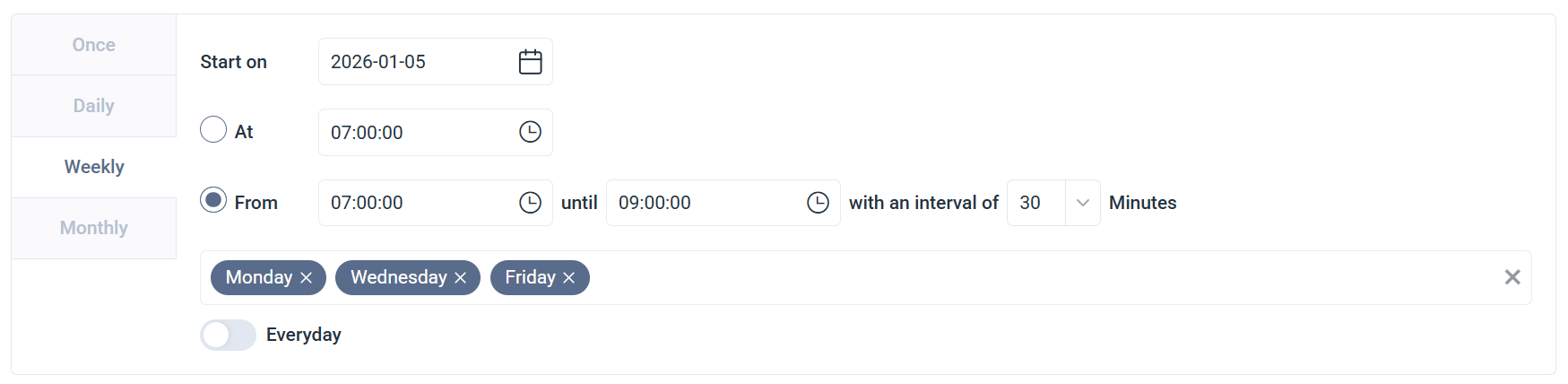
- Start On sets the date the recurrence begins.
- At sets a single fixed delivery time.
- From and until set a time range instead, sending at a set interval (in minutes) throughout that range.
- Days of the week selects which days the job runs on, multiple days can be selected. The Everyday toggle selects all seven days at once.
A job set to Monday, Wednesday, and Friday, running from 7:00 AM to 9:00 AM at an interval of 30 minutes, goes out five times on each of those three days.
Monthly
Selecting Monthly schedules a job to run only in certain months, active in whichever ones are selected. The day within those months can be set as either a fixed date or a relative day such as the second Saturday, and delivery can happen at one specific time, or repeat several times within a set time window.
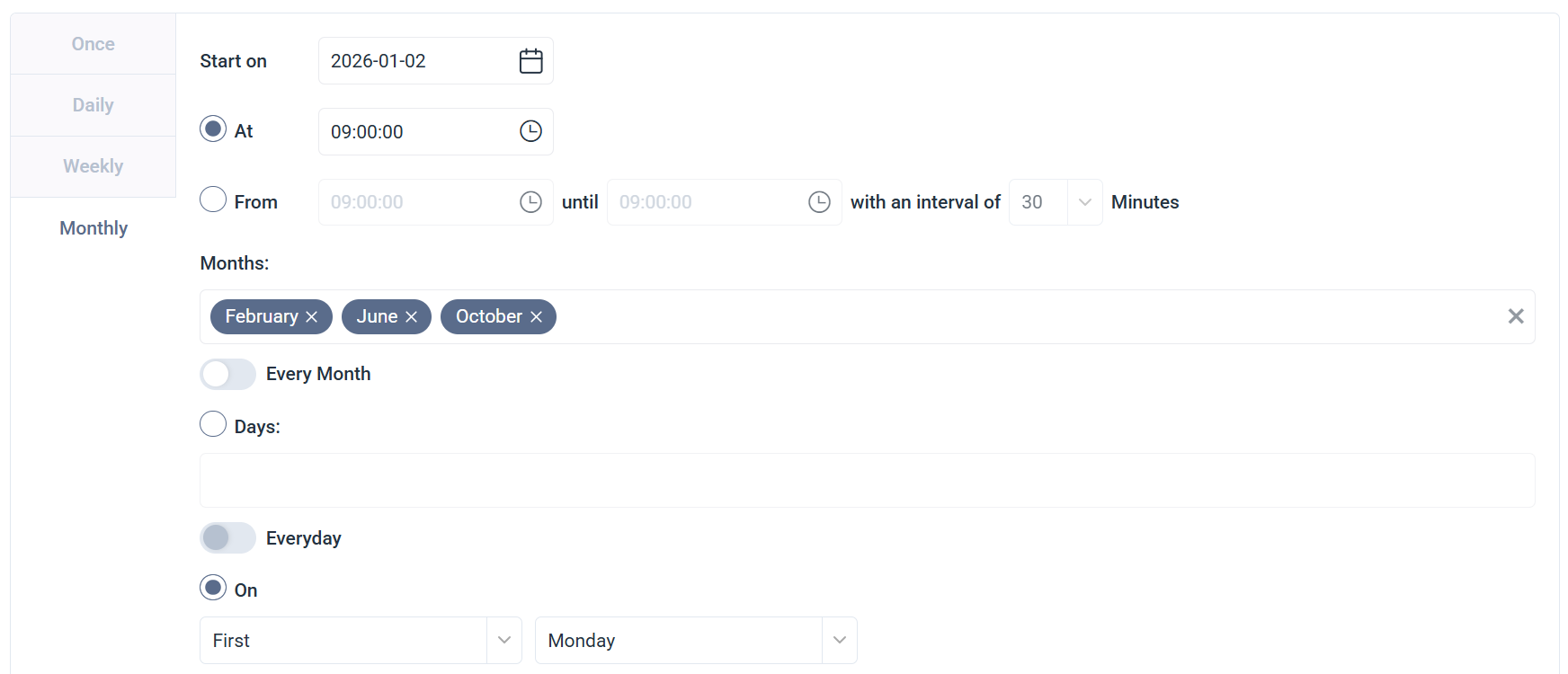
- Start On sets the date the recurrence begins.
- At sets a single fixed delivery time.
- From and until set a time range instead, sending at a set interval (in minutes) throughout that range.
- Months selects which months the job runs in, multiple months can be selected. The Every Month toggle selects all twelve months at once.
- Days and On are two alternative ways to set which day of the month the job runs on, only one can be used at a time. Days sets one or more specific days, such as the 4th or the last day of the month, and the Everyday toggle within it runs on every day of each selected month instead. On sets a relative day instead, such as the First, Second, Third, Fourth, or Last occurrence of a chosen weekday.
A job set to February, June, and October, going out on the first Monday at 9:00 AM, runs three times a year.
Add a time zone
Selecting a time zone ties a job's schedule to a specific region instead of a fixed UTC offset. This means the job's delivery time automatically shifts to stay aligned with that region's local time when daylight saving time starts or ends. Without a time zone selected, the job stays on a fixed UTC offset, so its actual delivery time in local terms shifts by an hour whenever the clocks change.
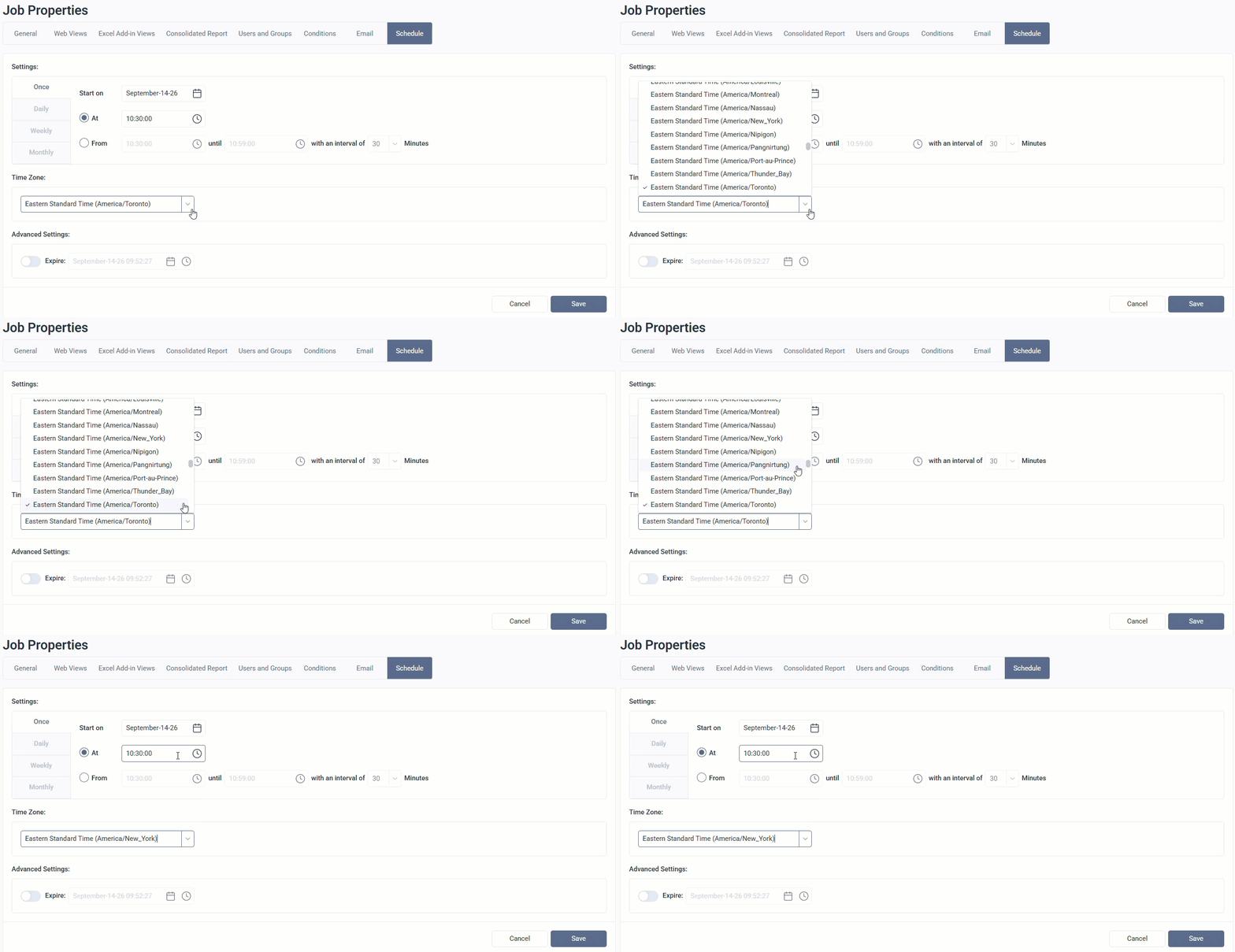
Once set, the selected time zone appears next to the schedule in the Schedule column of the Distribution Jobs list.
Jobs created without a time zone set show the Selected timezone (UTC...) doesn't adjust for Daylight Saving Time message, along with a yellow warning icon next to the job in the list. Set a time zone on these jobs to keep their delivery time accurate through Daylight Saving Time changes.
Set an expiration date
For Daily, Weekly, and Monthly frequencies, an expiration date can be set to stop automatically the schedule job. Otherwise, the job continues indefinitely.
A weekly report tied to a project ending in December can be set to expire on 2026-12-31 at 11:59 PM. The job stops automatically once the project ends, instead of being cancelled manually.