Project Contract Creation - CRE
The Project Contract Creation Writeback template creates new project contracts and their contract lines in Sage Intacct Construction and Real Estate (CRE) directly from a workbook. You can use the template to set the contract details, billing settings, retainage, and general ledger accounts of a project contract. It uses the NECWRITEBACK formula, generated with the Writeback Wizard, to send the completed contract and contract lines to Sage Intacct.
Write a project contract back to Sage Intacct
- Fill in the contract header.
- Click Create Contract Header.
- Enter the lines in the project contract lines grid.
- Review the contract lines, then click Create Contract Lines.
- Click Reset before you start another project contract.
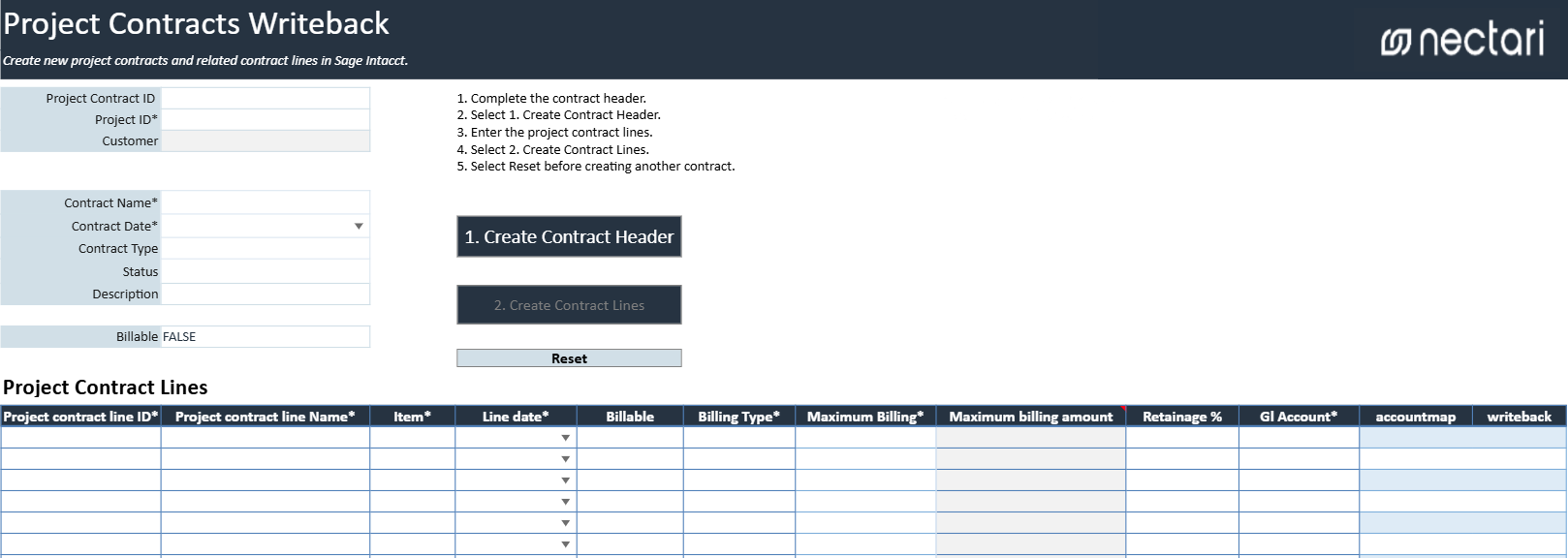
Project contract header fields
The contract header defines the project contract to create. You need to write the header back before the contract lines, and fields marked with an asterisk (*) are required.
| Header field | What it contains |
|---|---|
| Project Contract ID | Unique identifier for the new project contract. |
| Project ID * | Sage Intacct project associated with the contract. |
| Customer | Customer associated with the selected project and contract. |
| Contract Name * | Name used to identify the project contract. |
| Contract Date * | Date associated with the project contract. |
| Contract Type | Type or classification of the project contract. |
| Status | Status assigned to the project contract. |
| Description | Description of the project contract. |
| Billable | Indicates whether the project contract is included when generating billable transactions. |
Writeback actions
| Writeback action | What it does |
|---|---|
| Create Contract Header | Sends the contract header to Sage Intacct and creates the project contract. The contract needs to exist in Sage Intacct before you send the lines. |
| Create Contract Lines | Sends the lines entered in the grid to Sage Intacct and adds them to the project contract. |
| Reset | Clears the current contract entry so another project contract can be prepared. |
Project contract lines grid
The project contract lines grid contains the billing lines of the project contract. Columns marked with an asterisk (*) are required on every line you fill in.
| Contract line column | What it contains |
|---|---|
| Project Contract Line ID * | Unique identifier for the contract line. |
| Project Contract Line Name * | Name or description used to identify the contract line. |
| Item * | Item associated with the contract line. |
| Line Date * | Date associated with the project contract line. |
| Billable | Indicates whether the line is included when generating billable transactions. |
| Billing Type * | Billing method used for the contract line. |
| Maximum Billing * | Method used to limit the amount that can be billed for the line. |
| Maximum Billing Amount | Maximum billable amount when the selected maximum billing method requires a specified amount. |
| Retainage % | Percentage of the billed amount retained from the contract line. |
| GL Account * | General ledger account associated with the contract line. |
Billing type and maximum billing settings
Billing Type and Maximum Billing set how Sage Intacct bills each project contract line.
- Progress line can use Revised Contract Price as its Maximum Billing, so the line never bills more than the current approved contract amount.
- Time and Material (TM) line can use No Max instead, when the billing type supports it.
Review the project contract before writeback
Click Create Contract Header before Create Contract Lines, since the lines need an existing contract in Sage Intacct. After both writebacks, open the project contract in Sage Intacct to confirm that the header and the lines were created.
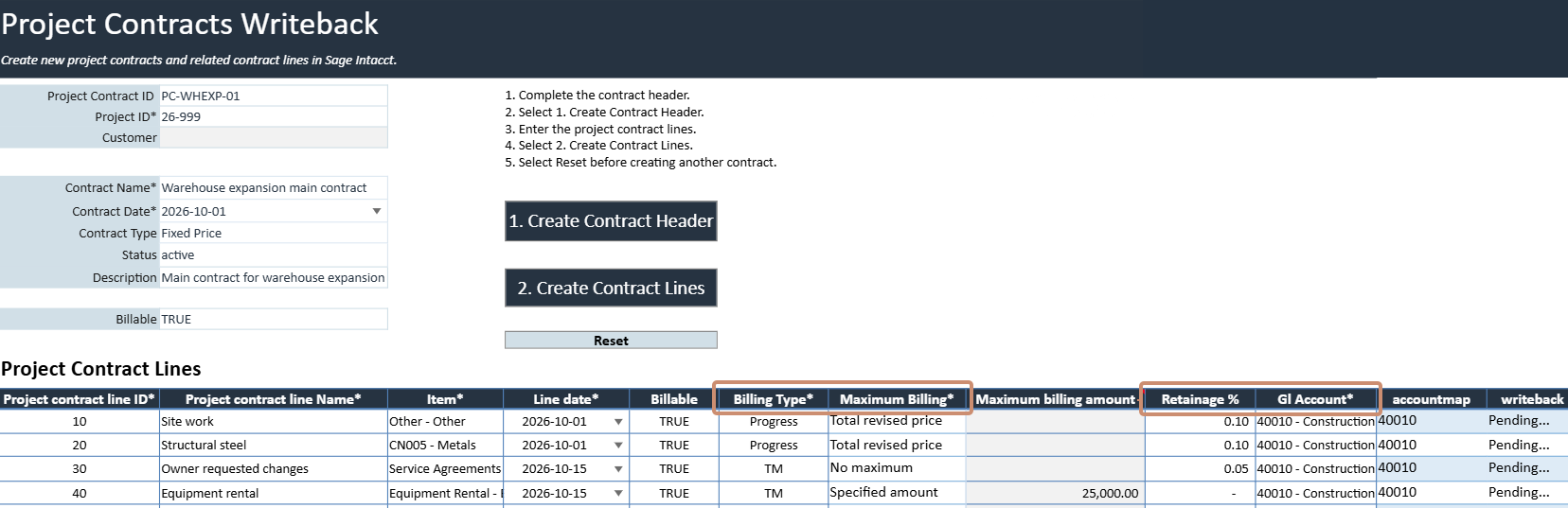
- Confirm that the Project Contract ID, Project ID, and other header fields are correct.
- Make sure every required (*) contract line field is complete.
- Review the Billing Type, Maximum Billing, Retainage %, and GL Account of each line.