Map User Defined Dimensions
User defined dimensions (UDDs) are the custom dimension fields of Sage Intacct, such as region, department, or project. SEI uses them to report and analyze financial metrics by the categories your organization defines. The process has two parts. Sync the UDD fields in DataSync so their data reaches the data warehouse, then map them to your Sage Intacct codes in SEI.
Sync the user defined dimension fields in DataSync
Sync the UDD fields of the Glentry and Glbudgetitem tables, then run the extraction in Truncate and Load mode so the data warehouse receives them. The data warehouse only gets the fields you sync.
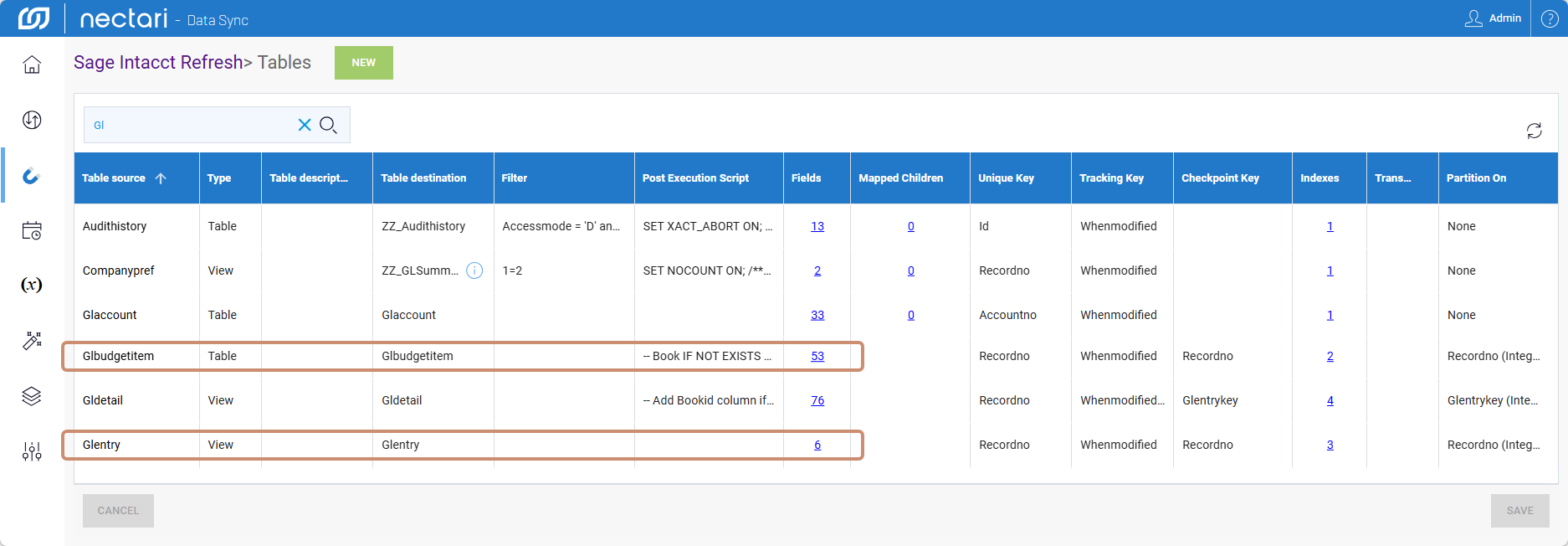
- In DataSync, select the Extractions module.
- Select the Sage Intacct Refresh extraction and click the link in the Tables column.
- Search for the Glentry table and click the link in the Fields column.
- Select Sync for each UDD field you want to include.
- Repeat for the Glbudgetitem table.
Load the synced fields
- Click Extractions to go back to the extractions list.
- Select the Sage Intacct Refresh extraction and click Run Extraction Now in the upper right corner.
- Set the load mode to Truncate and Load.
- Click Run.
Map user defined dimension fields
The template includes 20 user defined dimension (UDD) fields. Map the ones you use to your Sage Intacct codes in the UDD Mapping for Live template data model.
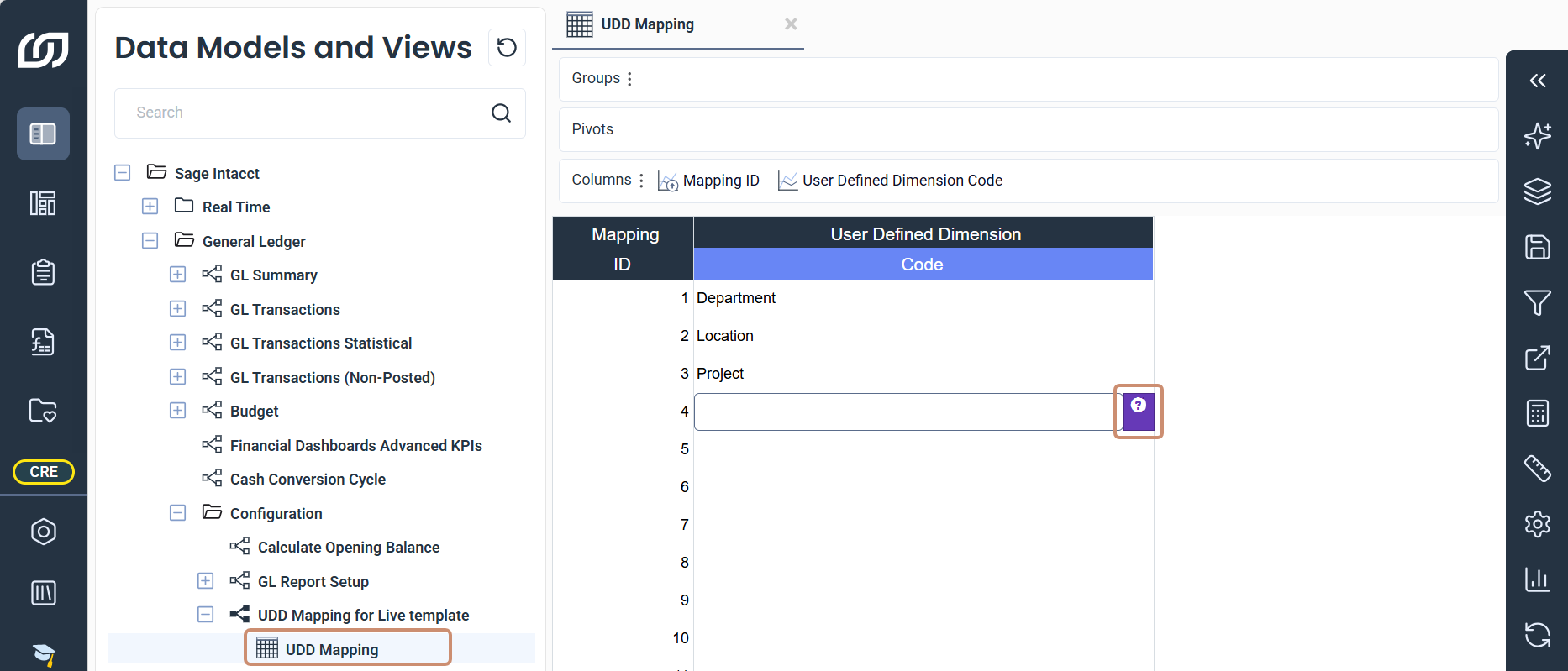
- In Nectari, select Data Models and Views from the navigation panel.
- Expand Sage Intacct, then General Ledger and Configuration.
- Expand UDD Mapping for Live template and open the UDD Mapping worksheet.
- In the Code column, use the prompt icon of each cell to map your UDD code to an ID.
- Click Save Changes in the toolbar on the right.
- Right-click the UDD Mapping for Live template data model and click Execute Info Pages.
- Click Execute Mapping.
After any change to the mapping, run the Map UDDs to View info page again to apply it.