Configure Sage Intacct Reporting Codes
Reporting codes map your accounts to standardized reporting groups. SEI uses these groups to calculate the financial KPIs and fill the dashboards, so the metrics are the same for every company and chart of accounts structure. Generate the default reporting codes, then assign your account numbers to them. Importing the account groupings from Sage Intacct is optional and only needed for custom reports.
- Required configuration
- Optional configuration
Generate the default reporting codes
The Reporting Codes Setup data model generates the default reporting codes that the financial KPIs use.
- In SEI, select Data Models and Views from the navigation panel.
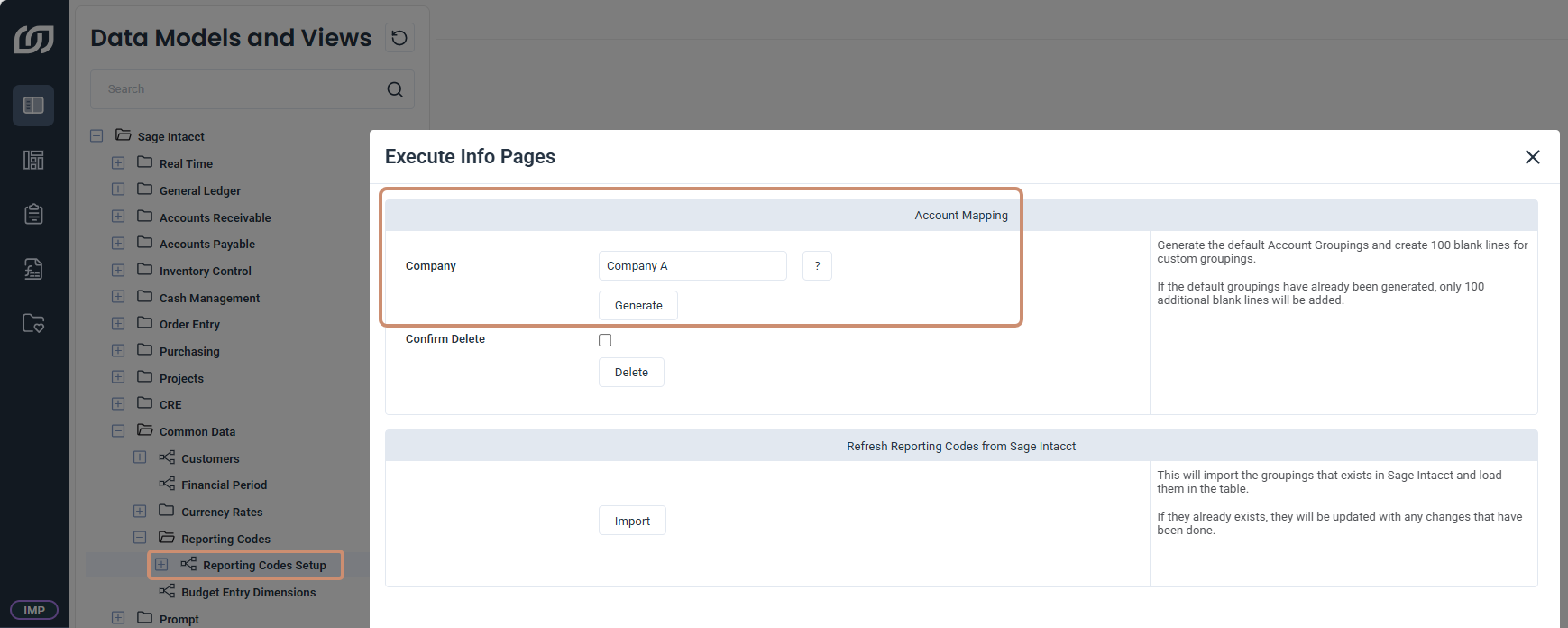
- Expand Sage Intacct, Common Data, and Reporting Codes.
- Right-click the Reporting Codes Setup data model and click Execute Info Pages.
- Select the Company, then click Generate.
Assign accounts to the reporting codes
Complete this part after you generate the codes. Each generated group needs the account numbers of your chart of accounts.
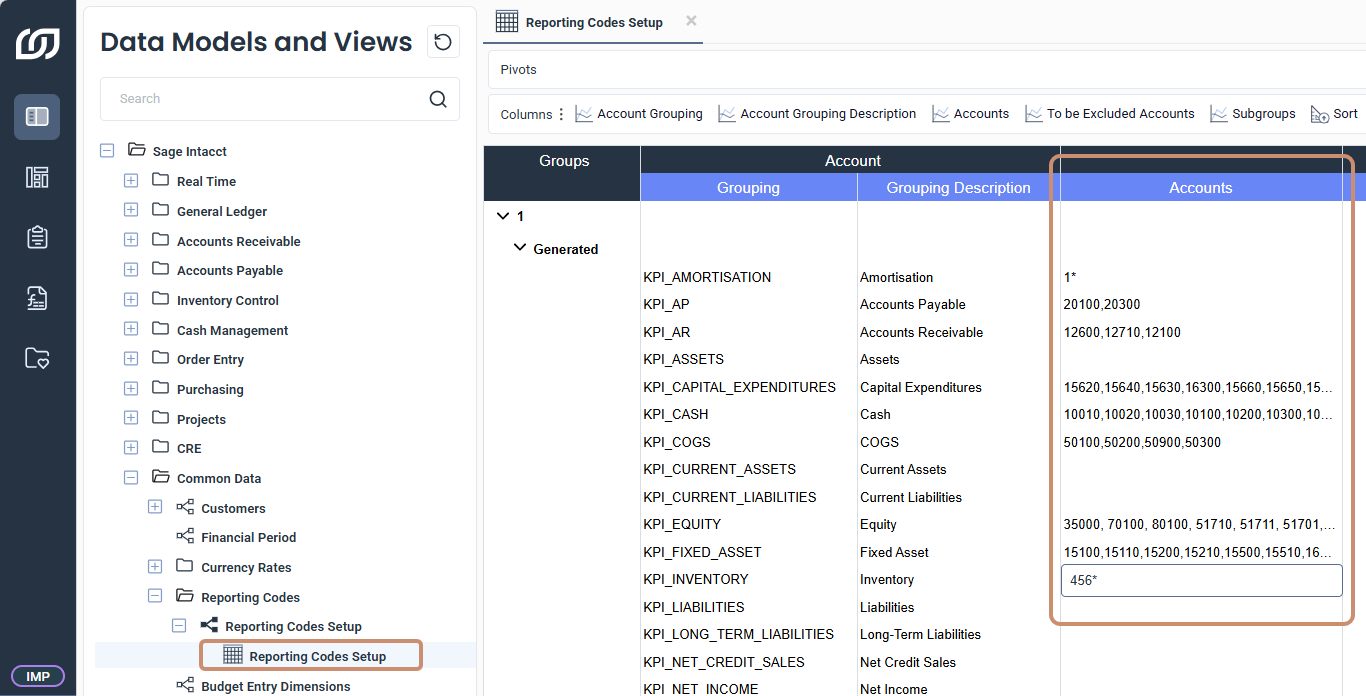
- Expand Reporting Codes Setup and open the worksheet.
- Expand a generated group and fill in the Accounts column with the account numbers.
- Click Save Changes in the toolbar on the right.
Example use cases:
- Separate accounts and intervals: Use commas between accounts and a colon for an interval, such as
12100,12250:12300,12305. - Replace several characters: Use an asterisk, so
456*matches all accounts that begin with456. - Replace one character: Use a question mark, so
456?matches the four digit accounts that begin with456.
Import the Sage Intacct account groupings
Import the account groupings used in Sage Intacct to use them in custom reports.
- In Data Models and Views, expand Sage Intacct, Common Data, and Reporting Codes.
- Right-click the Reporting Codes Setup data model and click Execute Info Pages.
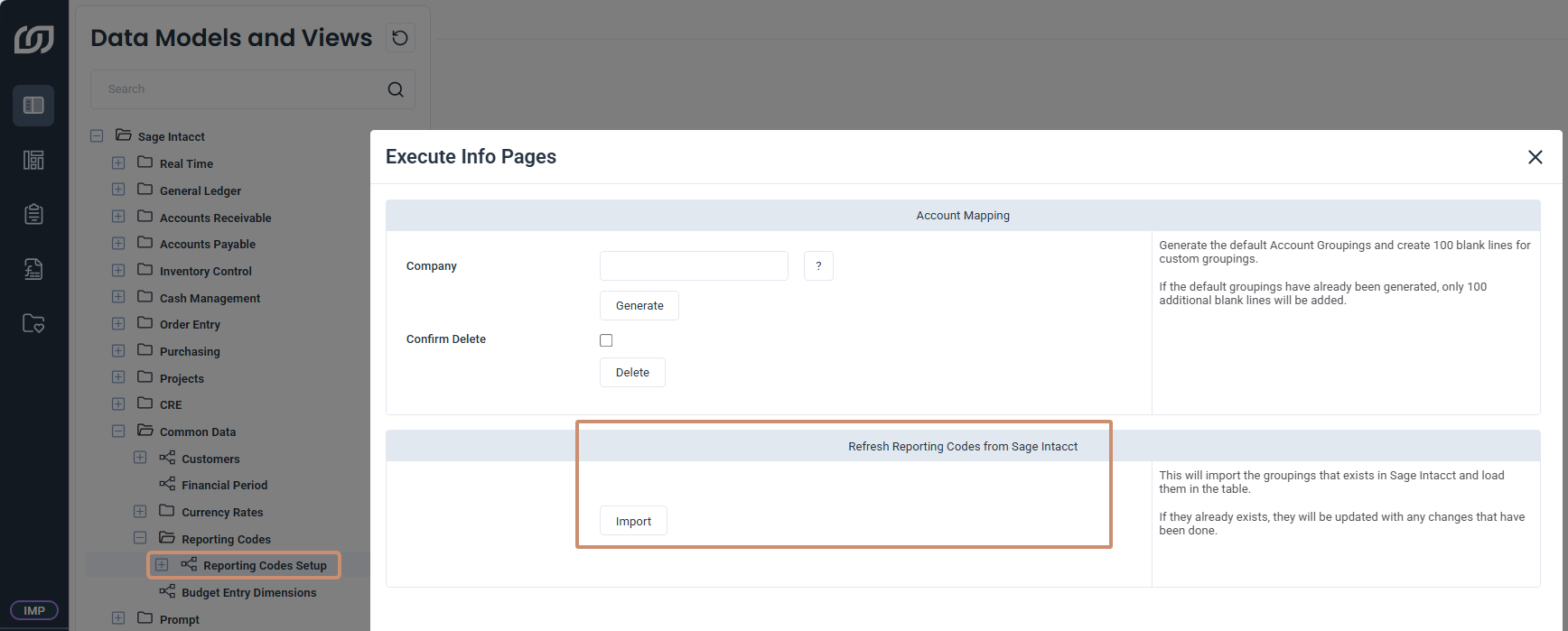
- Under Refresh Reporting Codes from Sage Intacct, click Import.