Create Account Group Hierarchies
Account groups organize your Sage Intacct accounts into the categories your reports use, such as the structure of your organization or financial categories. The GL Report Setup data model handles this setup. Create a report code, assign an account group code to each of its lines, then set the report code global variables so each report uses its code.
Create a report code
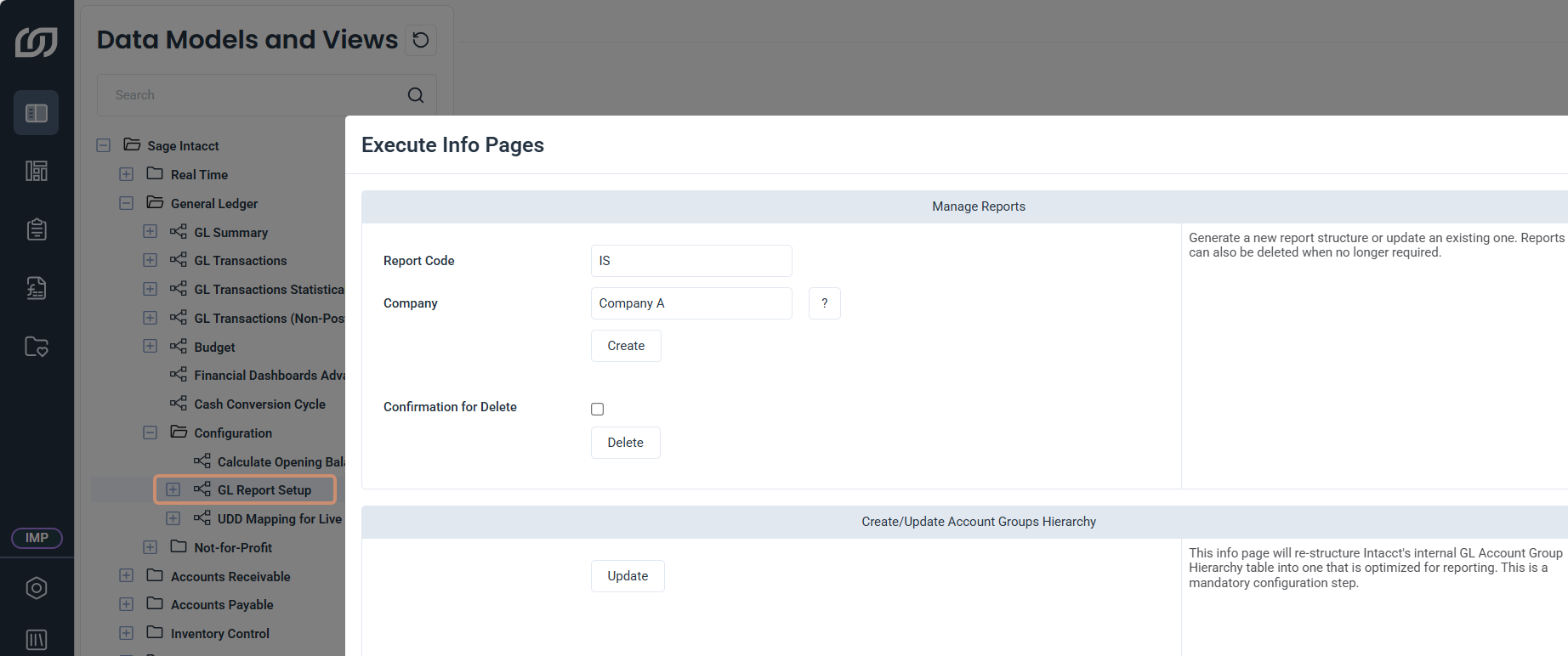
Creating a report code adds 100 blank lines to it, which you fill in the next section. A report code that already exists returns an error. You create it by running the GL Report Setup info page.
- In SEI, select Data Models and Views from the navigation panel.
- Expand Sage Intacct, General Ledger, and Configuration.
- Right-click GL Report Setup and click Execute Info Pages.
- Under Create/Update Account Groups Hierarchy, click Update.
- Under Manage Reports, enter a report code and click Create.
Assign account group codes
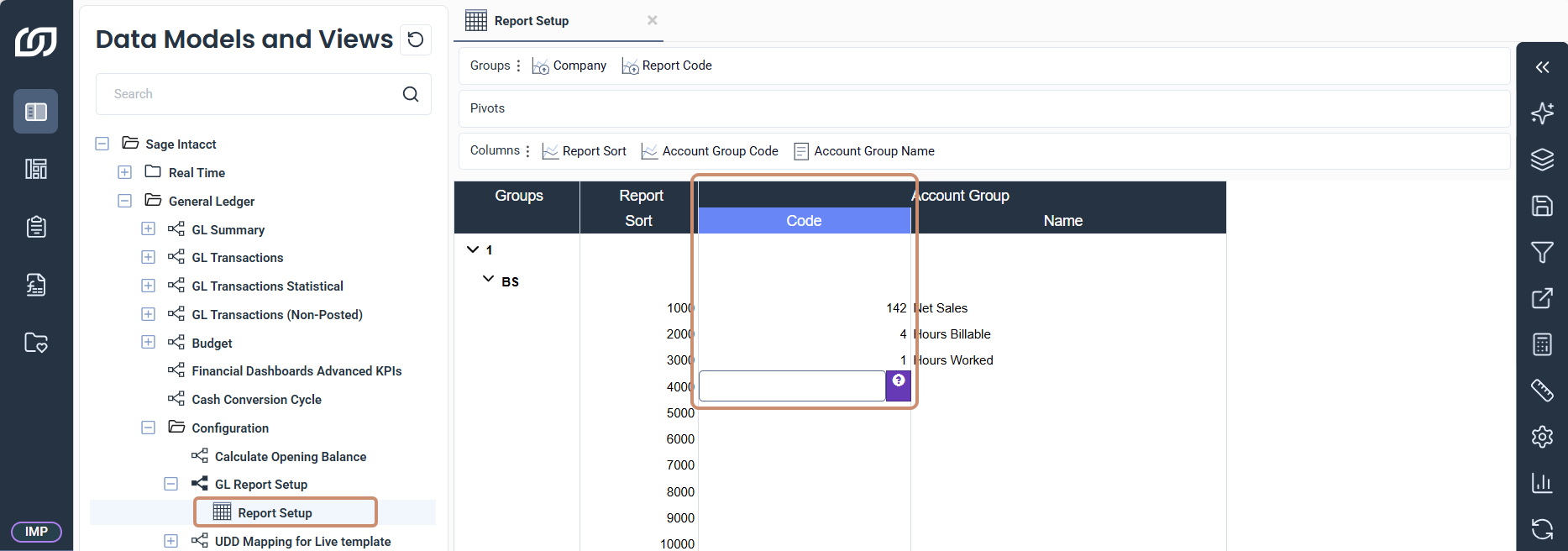
- Expand GL Report Setup and open the Report Setup worksheet.
- In the Code column, enter a code for each account group.
- Click Save Changes in the toolbar on the right.
Set the report code global variables
Complete this part after you create the report codes. Each global variable stores the report code of one financial report:
Report code global variables
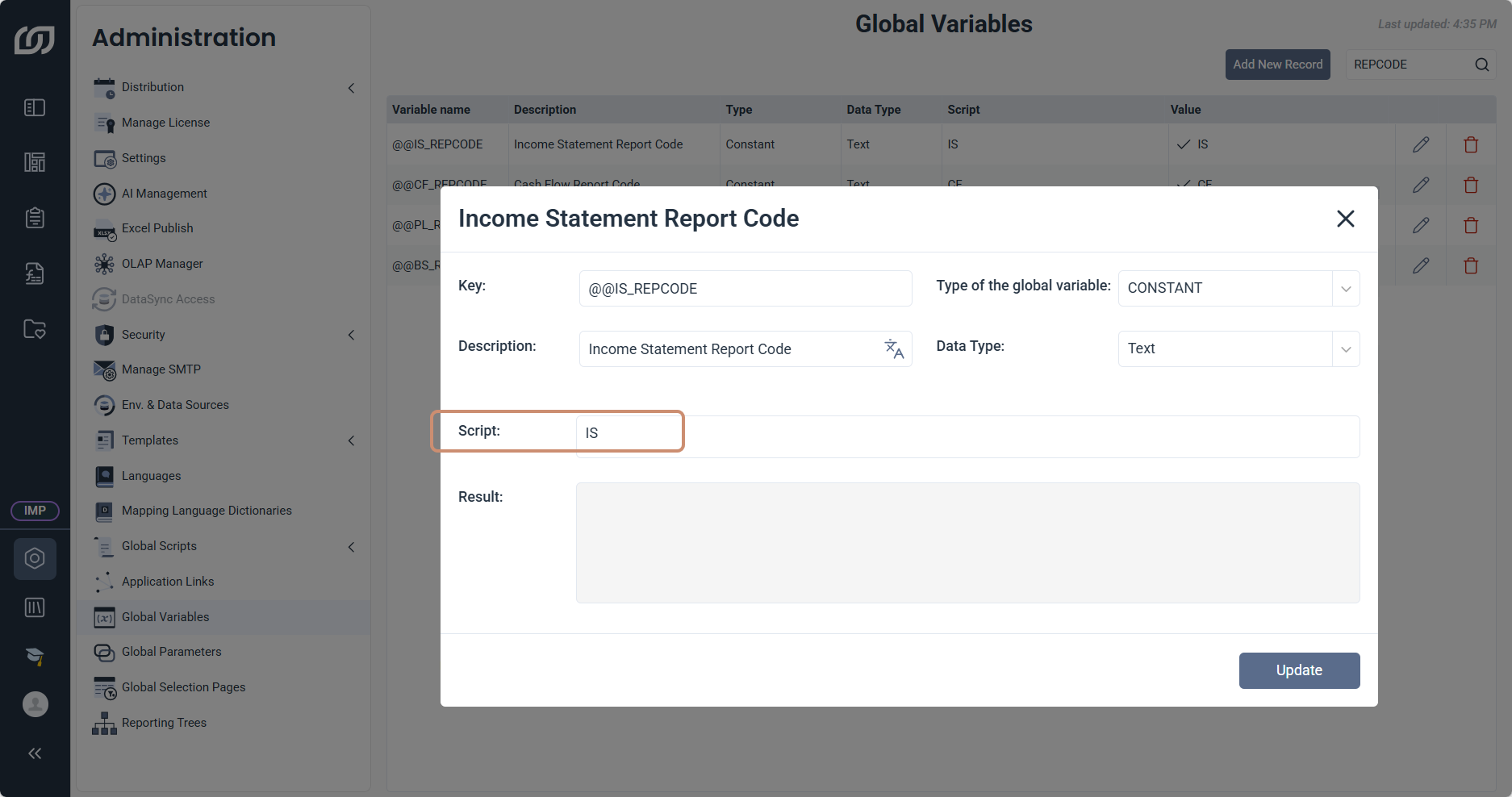
@@IS_REPCODEfor the income statement report@@CF_REPCODEfor the cashflow report@@PL_REPCODEfor the profit/loss report@@BS_REPCODEfor the balance sheet report
- In the navigation panel, click the gear icon, then click Global Variables in the sidebar.
- In the search bar, enter
REPCODE. - Click the pen icon of a variable in the table.
- In Script, enter the report code you created for that report, such as
IS. - Click Update, then repeat for each variable.