
Embed SEI in Sage Intacct

You can display Sage Enterprise Intelligence inside Sage Intacct and reach the administration functions, dashboards, reports, and workbooks without leaving the ERP. Copy the Sage Enterprise Intelligence URL, add it to the Sage Intacct content security policy, then display it in a dashboard or a custom screen.

In Sage Enterprise Intelligence

Copy the Sage Enterprise Intelligence URL​

Copy the main link to embed the full menu, or the link of a view or dashboard to embed only that one.

Copy the main URL​

  1. Log in to Sage Enterprise Intelligence.
  2. Copy the full URL from the browser address bar.

Copy a visualization URL​

  1. In the navigation panel, select Data Models and Views or Dashboards.
  2. Expand the folders and open the view or dashboard.
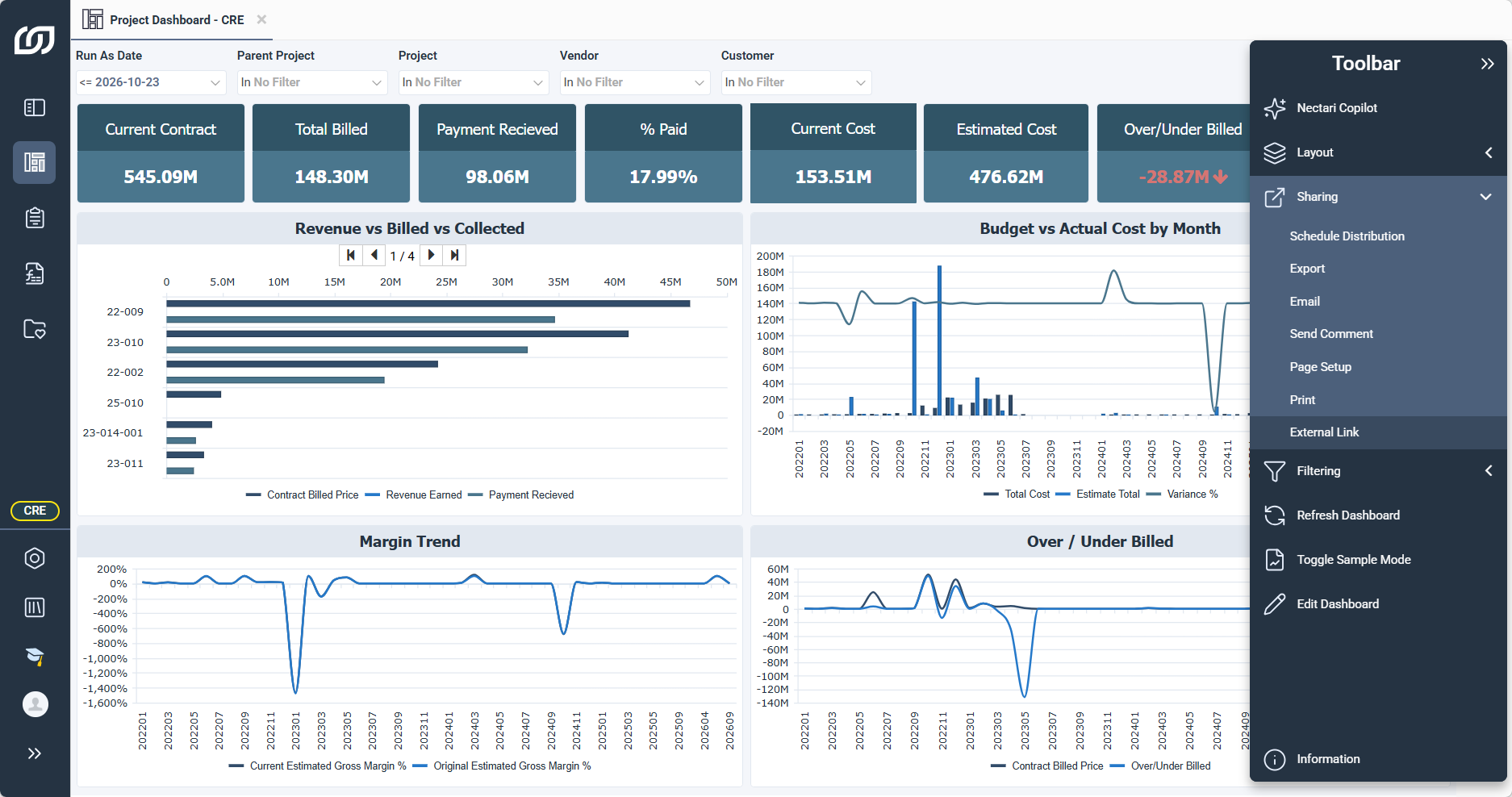
  3. In the toolbar on the right, expand Sharing and click External Link.
  4. Copy the full URL from the browser address bar.
To pass a Sage Intacct value to an embedded view, add a filter to the URL. For example, to filter by customer ID, add f=[Arinvoice_1.Customerid]='{!CUSTOMER.CUSTOMERID!}'.
Sharing menu of a dashboard in Nectari, with External Link highlighted
In Sage Intacct

Embed Sage Enterprise Intelligence in Sage Intacct​

Update the security policy​

  1. Log in to Sage Intacct.
  2. Expand Applications, then under Company and Setup, click Company.
  3. Select the Security tab and click Edit.
  4. Scroll to Content security policy and click the + icon.
  5. Paste the URL you copied.
  6. Select the required checkboxes for embedded content.
  7. Click Save.

Add to a dashboard​

  1. Expand Company, then under Dashboards, click + Dashboards.
  2. Click Add, then enter a title, such as Sage Enterprise Intelligence.
  3. In the Filters tab, select the filters to show on the dashboard.
  4. In the Permissions tab, grant rights to the groups or users who need access.
  5. Click Save, then click View components next to the new dashboard.
  6. Click + in the upper right corner.
  7. In Component type, select Smart links, then in Smart link type, select Fetch.
  8. Enter a title for the component, such as Sage Enterprise Intelligence Full Menu, and paste the URL.
  9. Click Save.

Add to a custom screen​

  1. Expand Applications, then under Platform Services, click Smart link fetches.
  2. Click Add, select the object where you want to embed Sage Enterprise Intelligence, then click Next.
  3. In Target, paste the visualization URL.
  4. Enter the height and width, then click Next.
  5. In Label and Smart link ID, enter a name for the visualization.
  6. Select the tab where the field appears, then click Done.
Name the Label after the visualization you embed, such as Sage Enterprise Intelligence Balance Sheet or Sage Enterprise Intelligence AP Aging. The label is the name of the tab or field in Sage Intacct.
View the tab​

  1. Expand Platform Services, then under Accounts Receivable, click + Customers.
  2. Click Views next to a customer.
  3. Click the Sage Enterprise Intelligence Balance Sheet tab.