Transformations in DataSync
The Transformations module stores value mappings that DataSync applies to the fields of an extraction. Each mapping pairs an old value from the source with a new value for the destination, so DataSync replaces one with the other while it loads the data.
Mappings are grouped in a transformation group, which you then select in your extractions. This keeps the destination data in the same format, even when the sources use different ones. A transformation fits simple one to one replacements. For more complex logic, such as a result that depends on other fields, use a calculated field instead.
- Add a prefix to customer IDs:
10001becomesC10001. - Remove dashes from account numbers:
40000-00-00becomes400000000. - Standardize titles:
MR.andmrboth becomeMr.. - Replace country names with codes:
CanadabecomesCA.
Create a transformation group
A transformation group contains the pairs of old and new values that DataSync applies to a field. To convert blank or missing values, enter one of these keywords in the Old Value column:
| Keyword | Matches | What the field contains |
|---|---|---|
BI_EMPTY | Empty values | Matches fields that exist but contain no text. |
BI_NULL | Null values | Matches fields that have no value stored at all. |
- In DataSync, select the Transformations module.
- Click New.
- Enter a name for the transformation group, then click Next.
- In the Old Value column, enter the source value to convert.
- In the New Value column, enter the value that replaces it in the destination.
- Repeat steps 4 and 5 for each value to convert.
- Click Save.
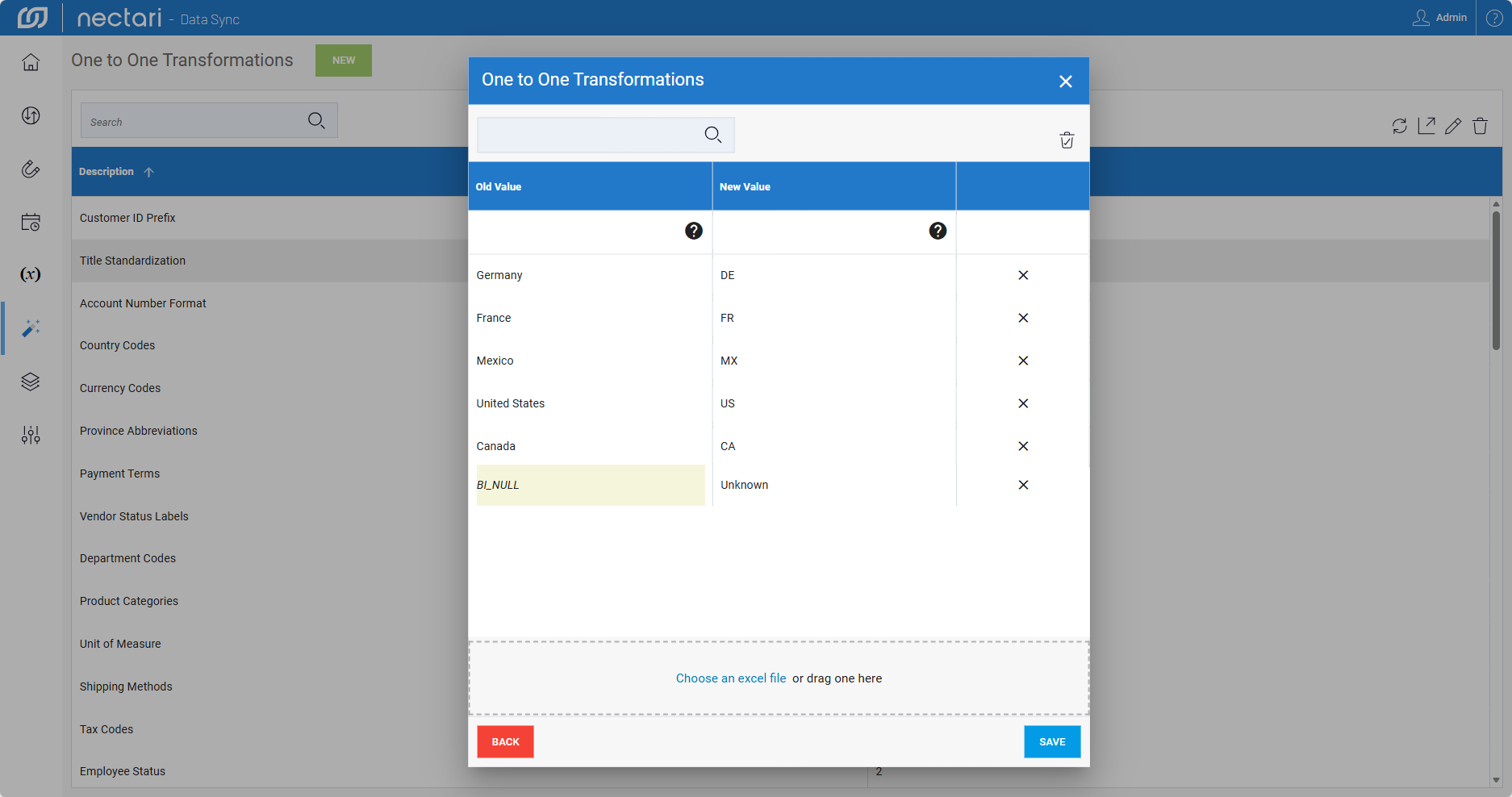
- Enter the value to match in the source database.
- Enter the value that replaces the old value in the destination database.
- Import the value pairs from an Excel file.
Select the transformation, then click the trash icon in the upper right corner.
Import transformations from an Excel file
Import an Excel file when you already have a long list of value pairs, so you do not have to enter each row by hand. The file needs one column for the old values and one for the new values. During the import, you select an import mode that decides what happens to the values already in the group:
- Replace overwrites all existing values in the transformation group with the values from the Excel file.
- Merge adds the values from the Excel file to the group and keeps the current entries.
- Click New.
- Enter a name for the transformation group, then click Next.
- Click Choose an Excel file and browse to your file, or drag the file into the highlighted area.
- Select the sheet to import.
- Select whether the first row contains headers.
- Select the columns that hold the Old Value and New Value data.
- Select Replace or Merge.
- Click Continue, then click Save.
Export a transformation
Export a transformation group to back it up, to share it with another environment, or to reuse it in a different DataSync installation. The exported .xlsx file uses the same Old Value and New Value layout as the Excel import, so you can import it into another installation.
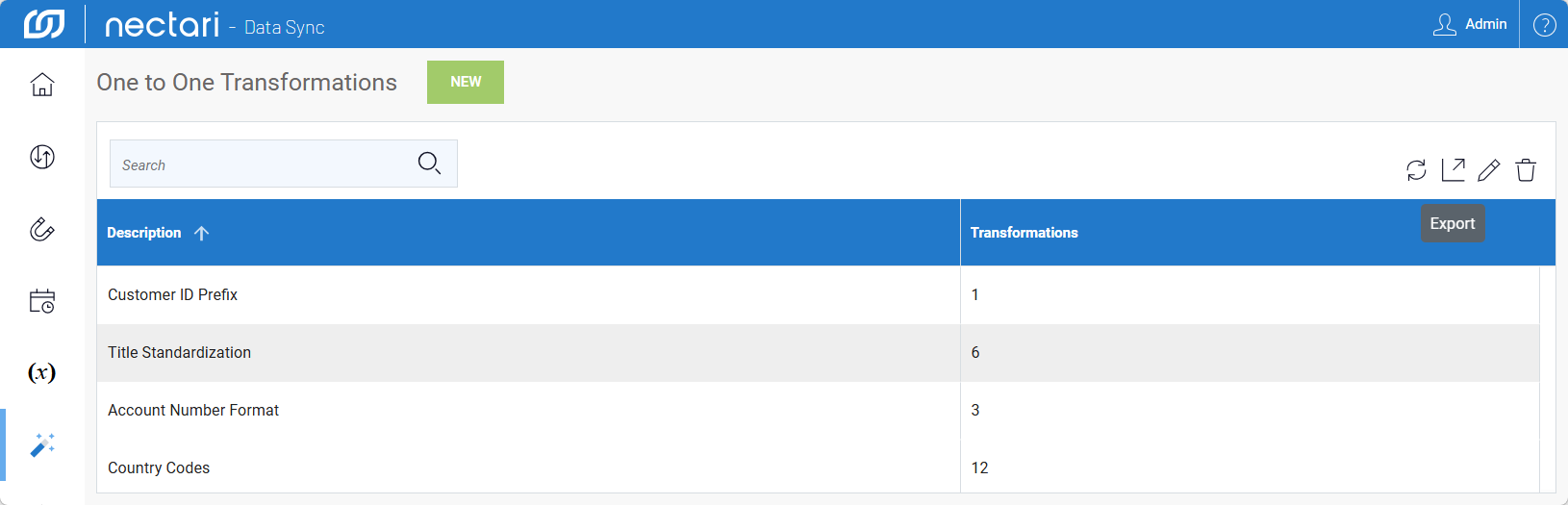
- On the Transformations page, select a transformation in the list.
- Click the Export icon in the upper right corner.
- Enter a name for the export file.
- Click Export. DataSync saves the transformation as an
.xlsxfile on your computer.