Settings in DataSync
The Settings module shows the license and version details of your DataSync installation and holds the configuration that DataSync needs to run. It contains the database connection, the SMTP server that sends email notifications, the server URL of your environment, and the list of users under your license. You configure Connection Properties and SMTP Server during the first setup.
View system information
The top of the Settings module shows read only details about your current DataSync installation. Check them to confirm which version runs on your server and to verify that an update was applied. The information is also available by clicking the information icon in the top-rigth corner of the page.
- License is the license number of your DataSync installation.
- Version is the DataSync version installed on your server.
- Release is the release number of that version and identifies the update level.
- Build is the exact compiled instance of the software. Use it to identify a specific patch or hotfix.
- Database Version is the version of the internal DataSync database schema in use.
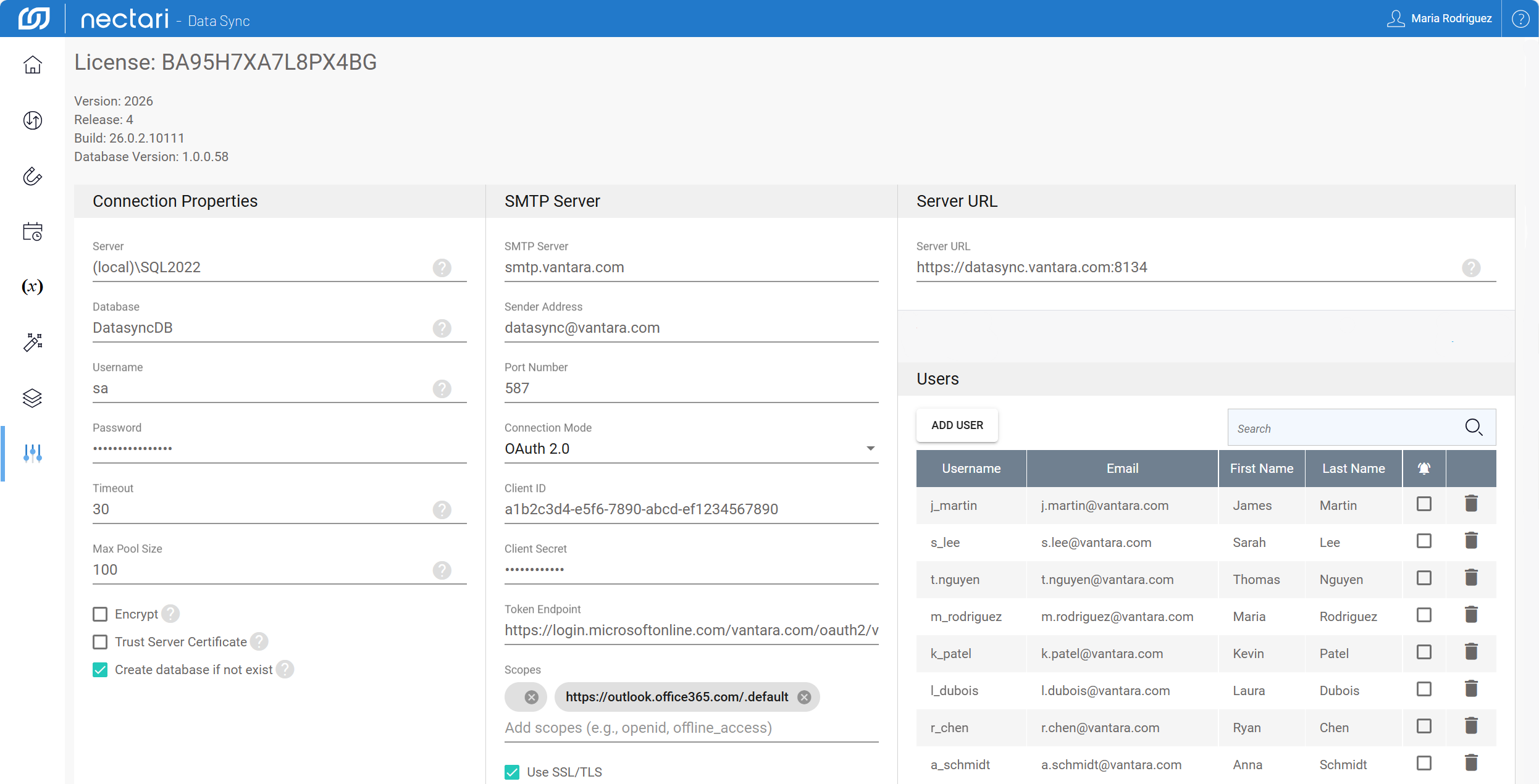
Settings panels
The Connection Properties and SMTP Server panels are already configured during the first setup of DataSync, but you can change any panel afterward on this page. Just remember to save the changes in each panel you edit, since DataSync does not apply them otherwise.
| Panel | What it contains |
|---|---|
| Connection Properties | Stores the server name, database name, credentials, and advanced options that DataSync uses to connect to its own database. |
| SMTP Server | Configures the outgoing email server that sends notifications, with its sender address, port, and authentication method. |
| Server URL | Sets the URL that clients and web connections use to reach DataSync in your environment. |
| Users | Lists the user accounts under the current license and lets you add users or remove them. |
Add users under the same license
Several users can be added under the same license, and each user has a separate account to log in and work in DataSync independently. Email notifications are off by default for every new user, so turn them on for anyone who must be informed when a scheduled job fails. Without the alert, that user only sees the failure by opening the Logs module.
- Log in to DataSync.
- On the welcome screen or in the left pane, select Settings.
- In the Users panel, click Add User.
- Enter a unique username, an email address, a first name, and a last name.
- (Optional) Click the notification bell to turn on email alerts for job failures.
- Click the save icon.
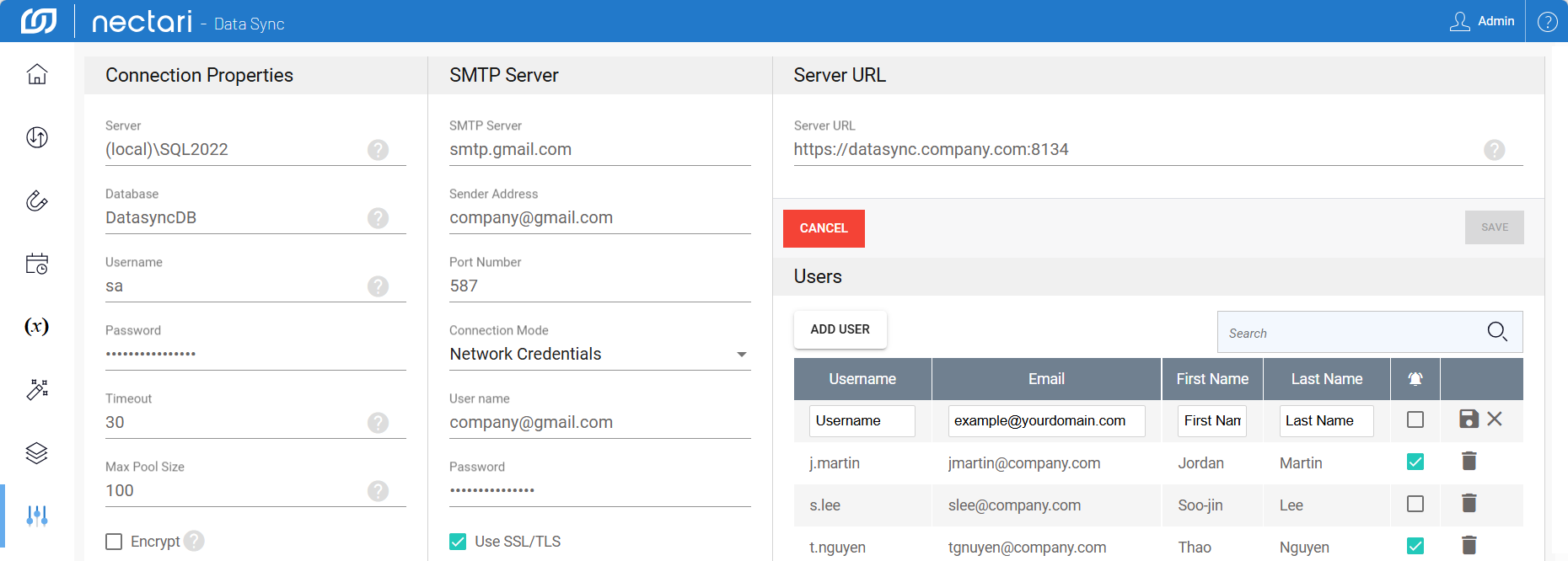
In the Users panel, click the trash icon next to the user's name to remove that user from DataSync.