Synchronize Server Time with a Time Offset
An Incremental Load retrieves only the records that changed since the last run. DataSync decides what changed by comparing the time on its own server with the time stored on the records in your ERP. If DataSync and your ERP run on different servers and their clocks do not match, some records can fall between two runs and never be retrieved. You need to add a Time Offset on a source connection cover the time difference between the DataSync server and the ERP server.
If DataSync is installed on the same server as your ERP, you do not need a time offset. Otherwise, make sure the minutes and seconds match on both servers, and use a time offset for any difference that remains.
When the ERP server clock is 40 seconds ahead of the DataSync server clock, enter a Time Offset of 60 seconds, which is greater than the 40 second difference.
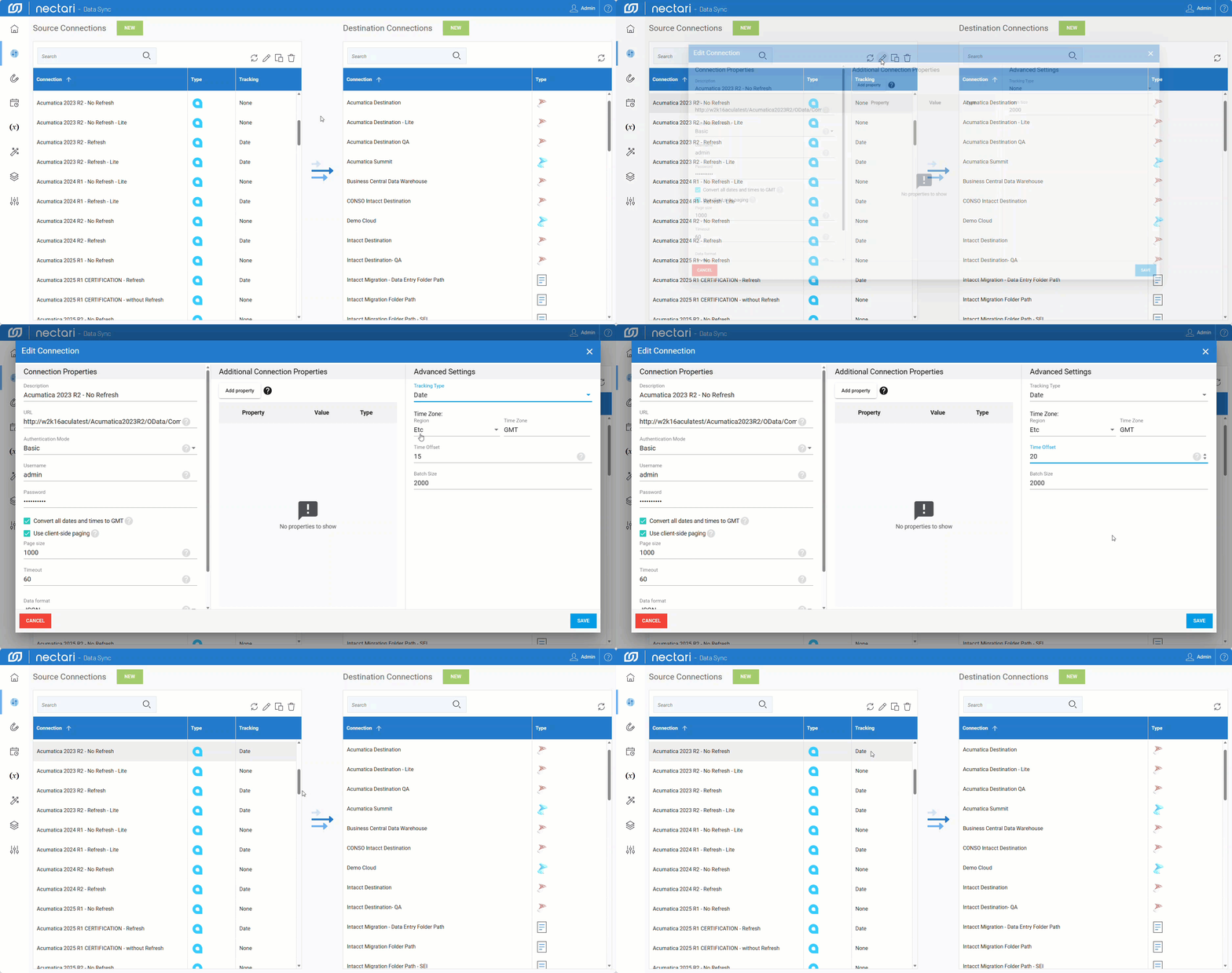
Add a time offset to a source connection
- In DataSync, select the Connections module.
- Under Source Connections, select a connection in the list.
- Click the pencil icon in the upper right corner of the table.
- In Tracking Type, select Date.
- Select the region and the time zone of the ERP server.
- In Time Offset, enter the number of seconds.
- Click Save.