Cloud Hosting Add-ons (In-App)
When SEI is deployed with Cloud, Cloud Hosting comes with a base storage limit and a base number of daily refreshes. If that's not enough, you can manage your subscription directly inside SEI to purchase more storage, more refreshes, or upgrade to a Performance Plan tier. Storage and refreshes can also be reduced at any time, with the change taking effect at the start of your next billing cycle. Cloud Hosting add-ons are billed monthly or yearly, with prices always shown and charged in USD.
Managing additionnal Cloud storage, refreshes, and performance applies to the license model introduced in 2026.
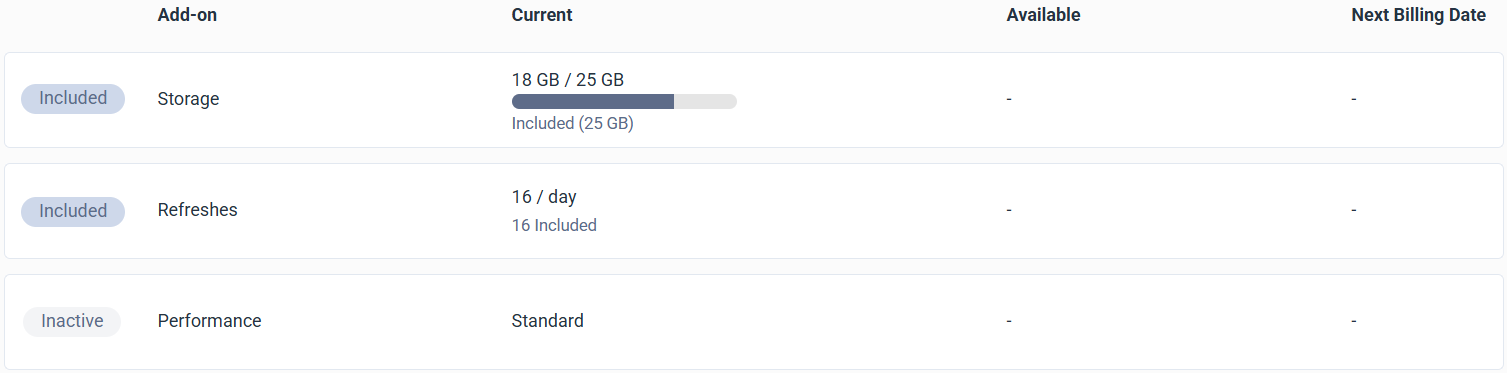
Review the default Cloud Hosting license plan
On the Manage License page, under Cloud Hosting, the Storage and Refreshes rows show as Included, since a base amount comes included with your Cloud deployment. The Performance row shows as Inactive while performance stays on the default Standard tier.
- Add-on identifies each add-on, Storage, Refreshes, or Performance, along with its current status.
- Current shows how much is currently used and included.
- Available indicates how much is remaining before the limit is reached.
- Next Billing Date displays when the next billing cycle starts for additional add-ons.
Subscribe to cloud hosting add-ons
Storage, refreshes, and the performance plan can all be adjusted by clicking Manage Subscription, either one at a time or together in a single update. As soon as you subscribe to additional storage, additional refreshes, or the performance plan, the corresponding badge turns Active.
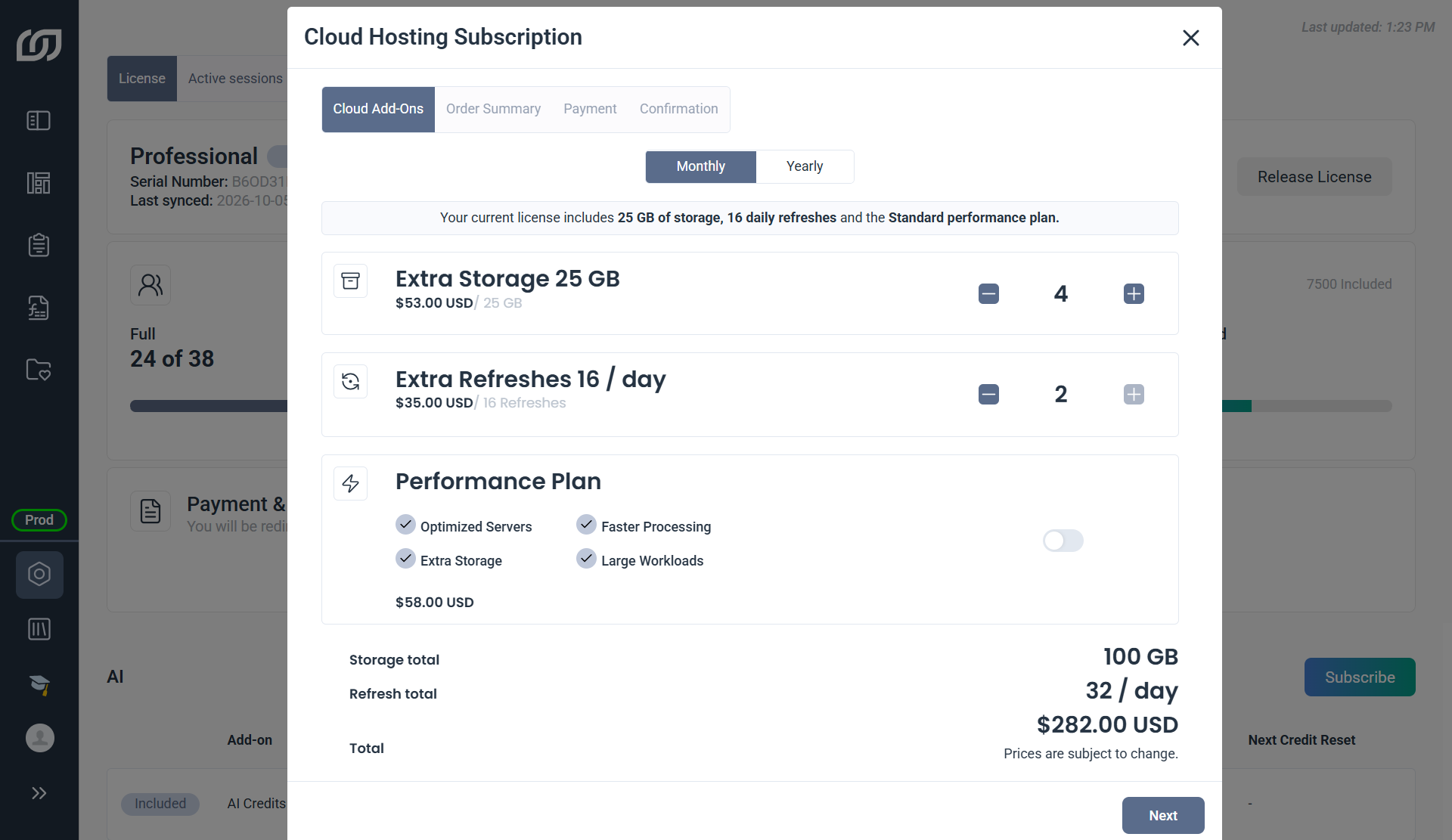
- Switch the subscription between monthly and yearly billing.
- Shows the storage, refreshes, and performance tier active before any changes.
- Increase or decrease the storage limit and refresh count.
- Toggle the Performance Plan on or off.
- Combines the included base amount with any extra units to show the updated storage and refresh totals.
If storage or refreshes are already active and you subscribe to more on top of them, SEI prorates the new units for the rest of the current billing cycle, then charges the full amount starting with the next cycle.
- Extra Storage
- Extra Refreshes
- Performance Plan
Extra Storage
Extra storage can be subscribed to at any time in units of 25 GB, and takes 24 to 48 hours to activate. The maximum amount that can be added depends on how much storage is already active, up to a total of 500 GB. For example, with 10 units already subscribed (250 GB total), up to 10 more units can be added before reaching that limit. This limit is higher when the Performance Plan is active.
Starting with 25 GB included, 4 extra units of 25 GB each bring the total to 125 GB of storage.
- In the navigation panel, click the gear icon to open the Administration section.
- Select Manage License from the sidebar.
- Under Cloud Hosting, click Manage Subscription.
- (Optional) Adjust the billing cycle to monthly or yearly.
- Increase the storage limit as needed.
- Click Next.
- Review your order, then click Proceed to Payment.
- Click Confirm Payment.
After subscribing to extra storage
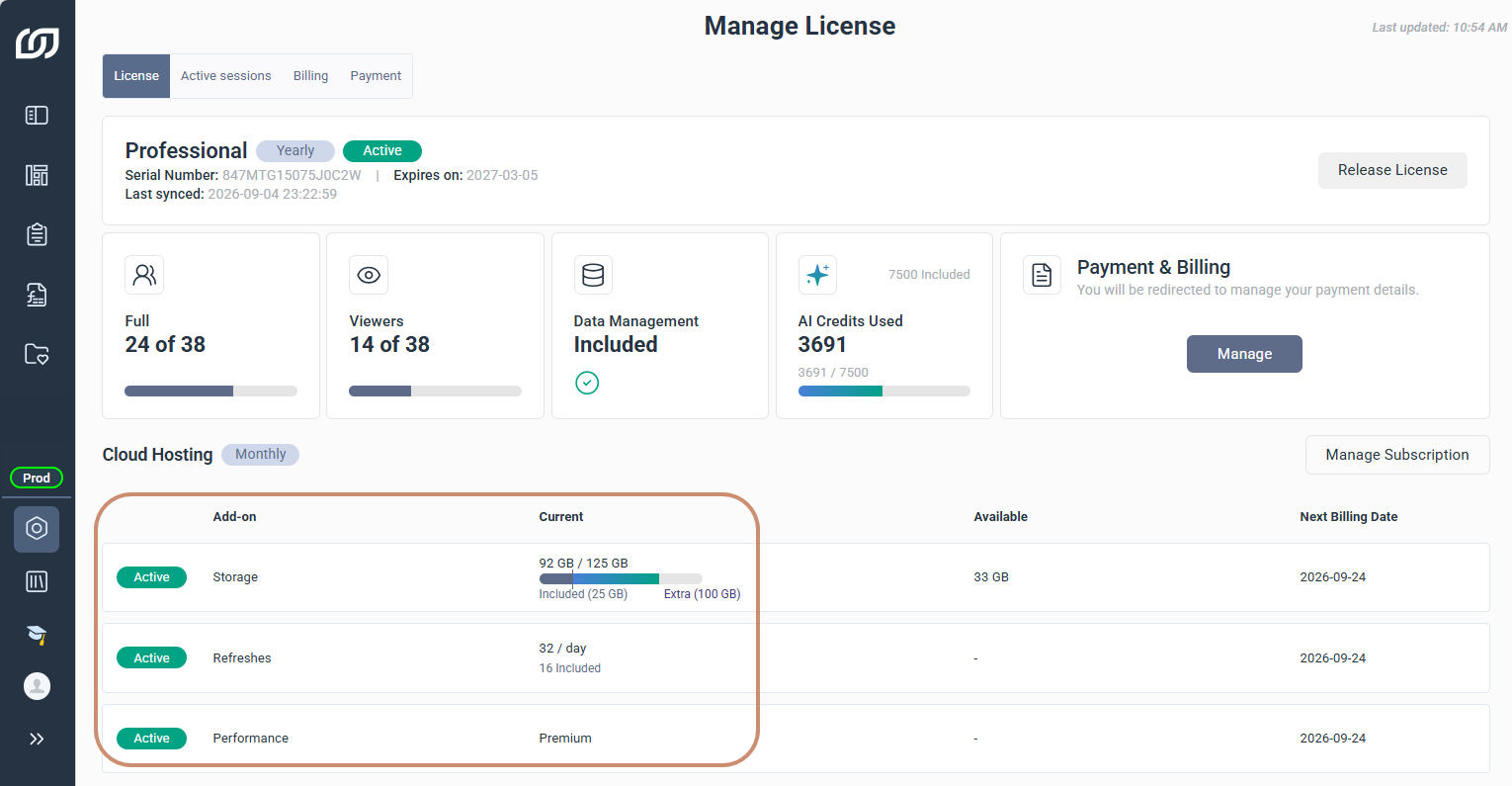
After subscribing, the badge changes to Active, and your Available column updates to include the extra storage. The bar under Current also splits into two sections, Included and Extra, separated by a line. Your included storage is consumed first, and once that's used up, the extra storage takes over and the second section begins to fill.


As your storage nears its limit, the bar turns yellow as a warning, and SEI sends you an email as well. Once you reach the limit, it turns red and you receive another email. You can't add more data until you subscribe to more storage or clear existing data. And if storage stays at the limit for 14 days, your access to SEI gets limited to the Manage License page only, until you subscribe to more storage.


Extra Refreshes
Extra refreshes for DataSync can be subscribed to at any time, in units of 16 refreshes per day, up to a maximum of 48 refreshes per day, and take 24 to 48 hours to activate.
With 16 refreshes per day included, subscribing to one extra unit of 16 refreshes brings the total to 32 refreshes per day.
- In the navigation panel, click the gear icon to open the Administration section.
- Select Manage License from the sidebar.
- Under Cloud Hosting, click Manage Subscription.
- (Optional) Adjust the billing cycle to monthly or yearly.
- Increase the number of refresh units as needed.
- Click Next.
- Review your order, then click Proceed to Payment.
- Click Confirm Payment.
After subscribing to extra refreshes
After subscribing to additional refreshes per day, the badge changes to Active, and your Current column updates to include the extra refreshes.

Performance Plan
The Performance Plan upgrades Cloud Hosting to optimized servers with faster processing, suited for large or demanding workloads. It also raises the maximum storage that can be added, from 500 GB up to 5,000 GB (200 units of 25 GB each). For storage above 5,000 GB, reach out to support to discuss options.
Click Manage Subscription, toggle Performance Plan, and confirm the payment.
After upgrading to the performance plan
After upgrading, the badge changes to Active, and your Current column updates to show Premium.

Reduce storage and refreshes
Storage and refreshes can be reduced down to the default amount included with your license, with the change taking effect at the start of your next billing cycle, whether monthly or yearly. You're billed $0 USD at the time of the request, and the adjustment applies automatically when your next billing cycle begins. You can still use the extra storage or refreshes you're reducing until then.
- In the navigation panel, click the gear icon to open the Administration section.
- Select Manage License from the sidebar.
- Under Cloud Hosting, click Manage Subscription.
- Click the minus icon to decrease your storage limit, your refresh count, or both.
- Click Next.
- Review your order, then click Proceed to Payment.
- Click Confirm Payment.
Cancel pending changes
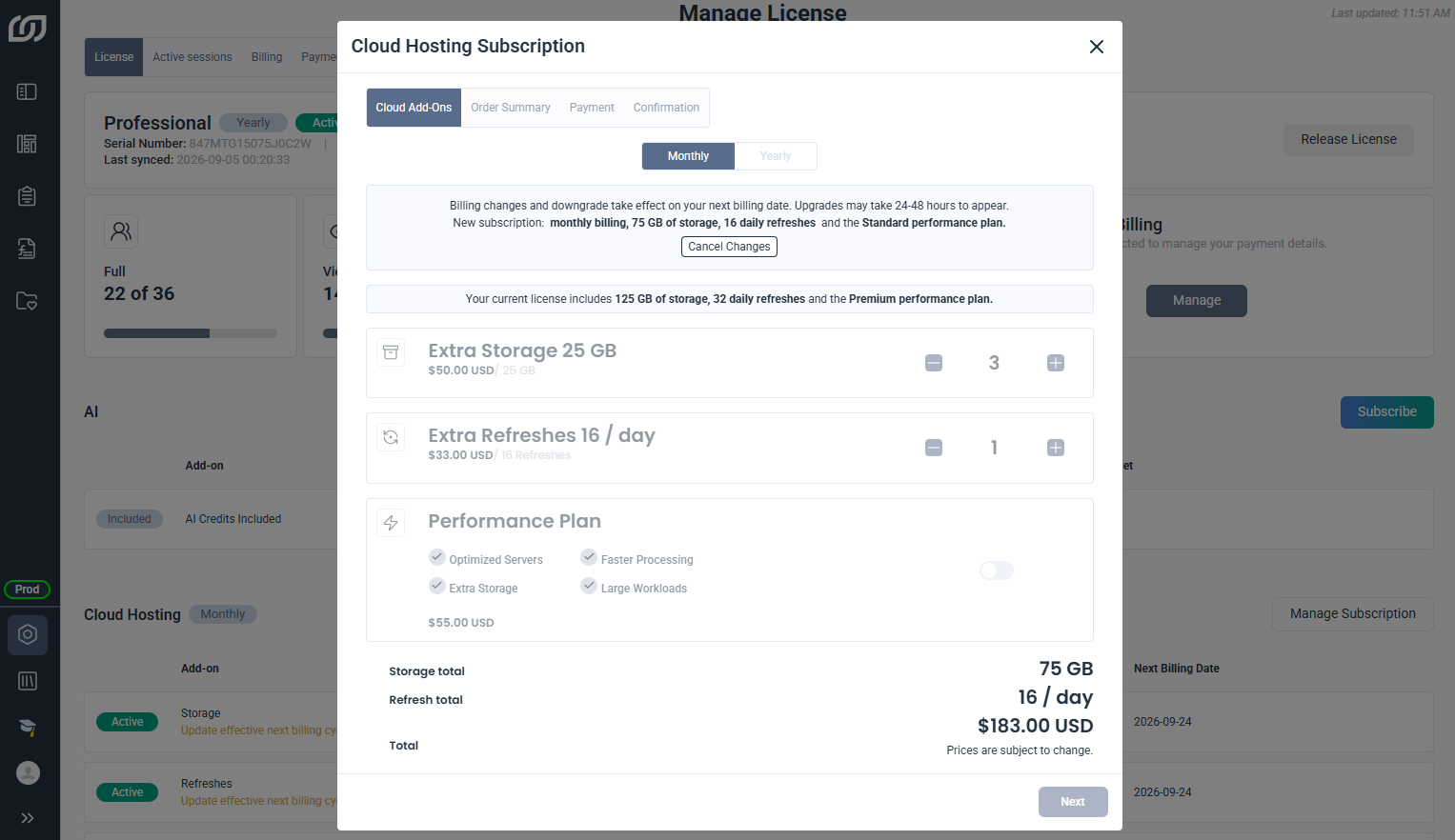
If you no longer want to downgrade, or want to set a different amount instead, you can cancel it at any time before it takes effect, since it only applies at the start of your next billing cycle.
Only one change can be pending at a time, so the current one needs to be cancelled before a new change can be submitted.
Upgrades can't be cancelled once confirmed, since they take effect immediately.
- In the Administration section, click Manage License.
- Under Cloud Hosting, click Manage Subscription.
- Click Cancel Changes.
- Accept the confirmation message.
- Click Close.