AI Credits
AI credits are consumed each time Nectari Copilot is used, the AI assistant integrated into Nectari. Depending on the feature, Nectari Copilot can answer knowledge questions, generate insights from data, or make changes directly, and each of these actions draws from the available credits.
With the new license model introduced in 2026, a Professional license includes a base amount of AI credits. If the base amount isn't enough, additional credits can be subscribed to at any time, provided SEI is configured with HTTPS. Subscribing increases the total limit for the license, and the additional credits can then be distributed across users by setting a credit limit per user.
Credits reset at the start of each billing period. After reset, the base credits are restored, plus any additional credits from the subscription. The Next Credit Reset date shows exactly when this happens.
Subscribing to AI credits applies to the license model introduced in 2026.
Pay as you go billing
You are only charged for the additional credits you actually use each month, not the full limit you subscribed to. Subscribing to a higher limit sets a ceiling on how many credits you can use, but you're only billed for what you actually consume that month.
A subscription with a $12 USD limit, where only $5 USD worth of credits are used that month, is billed $5 USD.
Subscribe to additional AI credits
Subscribing to additional credits sets a spending limit, billed in USD using the pay-as-you-go billing system. You can set a limit of up to $500 USD, and you're only charged for the credits you actually use within that limit.
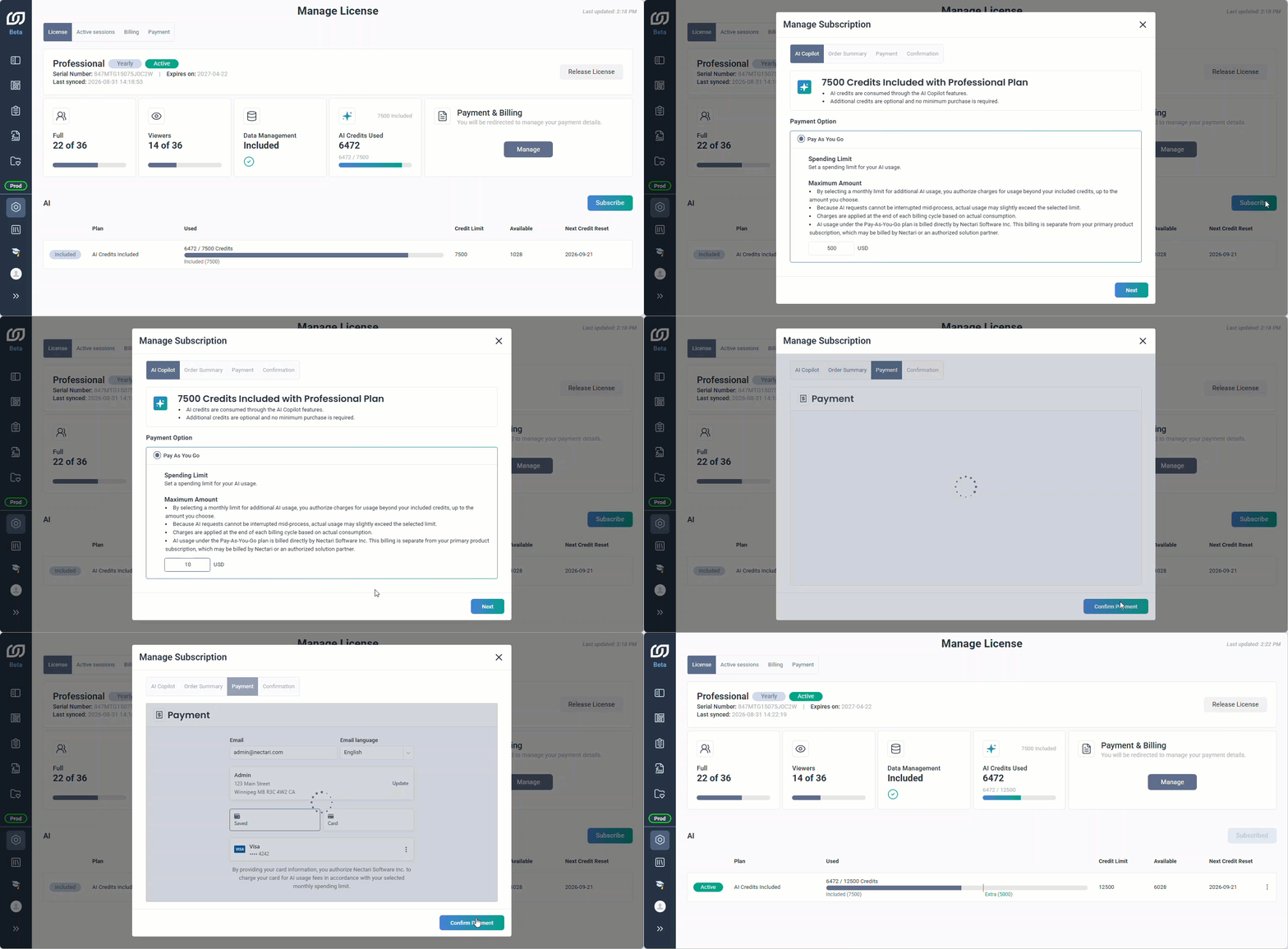
- In the navigation panel, click the gear icon to open Administration.
- Select Manage License from the sidebar.
- Select Subscribe.
- Enter a spending limit up to $500 USD.
- Click Next and review your order summary.
- Click Proceed to Payment.
- Enter your payment details and click Confirm Payment.
View general credit usage
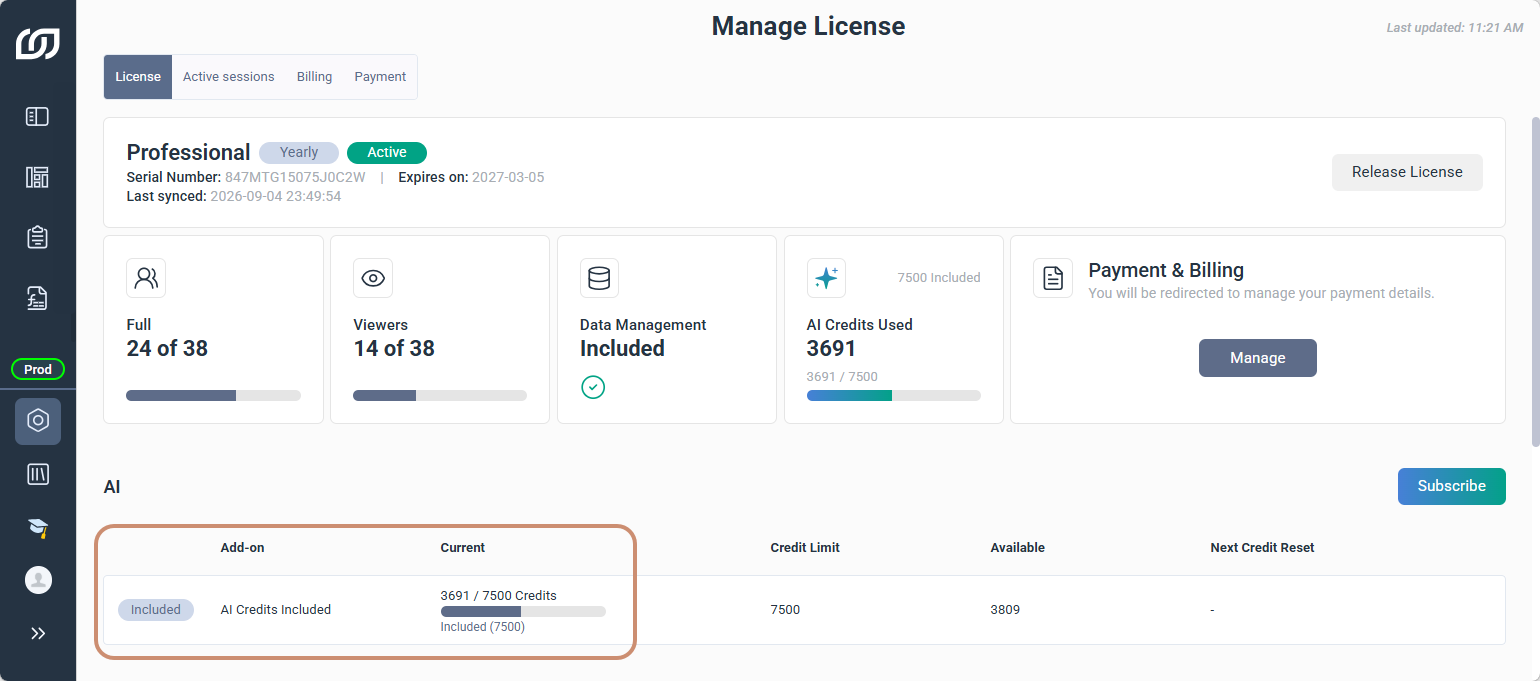
Before subscribing to additional AI credits, the Included badge appears next to the base plan. The table shows overall AI credit usage, while usage per user can be viewed on the AI Management page.
- Add-on is the current subscription status.
- Current shows credits used out of the total available, with a bar that fills as credits are consumed.
- Credit Limit is the total number of credits available for the billing period.
- Available shows how many credits remain before the limit is reached.
- Next Credit Reset shows when the credit count resets, visible once a subscription is active.

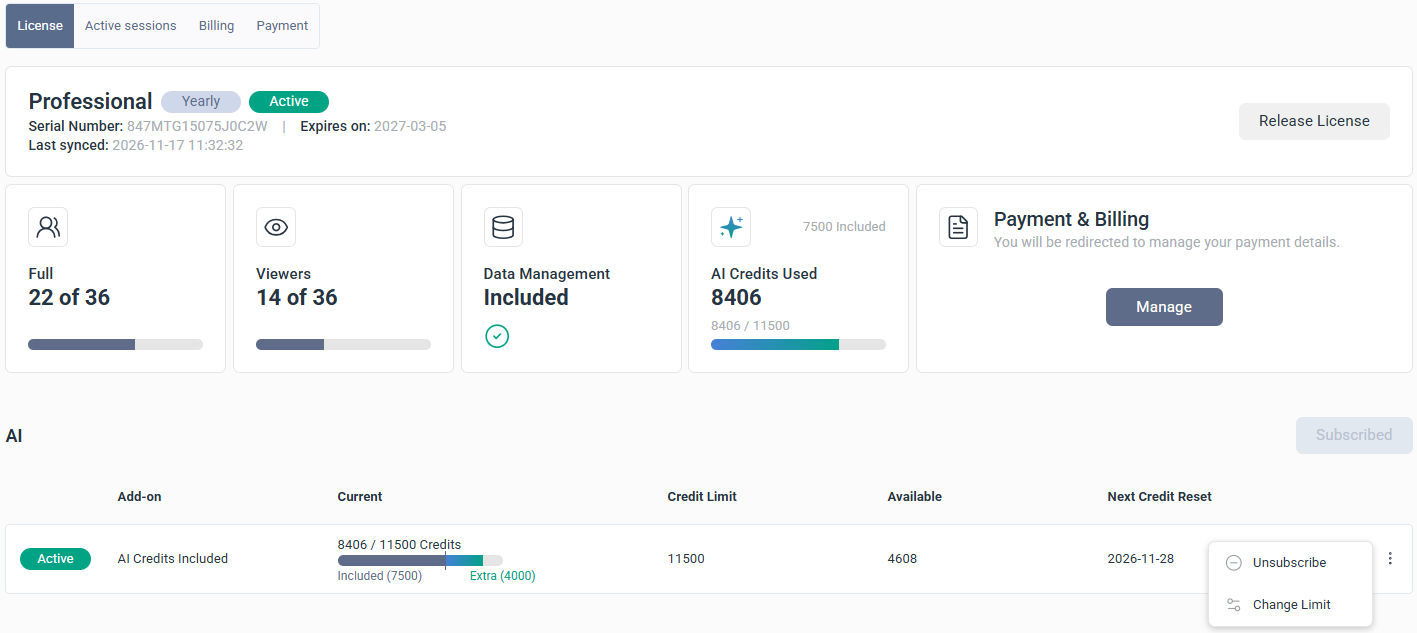
Once you subscribe to additional credits, the badge changes to Active, and your Credit Limit and Available columns update to include the extra credits. The bar under Current is now split by a line into two sections, Included and Extra. Your credits come from the included amount first. Once you've used that portion, your extra credits start being consumed, and the second section of the bar begins to fill.


Change or cancel your subscription
You can always increase or decrease the limit, based on your credit usage, by clicking Change Limit in the AI section's three-dot menu. You can also unsubscribe at any time to stop purchasing additional credits, starting with your next billing cycle. Once unsubscribed, your limit reverts to the base amount included with your license.
Unsubscribe from extra AI credits
- In the navigation panel, click the gear icon to open Administration.
- Select Manage License from the sidebar.
- Under the AI section, click the three dots.
- Click Unsubscribe.
- Accept the confirmation message.
After unsubscribing, it may take up to one hour for the change to appear on your invoice.