User Management
The User Management tab is the section of the AI Management page that shows the list of all users on your license. For each user, you can review their credit usage and whether a credit limit is set for them.
To access the page, select the gear icon in the navigation panel on the left to open the Administration section, then select AI Management in the sidebar.
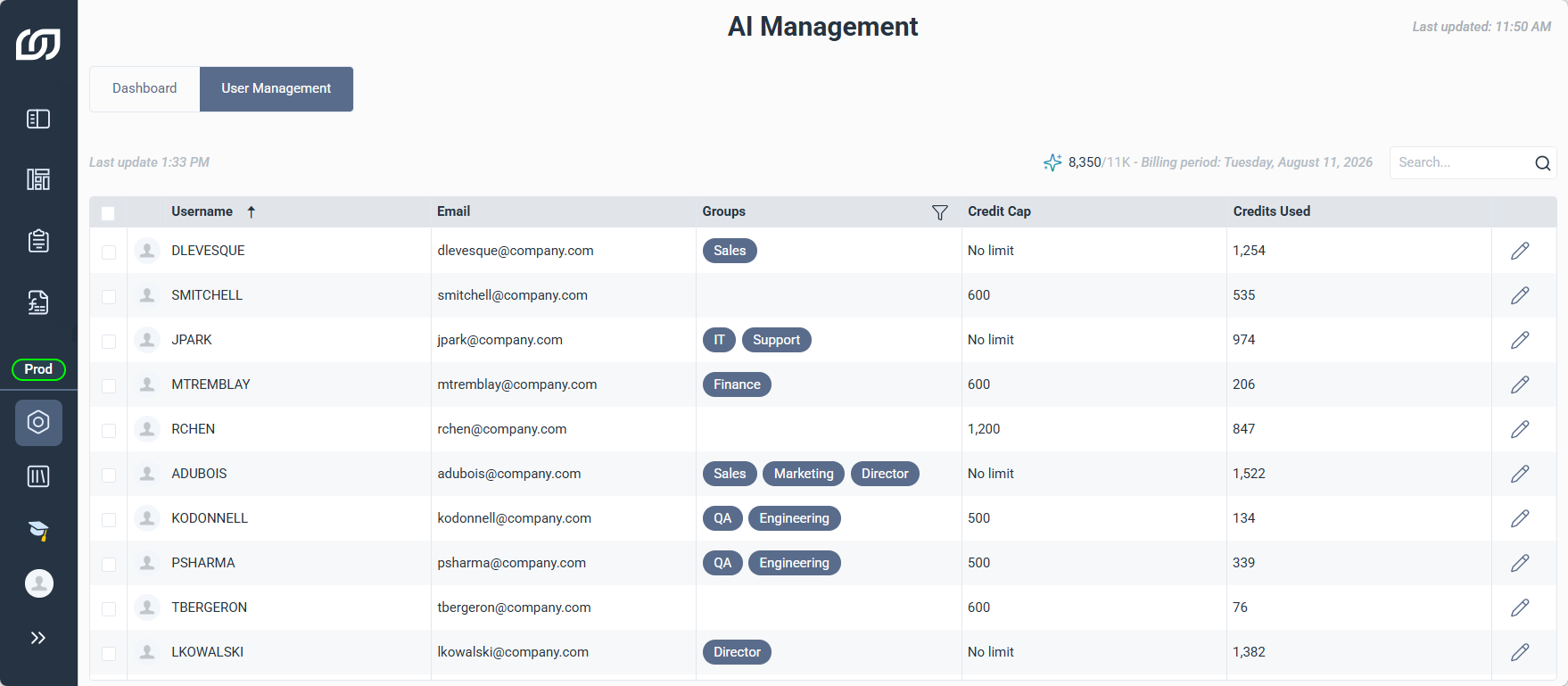
Review credit caps and usage per user
| Column | What it shows |
|---|---|
| Username | Login name of the user. |
| Email address of the user. | |
| Groups | Groups the user belongs to. Examples: Sales, Finance, IT. |
| Credit Cap | Maximum Nectari Copilot credits the user can use, if a limit is set. No limit by default. |
| Credits Used | Nectari Copilot credits used by the user, for the current billing period. |
Set a credit limit for a user
You can set a limit for specific users based on their individual usage, their groups, or other restrictions. This limit can be changed or removed at any time just by clicking the pen icon next to the user.
The Finance team could have a limit of 1,000 credits, while the team's director keeps No Limit. A new hire, on the other hand, might start with a limit of 400.
- In the navigation panel, click the gear icon to open Administration.
- Select AI Management from the sidebar.
- Click the User Management tab.
- Click the pen icon next to the user to add a limit to.
- Enter the credit limit.
- Click Save. The new limit appears in the Credit Cap column.
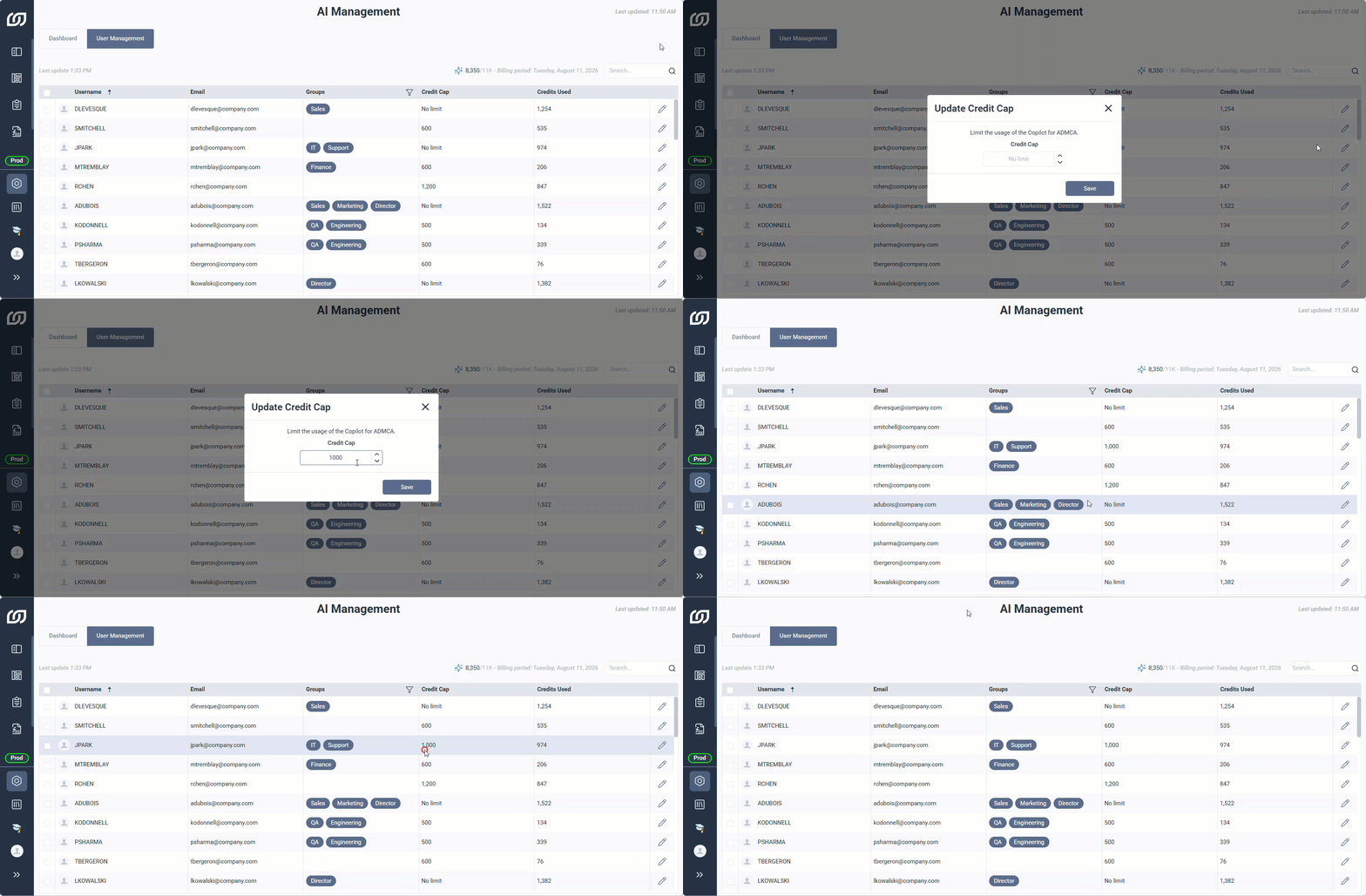
To set a limit in bulk, select multiple users and click Modifier at the top left corner of the list.
